New Trade Zone
Trade Zone is now live
Use the new Trade Zone for auctions and instant-price trades so Pokemon and item offers are easy to find.

Shineycharizard
Registered User
-
Joined
-
Last visited
Everything posted by Shineycharizard
-
105m
-
start
-
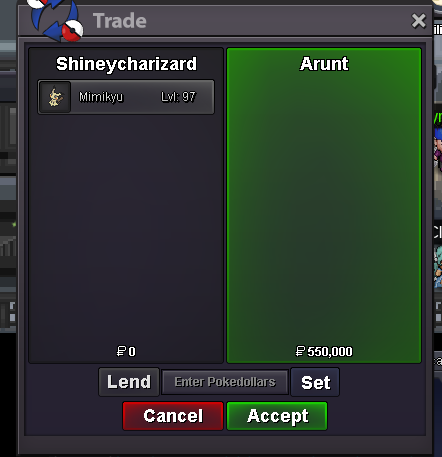
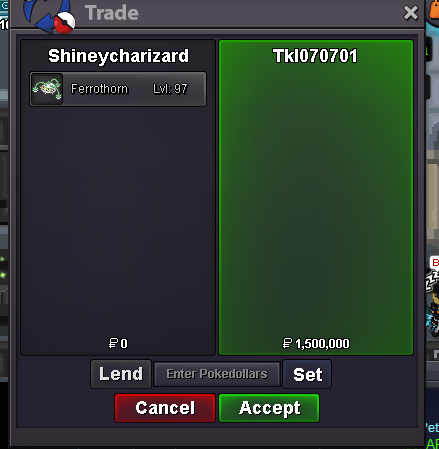
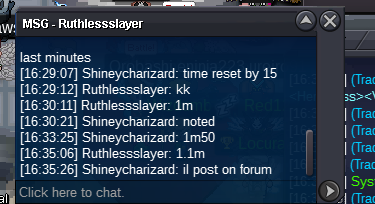
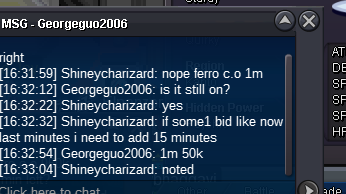
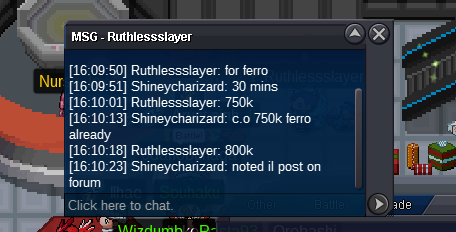
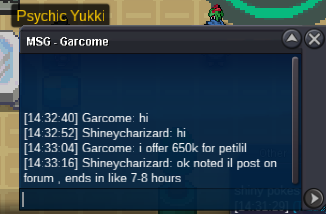
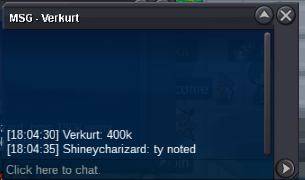
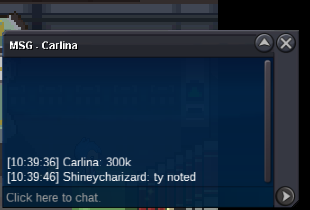
@Tkl070701 u won ferro@Suncity u won mimiThis is not a bundle. Start : 300k each Min bid : 50k Ends 48h after first bid gl
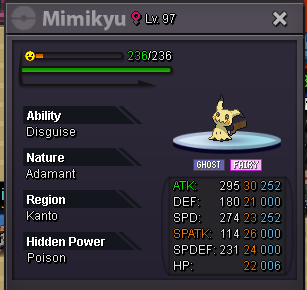
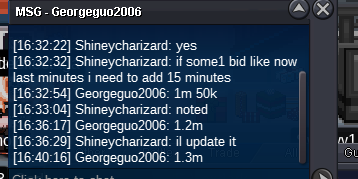
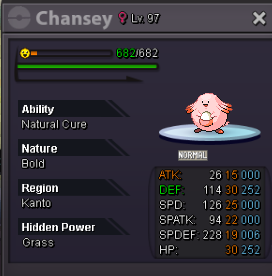
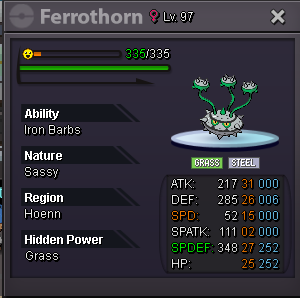 Start : 300k each Min bid : 50k End 48h after first bid accept cc 400k not a bundle. goodluck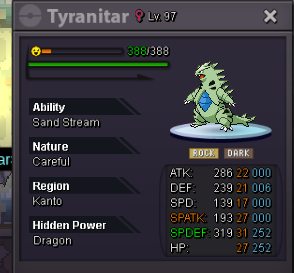
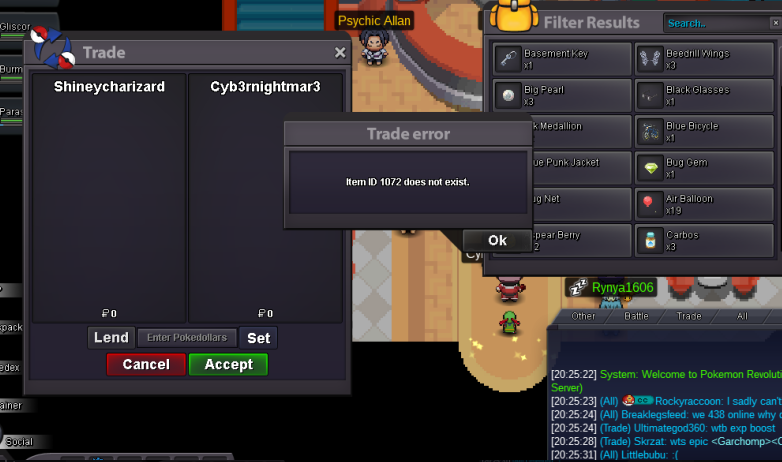
 hmm strange , so why did it say when i try to trade it item id not found? and ye i know i traded the 2 bms to my acc shineywartortle but was just to see if it working. thnx anyway and im not worried about it just thought it was weird i dont know thank u for replyingin the screenshot u can see that i have a bms which i tried to sell and it said item id not found , so i tried to relog sell again and didnt work , i opened my backpack and bms was gone so after that i used another cc and traded 2 bms to my alt account wartortle to see if it was workingYes i did have 2 in my backpack which i traded to my other account but thats because i used another cc to see if i could trade bms again.So i just used a cc bought 2 bms from it , was going to sell them and it said item id not found. i try to trade them it didnt work and after i relog i checked my bag and bms was gone , not sure what happend never had this before thnx for helping
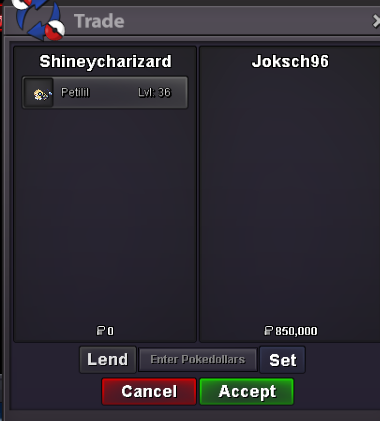
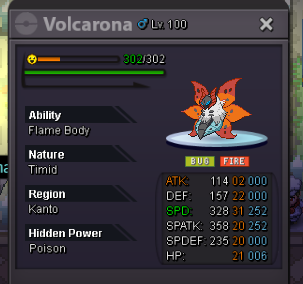
 start scytherU won @Joksch96Start : 200k Min bid : 50k End 72h after first bid gl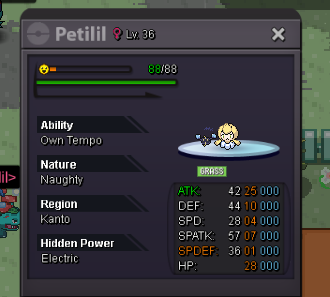
Account
Navigation
Search
Configure browser push notifications
Chrome (Android)
- Tap the lock icon next to the address bar.
- Tap Permissions → Notifications.
- Adjust your preference.
Chrome (Desktop)
- Click the padlock icon in the address bar.
- Select Site settings.
- Find Notifications and adjust your preference.
Safari (iOS 16.4+)
- Ensure the site is installed via Add to Home Screen.
- Open Settings App → Notifications.
- Find your app name and adjust your preference.
Safari (macOS)
- Go to Safari → Preferences.
- Click the Websites tab.
- Select Notifications in the sidebar.
- Find this website and adjust your preference.
Edge (Android)
- Tap the lock icon next to the address bar.
- Tap Permissions.
- Find Notifications and adjust your preference.
Edge (Desktop)
- Click the padlock icon in the address bar.
- Click Permissions for this site.
- Find Notifications and adjust your preference.
Firefox (Android)
- Go to Settings → Site permissions.
- Tap Notifications.
- Find this site in the list and adjust your preference.
Firefox (Desktop)
- Open Firefox Settings.
- Search for Notifications.
- Find this site in the list and adjust your preference.