New Trade Zone
Trade Zone is now live
Use the new Trade Zone for auctions and instant-price trades so Pokemon and item offers are easy to find.

Lieshanyen
Registered User
-
Joined
-
Last visited
Everything posted by Lieshanyen
-
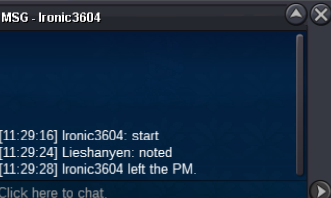
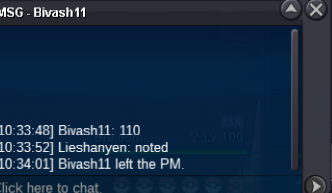
closed winner @Zil18 please pm if u are onlineBumpS.O 100k Min bid:20k closed:24 hour (after fisrt bid) insta:800k If a bid is received in the last 15 minutes of the auction, the end point will be delayed by 15 minutes from that bid, and will be delayed by 15 minutes for each new bid after that, until the current bid has been held for the full 15 minutes
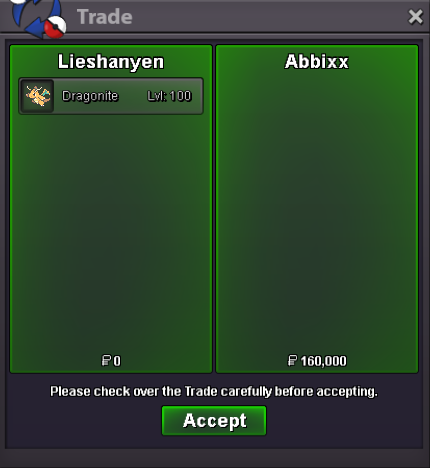
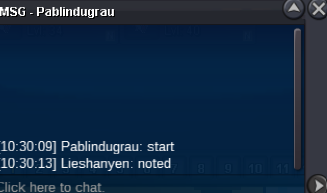
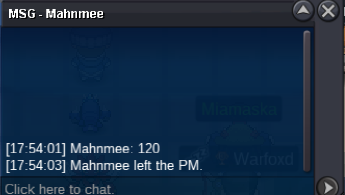
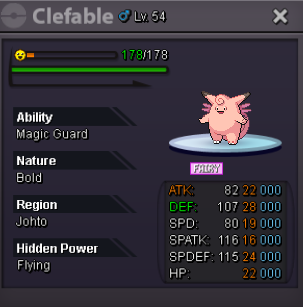 closed winner @Abbixx1 please pm me if u are online1 hour 13 minutes leftS.o : 100k Min bid:10k close:24 hour( start after first bid)
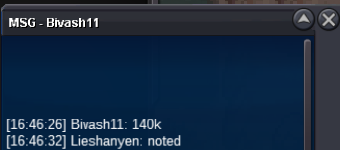
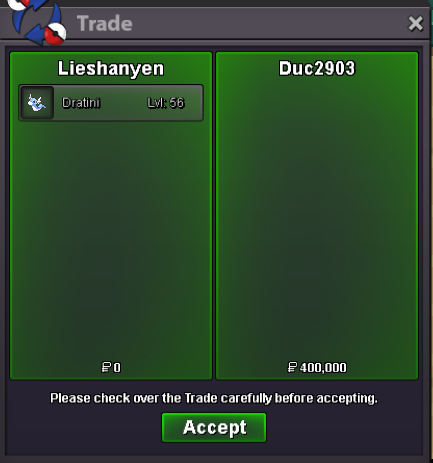
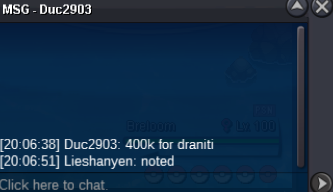
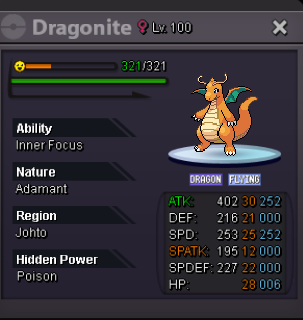 close winner @Duc2903 please contact me if u are onlineS.o:100k Min bid:20k closed:24 hour (start after first bid) If a bid is received in the final 15 minutes of the auction, the end point will be delayed by 15 minutes from that bid, and will be delayed by 15 minutes for each new bid thereafter, until the current offer has been held for a full 15 minutes.
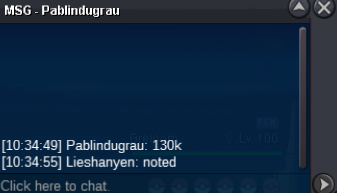
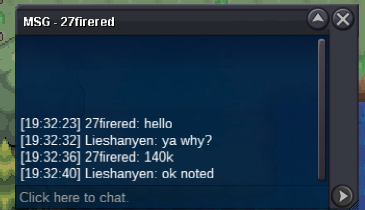
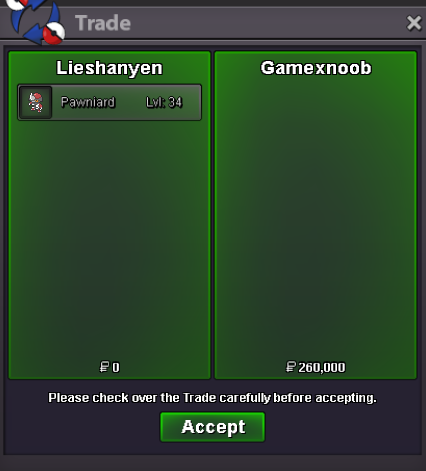
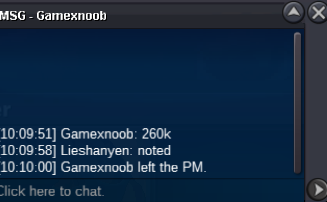
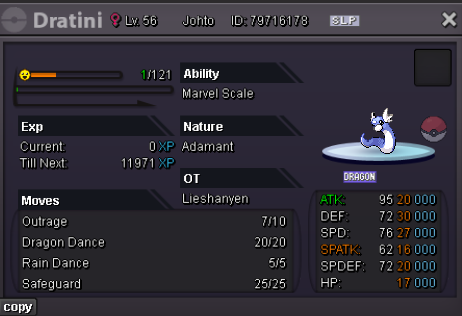 i want buy team bos 1 set please tell if u online thx uClosed winner @Gamexnoob4 minute left closed6 hour 59minutes left
Account
Navigation
Search
Configure browser push notifications
Chrome (Android)
- Tap the lock icon next to the address bar.
- Tap Permissions → Notifications.
- Adjust your preference.
Chrome (Desktop)
- Click the padlock icon in the address bar.
- Select Site settings.
- Find Notifications and adjust your preference.
Safari (iOS 16.4+)
- Ensure the site is installed via Add to Home Screen.
- Open Settings App → Notifications.
- Find your app name and adjust your preference.
Safari (macOS)
- Go to Safari → Preferences.
- Click the Websites tab.
- Select Notifications in the sidebar.
- Find this website and adjust your preference.
Edge (Android)
- Tap the lock icon next to the address bar.
- Tap Permissions.
- Find Notifications and adjust your preference.
Edge (Desktop)
- Click the padlock icon in the address bar.
- Click Permissions for this site.
- Find Notifications and adjust your preference.
Firefox (Android)
- Go to Settings → Site permissions.
- Tap Notifications.
- Find this site in the list and adjust your preference.
Firefox (Desktop)
- Open Firefox Settings.
- Search for Notifications.
- Find this site in the list and adjust your preference.