



Skip to content
View in the app

A better way to browse. Learn more.

Pokemon Revolution Online

A full-screen app on your home screen with push notifications, badges and more.
To install this app on iOS and iPadOS
  1. Tap the Share icon in Safari
  2. Scroll the menu and tap Add to Home Screen.
  3. Tap Add in the top-right corner.
To install this app on Android
  1. Tap the 3-dot menu (⋮) in the top-right corner of the browser.
  2. Tap Add to Home screen or Install app.
  3. Confirm by tapping Install.
New Trade Zone
Trade Zone is now live
Use the new Trade Zone for auctions and instant-price trades so Pokemon and item offers are easy to find.
Open Trade Zone

Screen gets dim and my character gets stuck after every couple of minutes.

Featured Replies

Hi! I am facing two issues actually.
1. The game freezes too many times. I am on lenovo t490 i7 8th gen 16/512 so I dont think it should freeze that much.
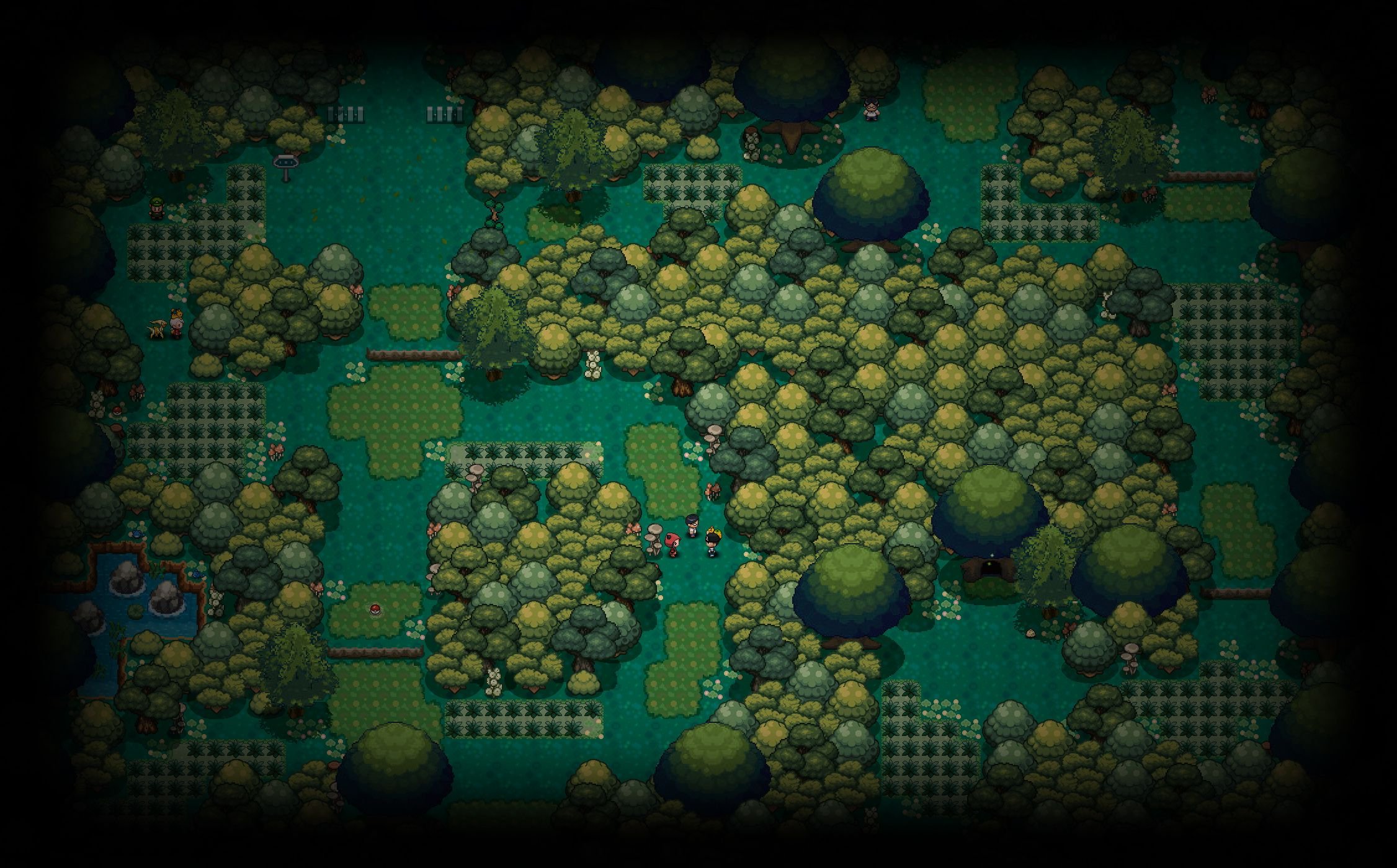
2. I am facing it today. After every couple of minutes, the screen is getting dim as shown in the picture and my character gets stuck while everyone else around me seems moving.

Screenshot 2026-11-11 102115.png

  • 2 weeks later...

Hi Snorlaxnapz

My apologies for the late response, and thank you for the detail on your device. Your specs should be able to handle PRO comfortably, so this is most likely a settings or install problem. Please try the following in order:

  1. Cap your FPS and turn off VSync. If it still freezes, turn off weather and dynamic lighting in the settings.

  2. Switch display mode. Try windowed mode instead of fullscreen, or toggle between them.

  3. Update your drivers. Update your graphics drivers and the latest, if necessary.

The reason it looks so dark in-game is because of the location you are in and the current time of day. Disabling the settings mentioned above should solve this issue immediately, and hopefully the other suggestions will resolve any stuttering or freezes.

Let us know if this helps!

kind regards,
Brambleghast

Create an account or sign in to comment

Account

Navigation

Search

Search

Configure browser push notifications

Chrome (Android)
  1. Tap the lock icon next to the address bar.
  2. Tap Permissions → Notifications.
  3. Adjust your preference.
Chrome (Desktop)
  1. Click the padlock icon in the address bar.
  2. Select Site settings.
  3. Find Notifications and adjust your preference.