New Trade Zone
Trade Zone is now live
Use the new Trade Zone for auctions and instant-price trades so Pokemon and item offers are easy to find.

Loftydc
Registered User
-
Joined
-
Last visited
-
What is your Discord tag? Brancaleon [218]#5207 How often do you use Discord? Everyday I use my pc If you could improve PRO's Discord with one suggestion, what would it be? Add a "General" channel for each server so to decrease the spam and messages.
-
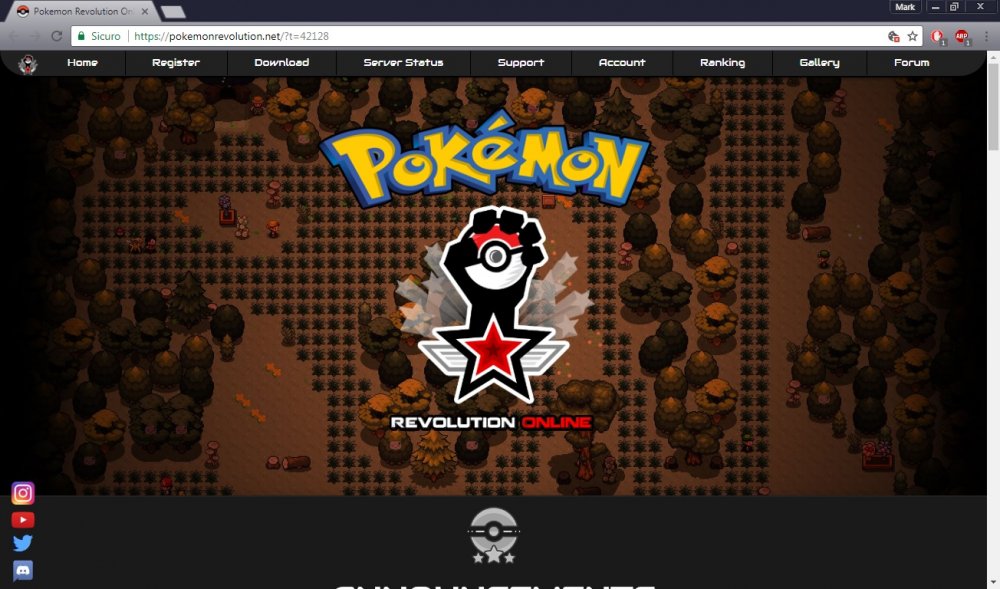
I can't access any page of the sections "Forums" and "Game Guide". Both of them redirect me to "https://pokemonrevolution.net/?t=xyz" where xyz is supposed to address the date of the post. For example I was looking for "pokemon revolution hoenn kanto", the first link provided me by Google is this "Hoenn -> back to kanto ?! - Pokemon Revolution Online" which has address "https://pokemon-revolution-online.net/Forum/viewtopic.php?t=42128". When I try to load the page I end up in the home ( aka https://pokemonrevolution.net/index.php ) but the link in the address bar is "https://pokemonrevolution.net/?t=42128". How can I consult the forum and game guide? First search on Google: What happens when clicking on that link: please note the link in the address bar and check how the loaded page is actually the homepage, not the correct result I was looking for.