New Trade Zone
Trade Zone is now live
Use the new Trade Zone for auctions and instant-price trades so Pokemon and item offers are easy to find.

Mrdiamante
Registered User
-
Joined
-
Last visited
Everything posted by Mrdiamante
-
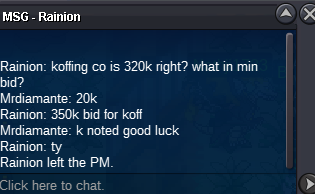
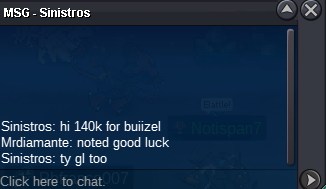
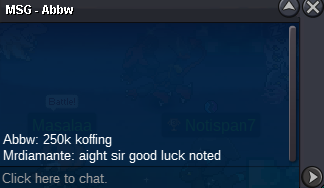
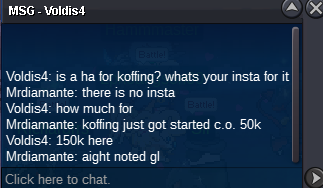
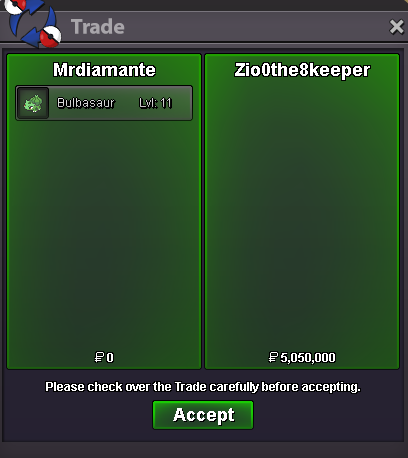
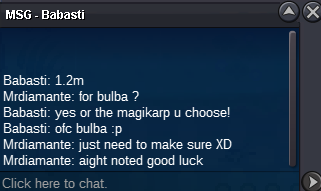
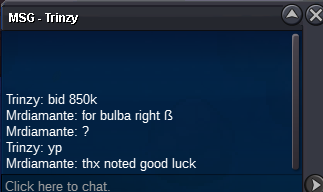
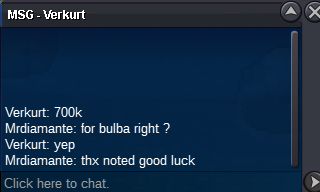
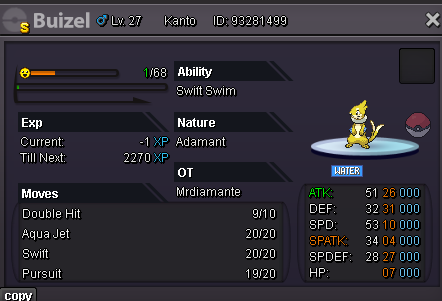
buizel started with 100k allready broStart Offer: 50k each Min Bid: 20k No insta Only Pokedollar Auction ends 12h after first bid is placed No Bundle
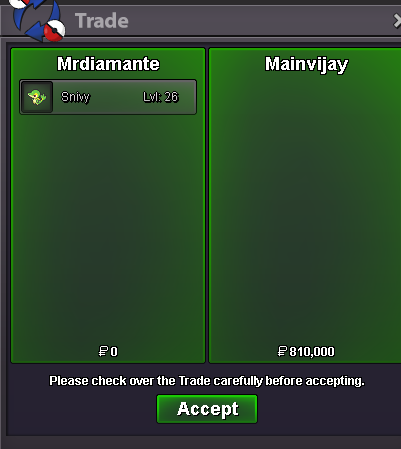
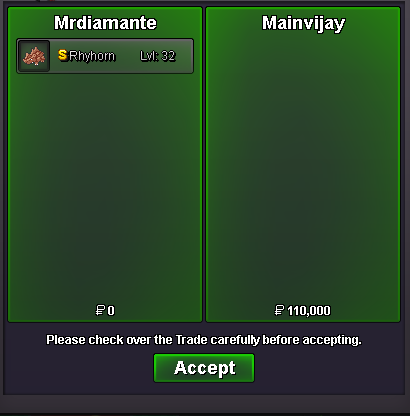
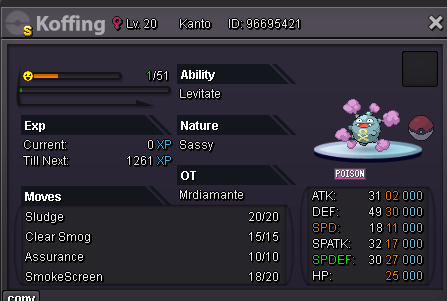 auction ends @Mainvijaywon snivy2 more min bro@Akugami am online sitting in verm if you can@Akugami Winner of Mawile and Beldum @MainvijayWinner of Shiny Rhyhorn Snivy still running good luckexntends by ever bid within the last 15 min for additional 15 min Mawile Beldum and shiny Rhyhorn ended130k right ?auction end tomorrow at 02:27 PM Gmt+2 good luckStarting Offer: 100k each Min Raise: 10k No Insta Only Pokedollar accepted Auction ends 24h after first bid is placed No Bundle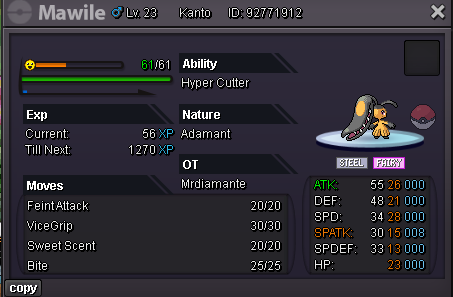
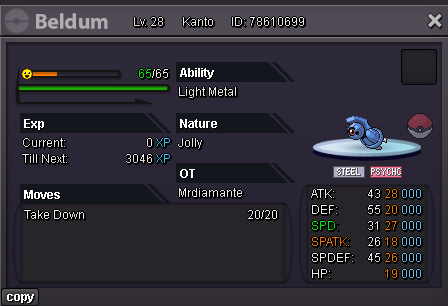
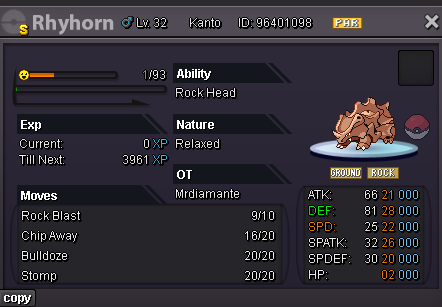
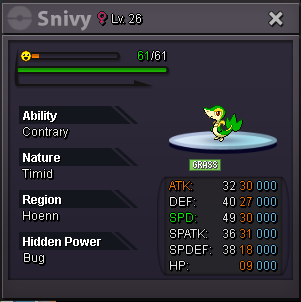 gratz bro good fight you won the auction9 more Minutes to Go i‘ll be online soonyou have to transfer if you win3,5h left / auction ends 06:39 pm Gmt +2
Account
Navigation
Search
Configure browser push notifications
Chrome (Android)
- Tap the lock icon next to the address bar.
- Tap Permissions → Notifications.
- Adjust your preference.
Chrome (Desktop)
- Click the padlock icon in the address bar.
- Select Site settings.
- Find Notifications and adjust your preference.
Safari (iOS 16.4+)
- Ensure the site is installed via Add to Home Screen.
- Open Settings App → Notifications.
- Find your app name and adjust your preference.
Safari (macOS)
- Go to Safari → Preferences.
- Click the Websites tab.
- Select Notifications in the sidebar.
- Find this website and adjust your preference.
Edge (Android)
- Tap the lock icon next to the address bar.
- Tap Permissions.
- Find Notifications and adjust your preference.
Edge (Desktop)
- Click the padlock icon in the address bar.
- Click Permissions for this site.
- Find Notifications and adjust your preference.
Firefox (Android)
- Go to Settings → Site permissions.
- Tap Notifications.
- Find this site in the list and adjust your preference.
Firefox (Desktop)
- Open Firefox Settings.
- Search for Notifications.
- Find this site in the list and adjust your preference.