New Trade Zone
Trade Zone is now live
Use the new Trade Zone for auctions and instant-price trades so Pokemon and item offers are easy to find.

Pokeboiiii
Registered User
-
Joined
-
Last visited
Everything posted by Pokeboiiii
-
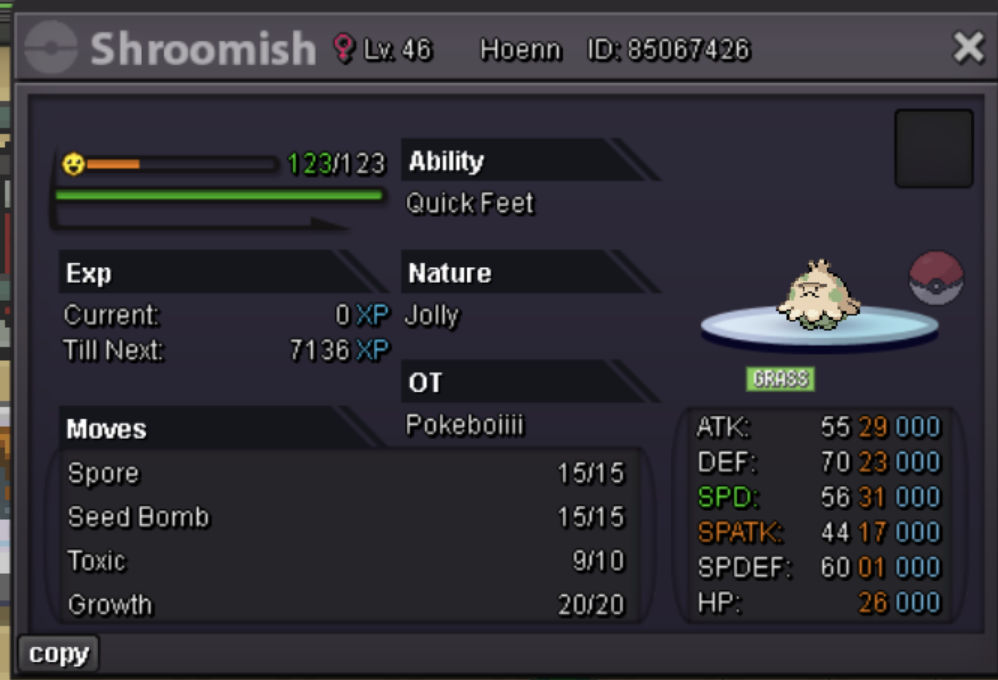
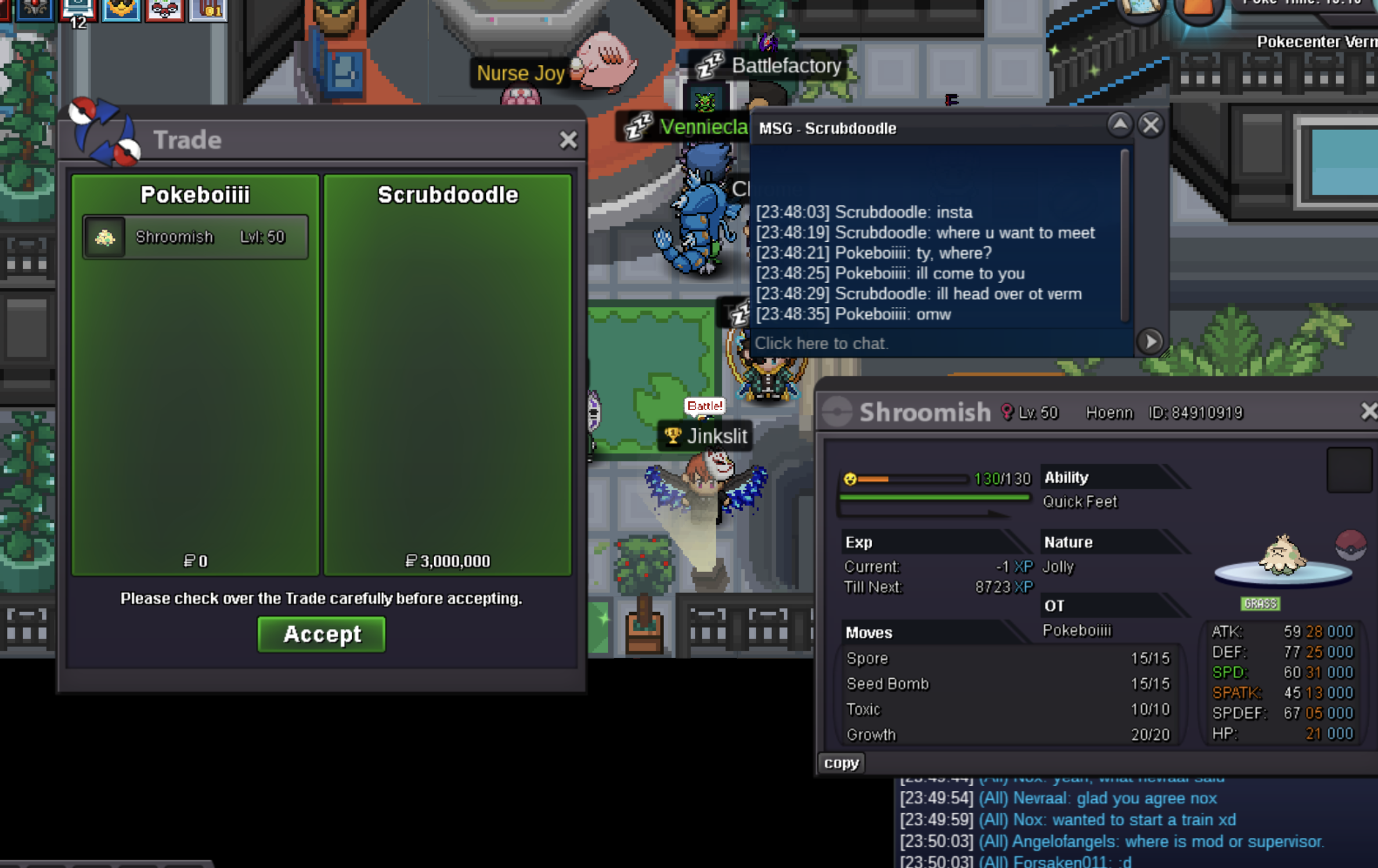
Start Price: 500k End Point: 24hrs from now (https://www.webcountdown.de/?c=1758117900) Insta Price: 3m Minimum Raise: 100k Accepted Payments: Pokedollars, Coin Capsule = 500k, IV Reroll Ticket = 750k)
-
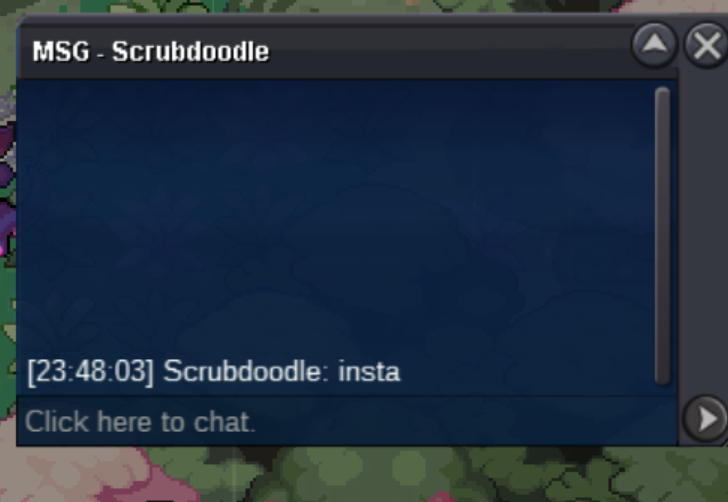
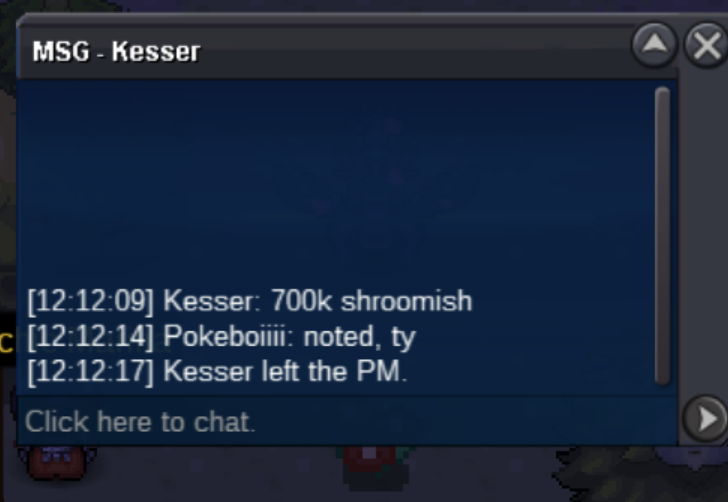
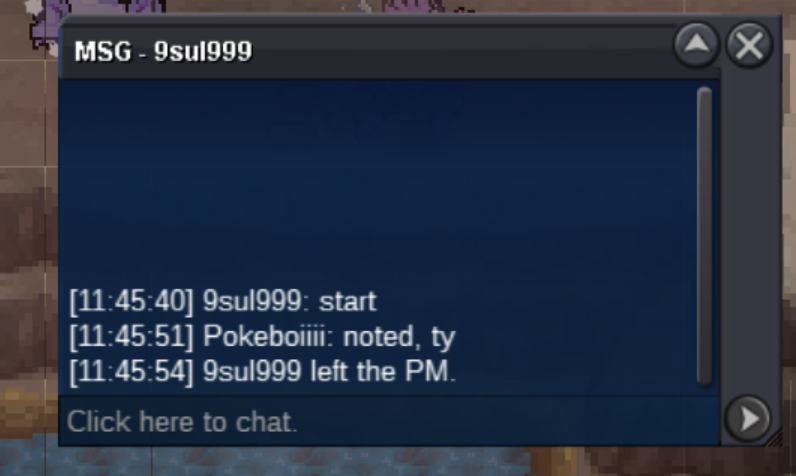
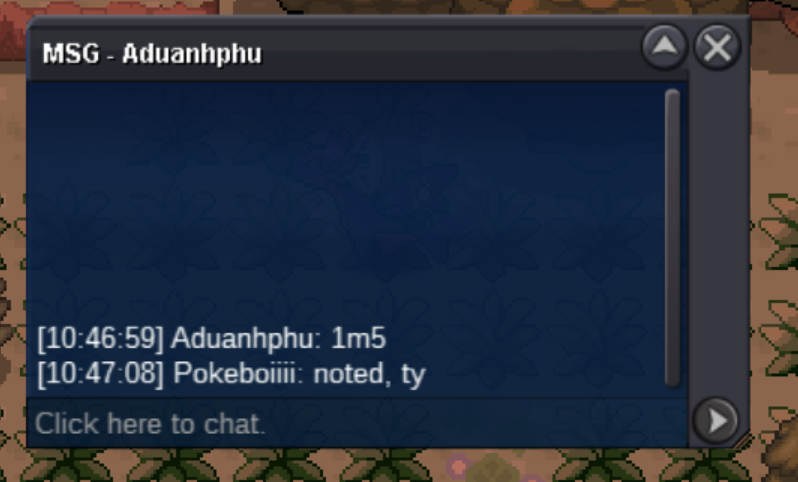
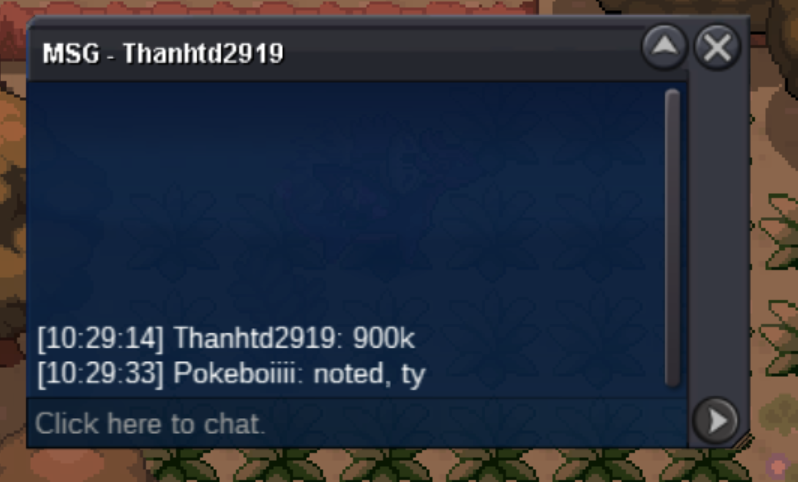
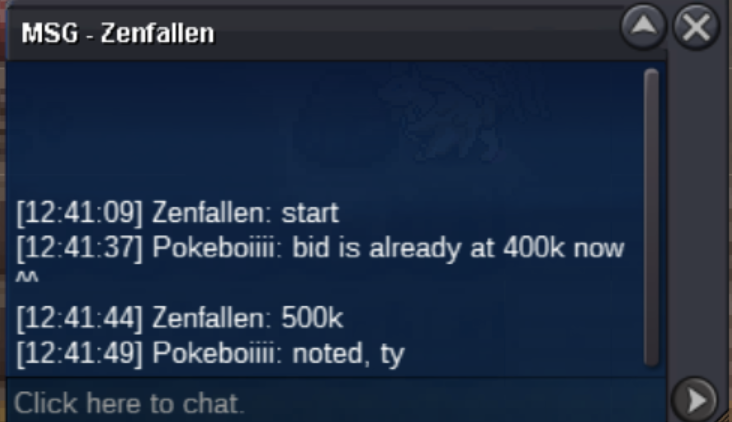
Auction ended, Winner is Scrubdoodle.
-
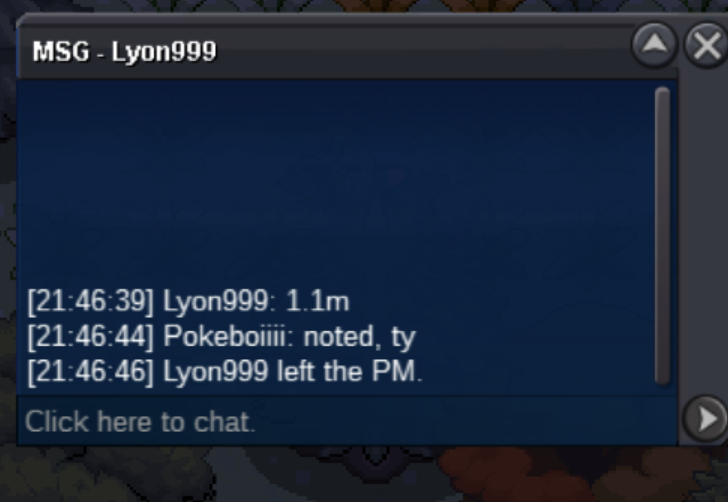
@Firefly12 sorry there was an insta before^^Start Price: 300k End Point: 24hrs from now (https://www.webcountdown.de/?c=1757765280) Insta Price: 3m Minimum Raise: 100k Accepted Payments: Pokedollars, Coin Capsule = 500k, IV Reroll Ticket = 750k)
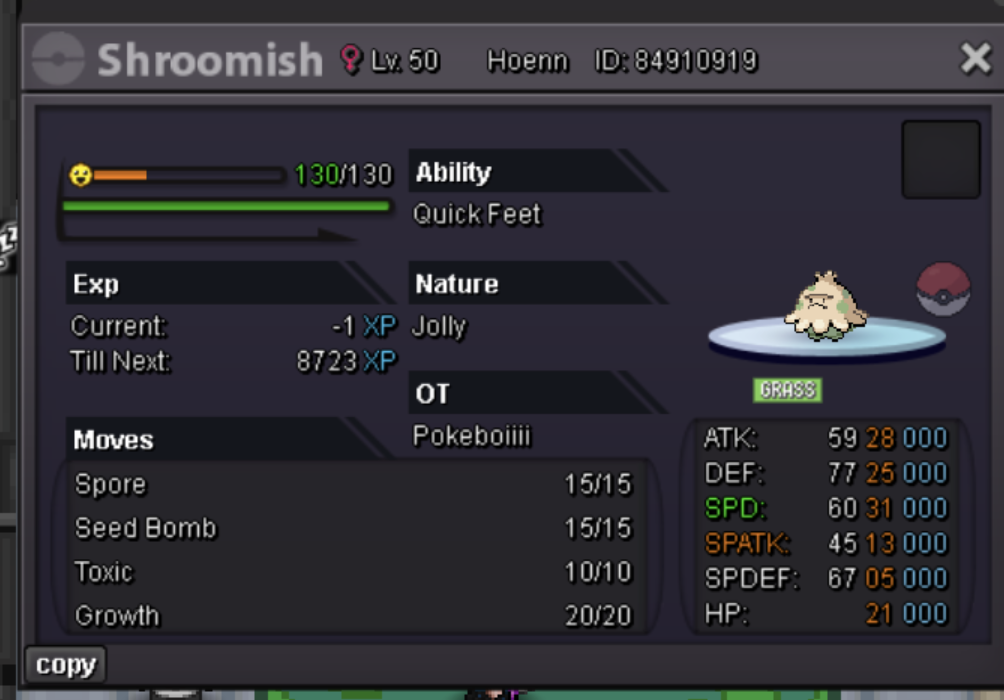 Auction ended by insta. Winner is @Madhavxdark.
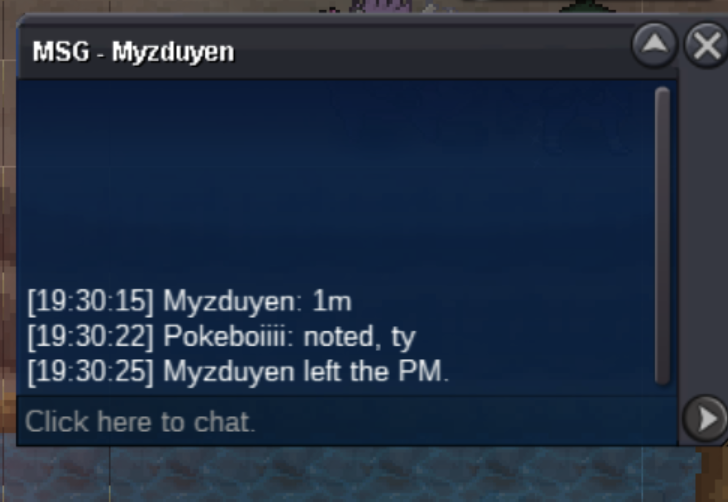
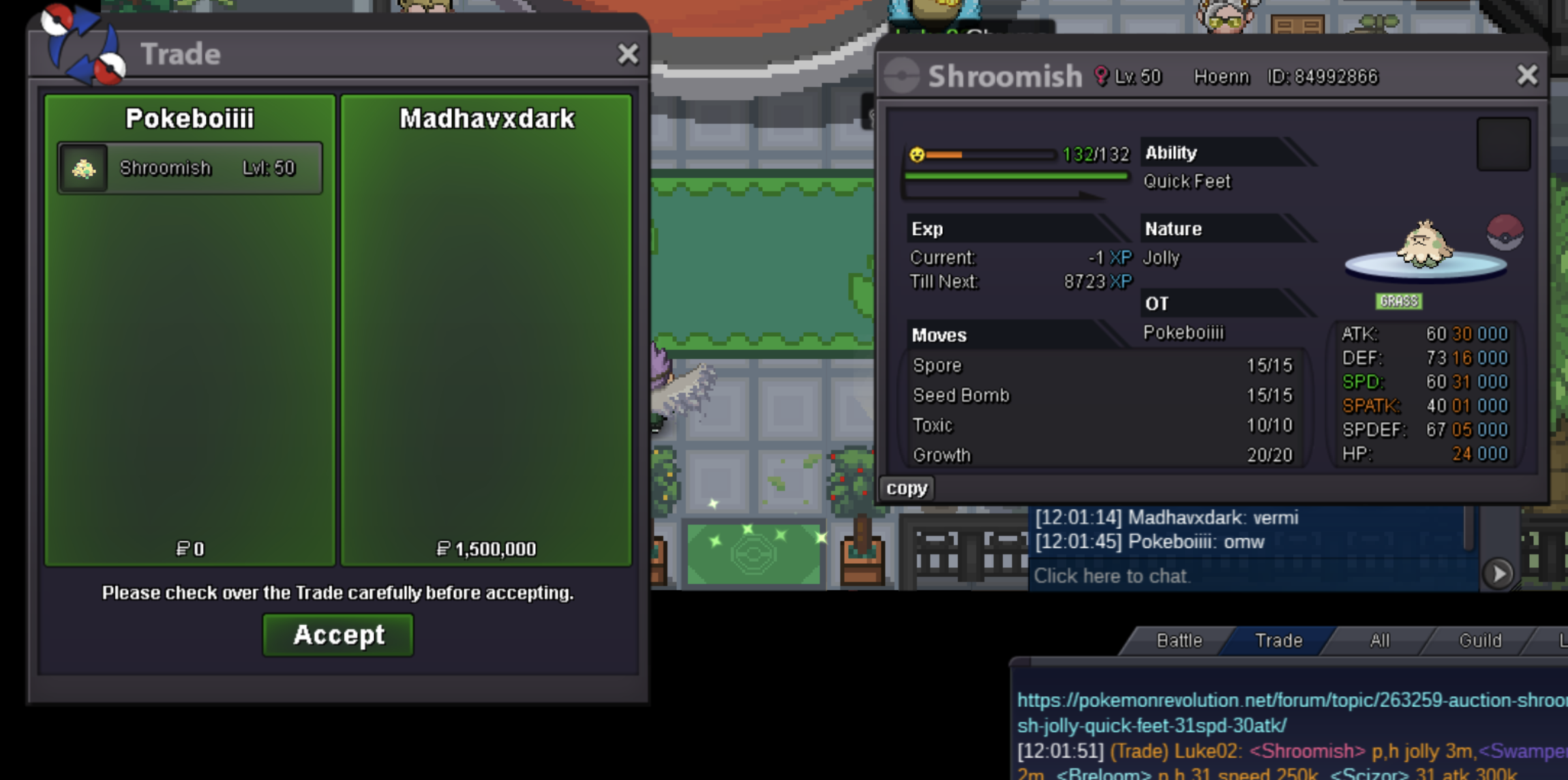 Start Price: 300k End Point: 24hrs from now (https://www.webcountdown.de/?c=1757763600) Insta Price: 1.5m Minimum Raise: 100k Accepted Payments: Pokedollars, Coin Capsule = 500k, IV Reroll Ticket = 750k)
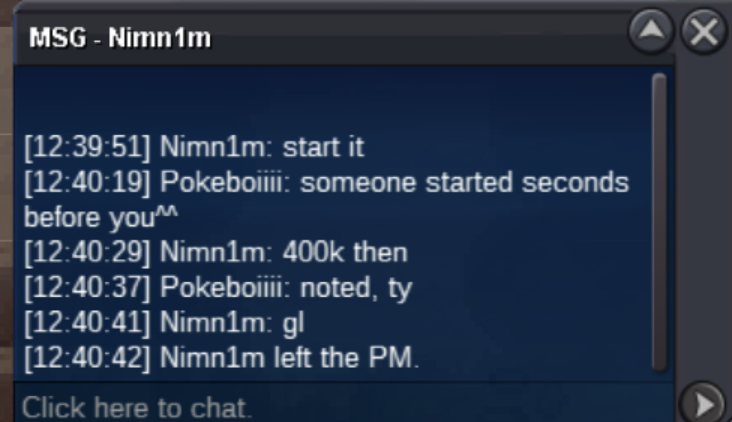
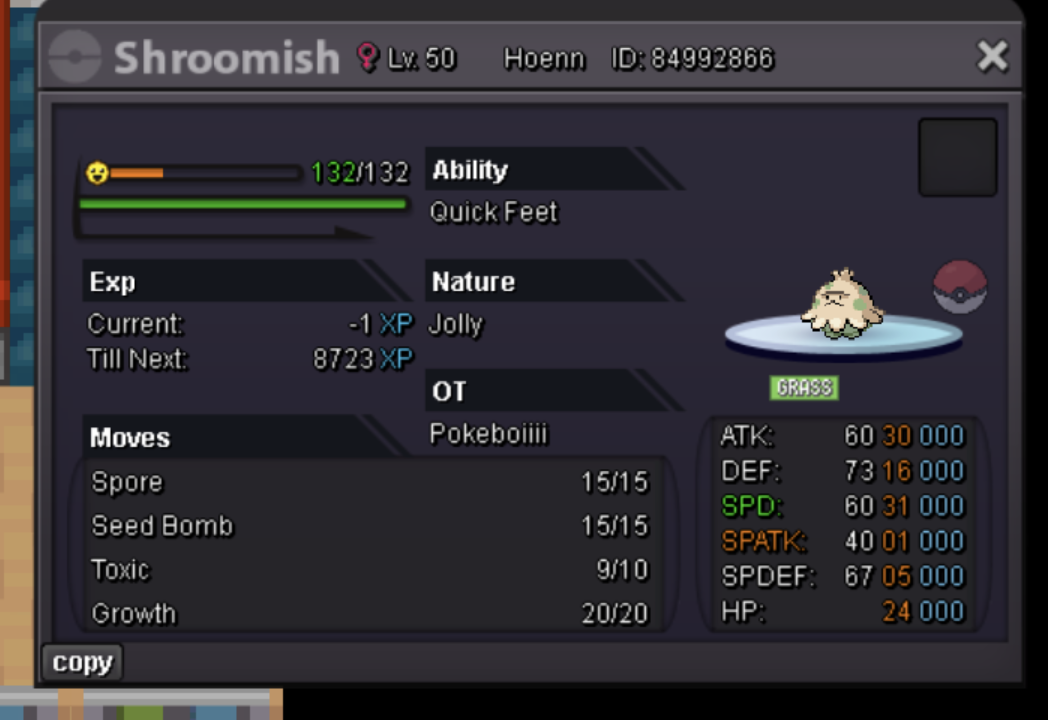 Auction ended by insta, Winner is @Nimn1m
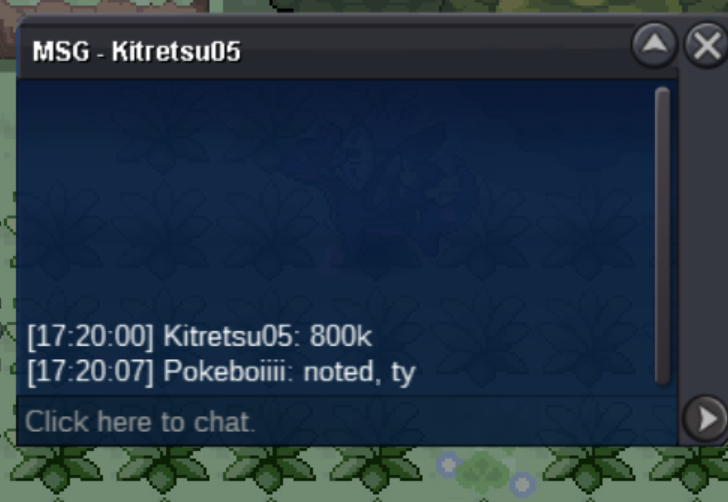
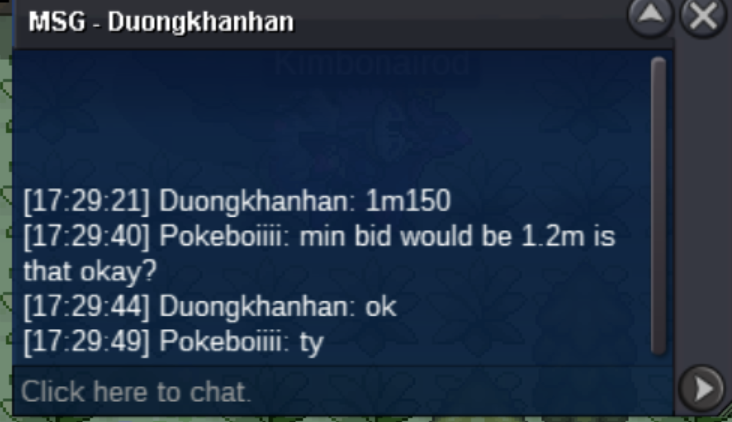
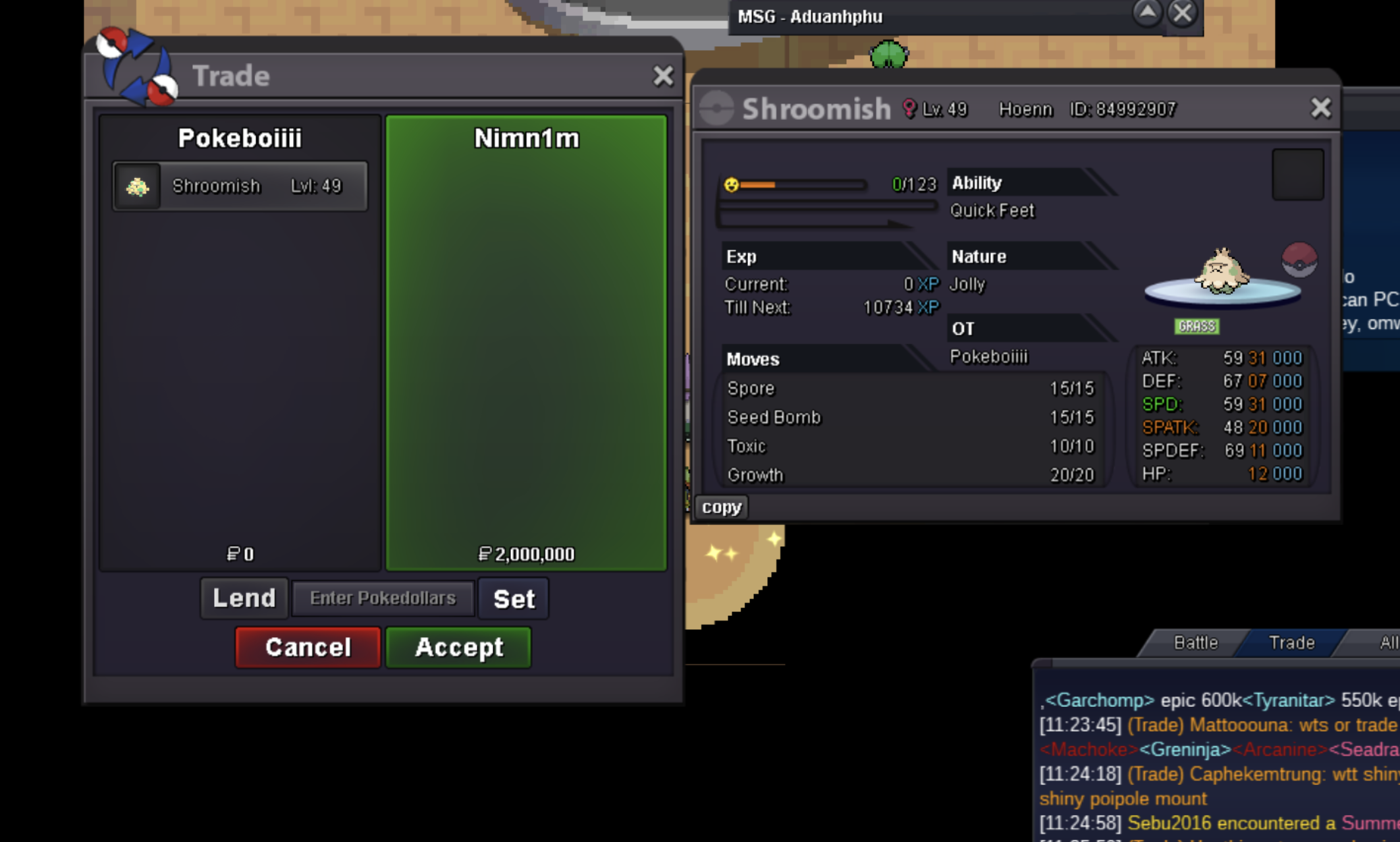 Start Price: 300k End Point: 24hrs from now (https://www.webcountdown.de/?c=1757706000) Insta Price: 2m Minimum Raise: 100k Accepted Payments: Pokedollars, Coin Capsule = 500k, IV Reroll Ticket = 750k)
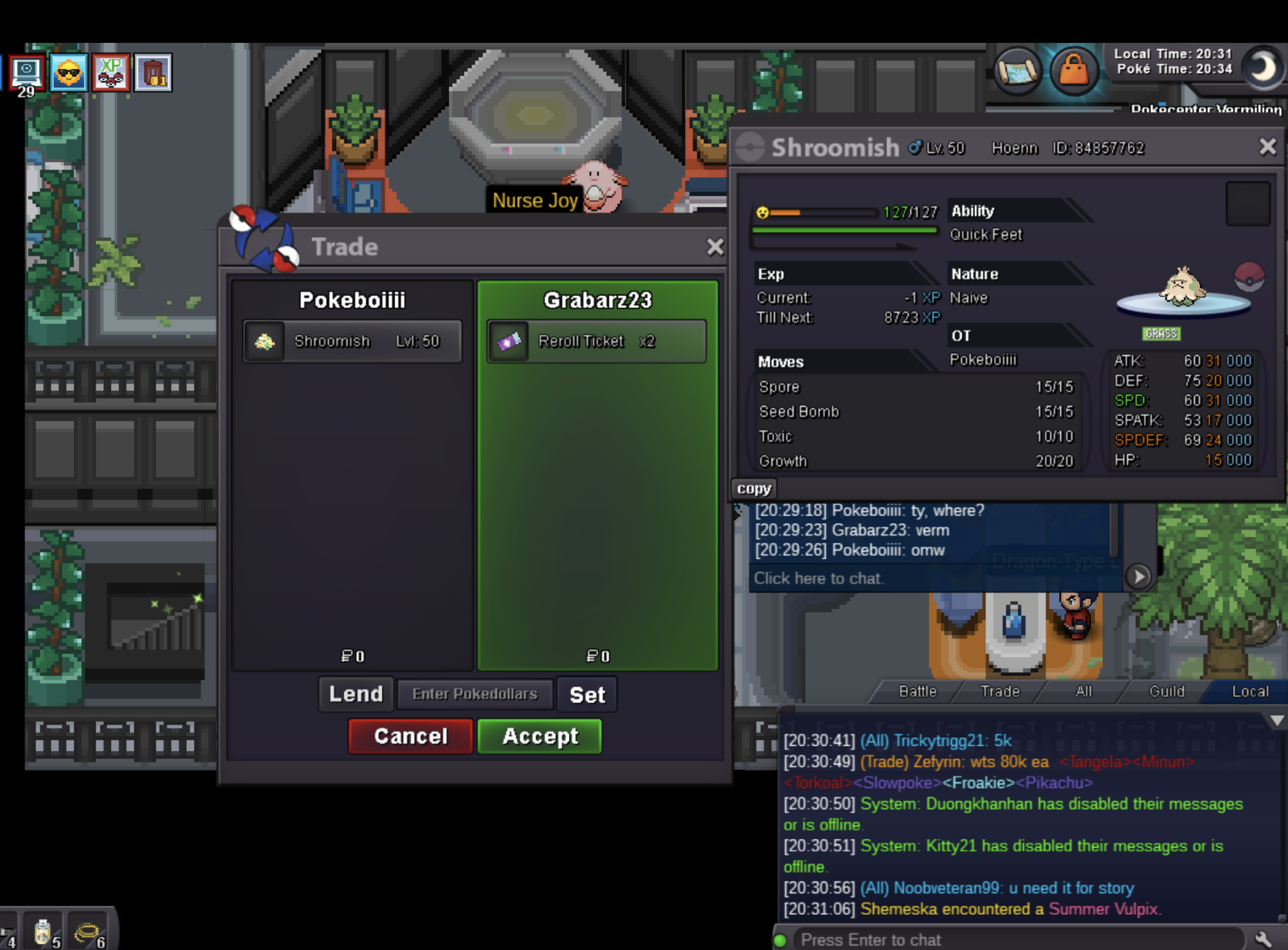
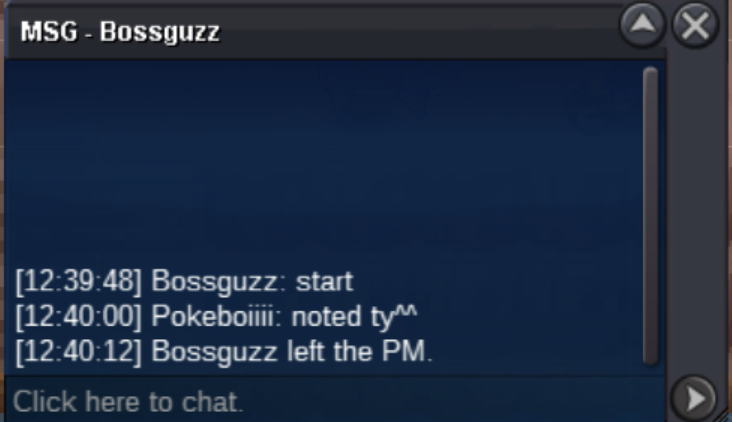
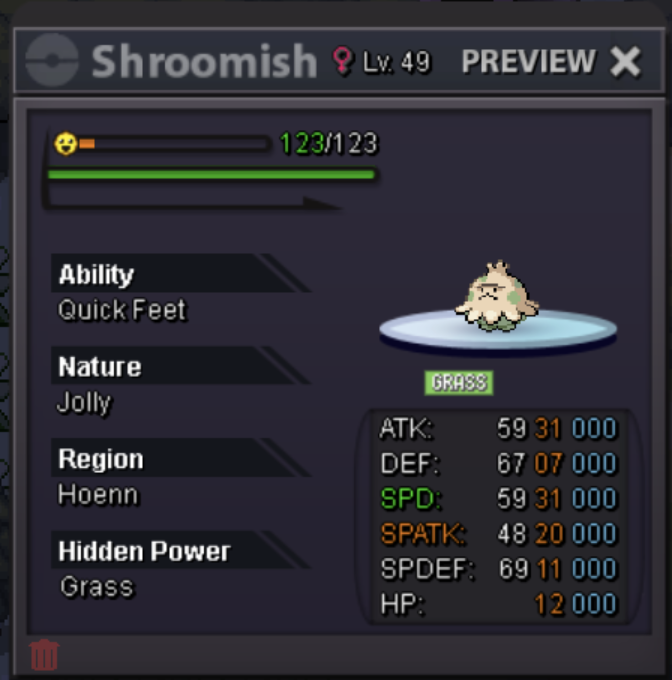 Auction ended by Insta. Winner is: Grabarz23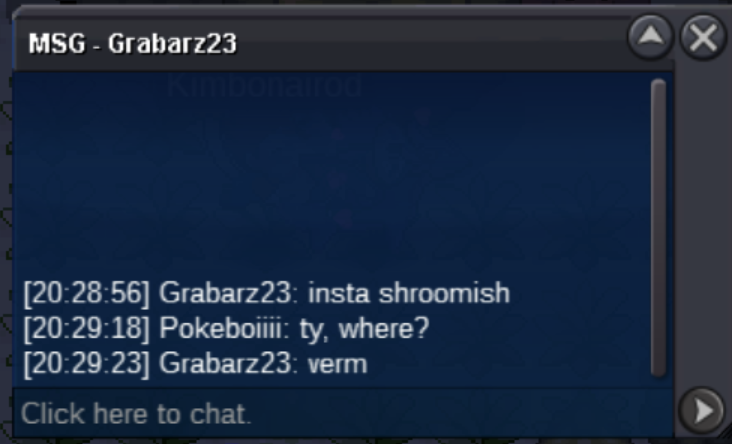
Account
Navigation
Search
Configure browser push notifications
Chrome (Android)
- Tap the lock icon next to the address bar.
- Tap Permissions → Notifications.
- Adjust your preference.
Chrome (Desktop)
- Click the padlock icon in the address bar.
- Select Site settings.
- Find Notifications and adjust your preference.
Safari (iOS 16.4+)
- Ensure the site is installed via Add to Home Screen.
- Open Settings App → Notifications.
- Find your app name and adjust your preference.
Safari (macOS)
- Go to Safari → Preferences.
- Click the Websites tab.
- Select Notifications in the sidebar.
- Find this website and adjust your preference.
Edge (Android)
- Tap the lock icon next to the address bar.
- Tap Permissions.
- Find Notifications and adjust your preference.
Edge (Desktop)
- Click the padlock icon in the address bar.
- Click Permissions for this site.
- Find Notifications and adjust your preference.
Firefox (Android)
- Go to Settings → Site permissions.
- Tap Notifications.
- Find this site in the list and adjust your preference.
Firefox (Desktop)
- Open Firefox Settings.
- Search for Notifications.
- Find this site in the list and adjust your preference.