New Trade Zone
Trade Zone is now live
Use the new Trade Zone for auctions and instant-price trades so Pokemon and item offers are easy to find.

Rocktiger
Registered User
-
Joined
-
Last visited
-
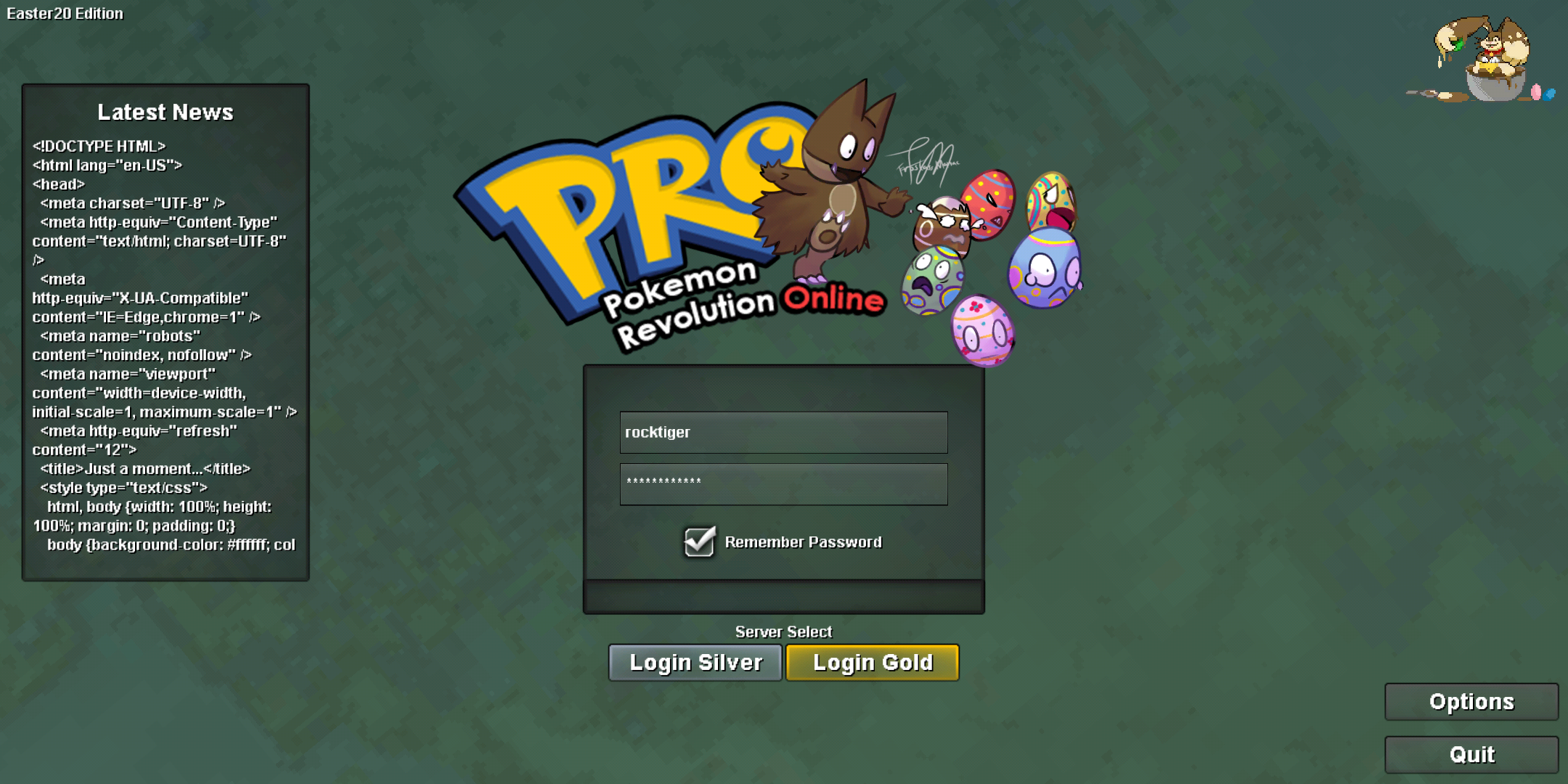
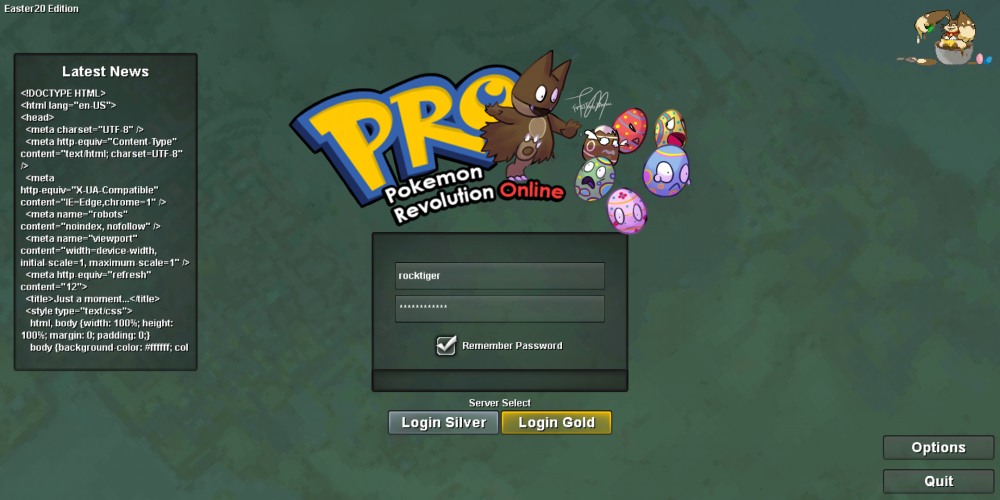
The IMG is self explanatory. Probably a typo on the HTML. Sorry for bothering, just trying to help.
-
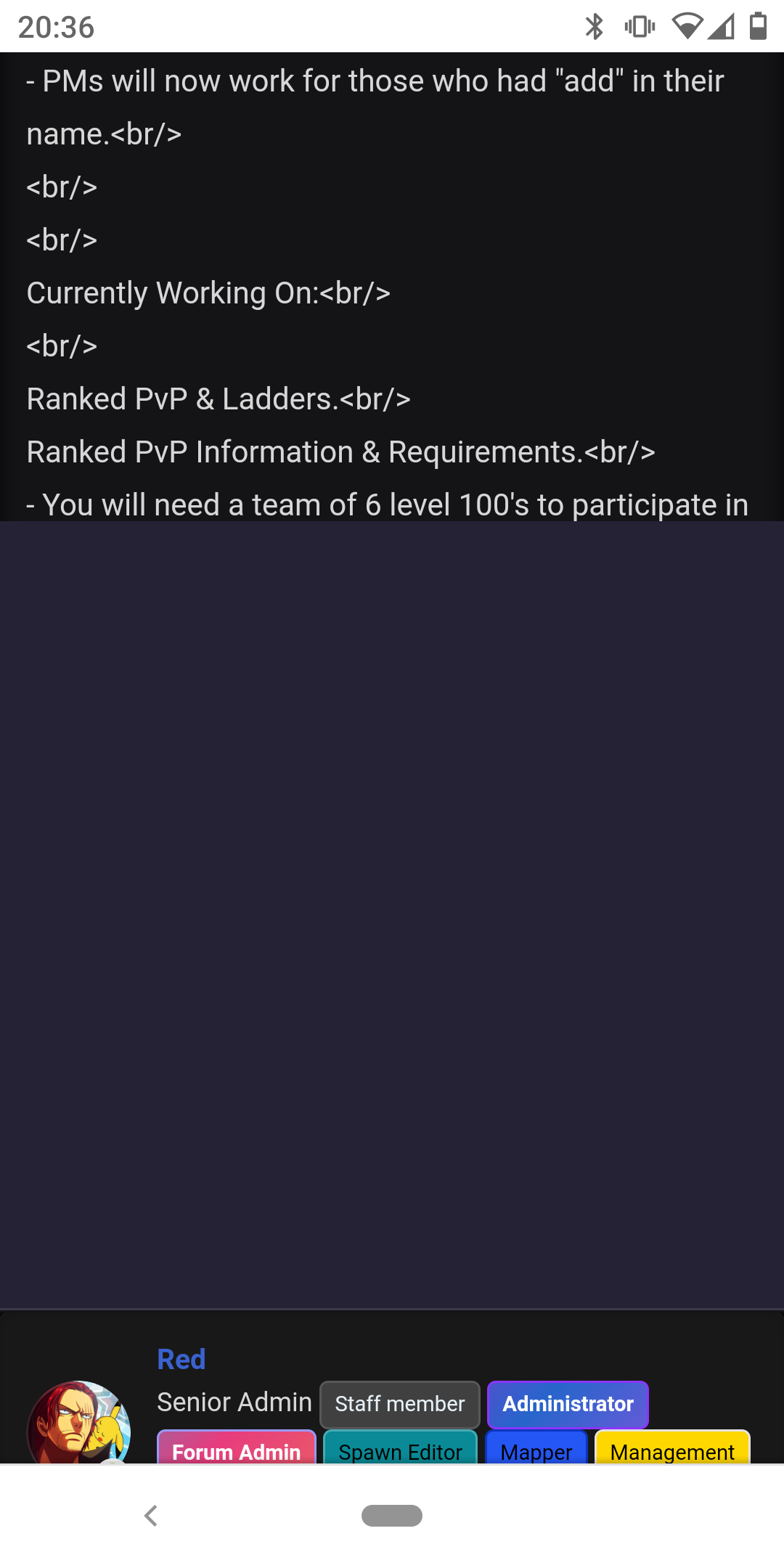
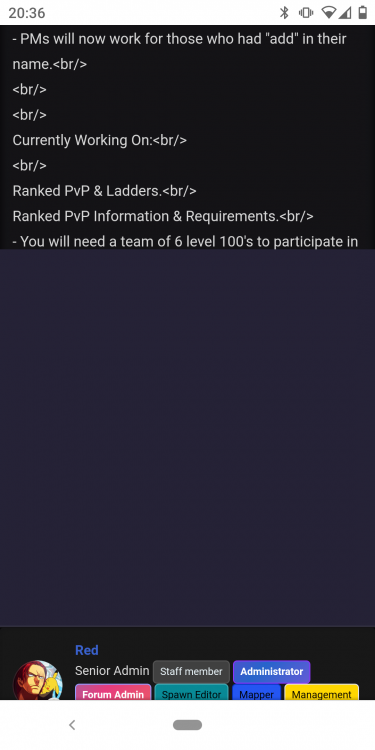
Bump. Hey, just searching for some thread about This, cause I had the same problem. Using android default browser(Chrome based i Guess), and as you can see in the image every post that is long gets cut out. I solved This issue by changing the theme on preferences to CARBON. Glad i could help.
-
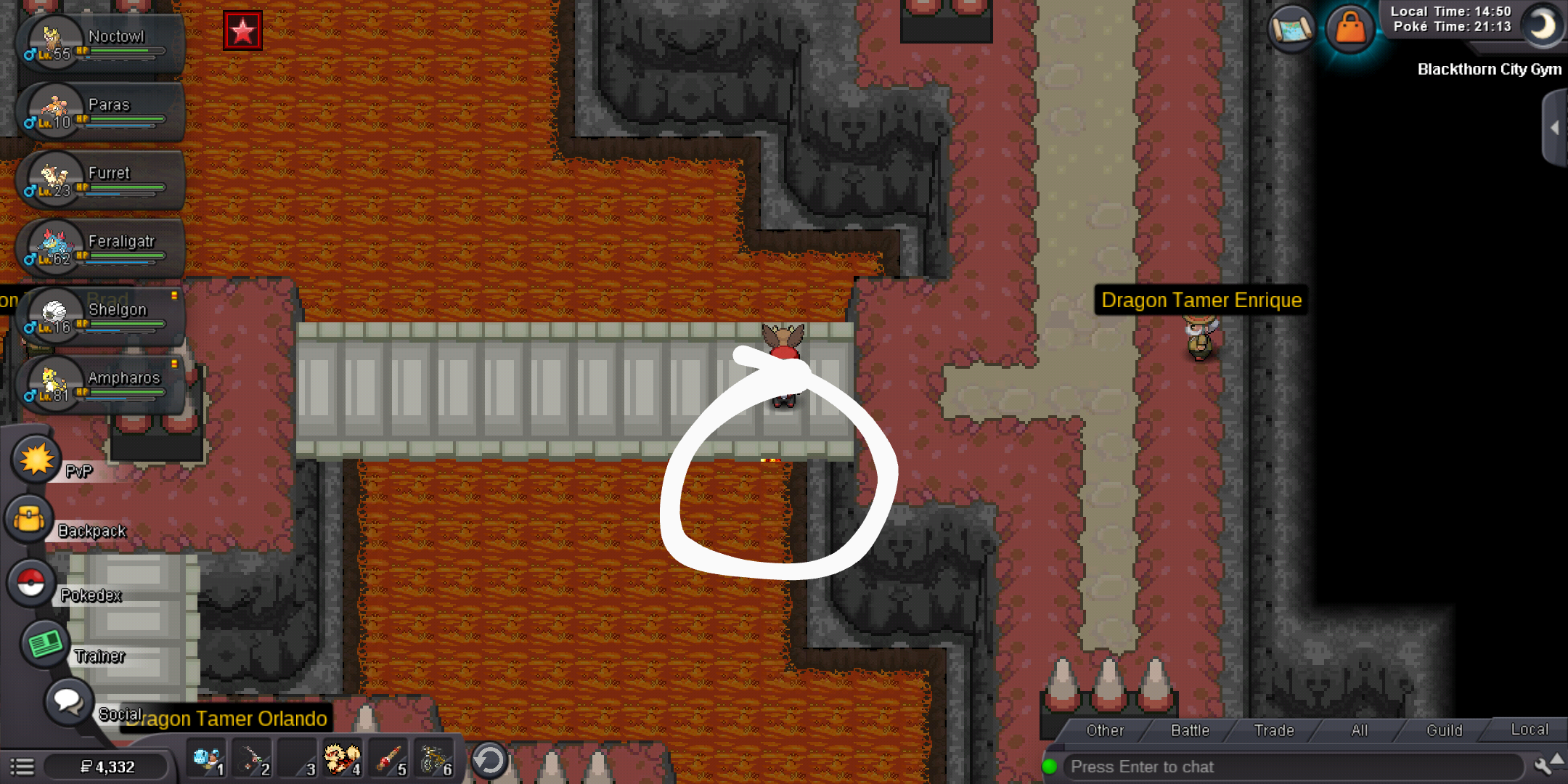
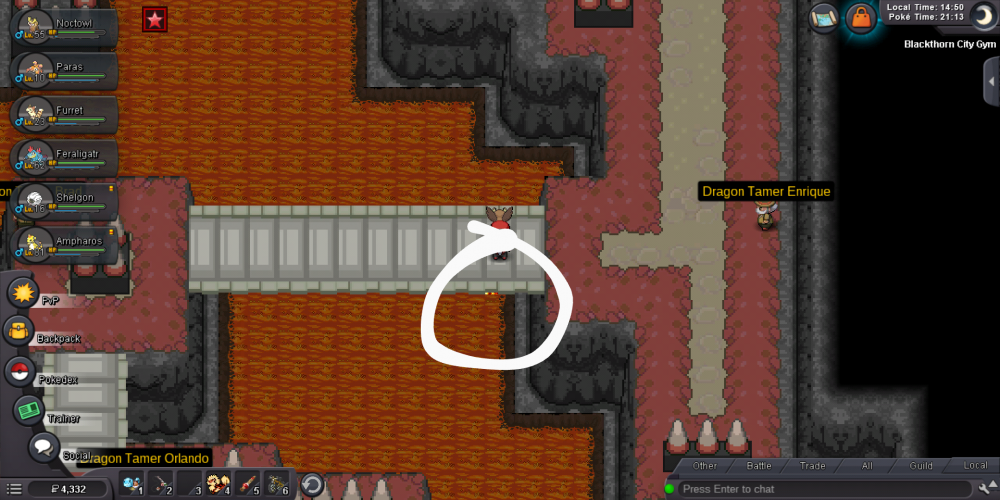
A pience of lava is slightly diferent. On Android app
-
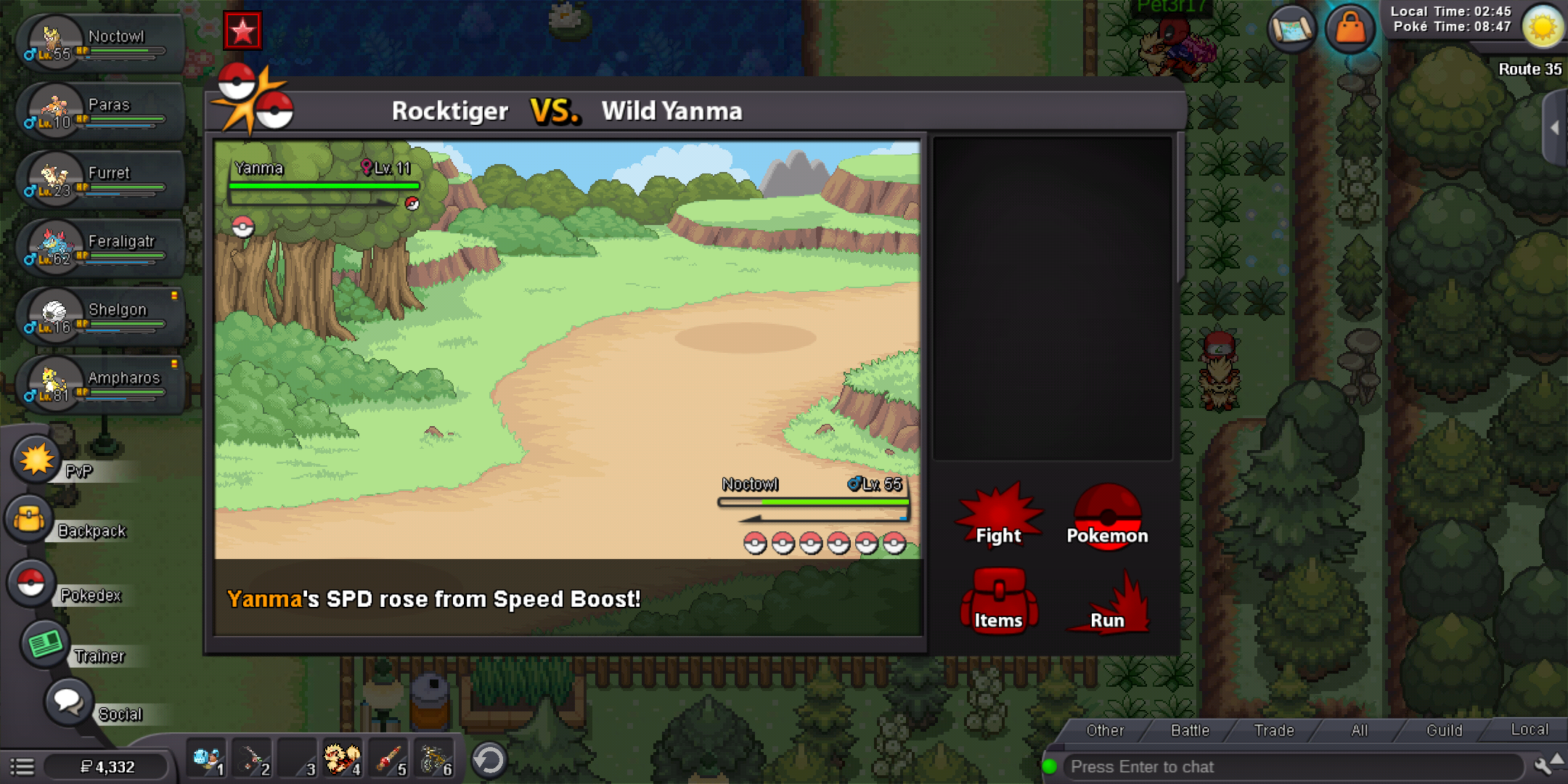
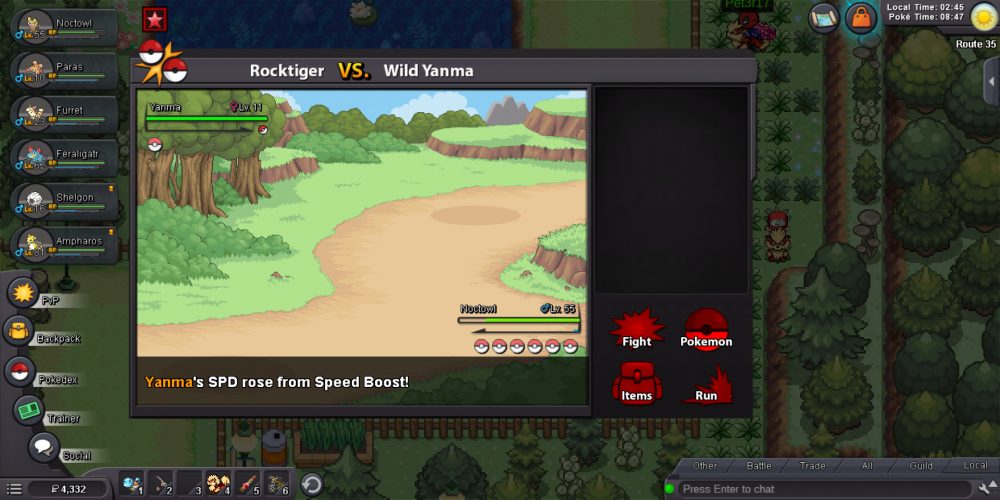
Hey, i noticed that some wild yanma gain speed Boost after you run successfully.(guessing ONLY yanma with speed Boost ability) The imagem is after showing the text that you run from the Pokémon successfully. Sorry if im not on the right thread, as i assume This is a scripting bug
-
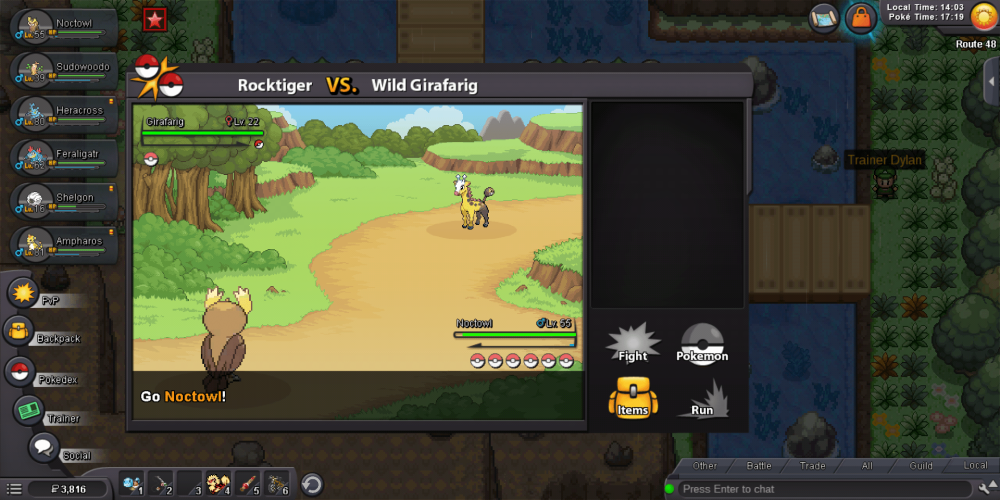
Hey, i dont know if somebody noticed already, but i couldnt find anything on fórum. Using android client. When you press RUN from a wild Pokémon, for a second the ITEM ícon turns Yellow as if it was selected. The screenshot isnt clear that the Run was pressed. Just a minor graphic bug, didnt test it on PC client.