New Trade Zone
Trade Zone is now live
Use the new Trade Zone for auctions and instant-price trades so Pokemon and item offers are easy to find.

Maplesyrupx
Registered User
-
Joined
-
Last visited
Everything posted by Maplesyrupx
-
1hour and 27mins left
-
6hours and 5 mins left
-
bump
-
thanks, started 4hours ago co 200k by Dan33. Auction will end in 20hours (10th Sept 2020 17:17 GMT+7)
-
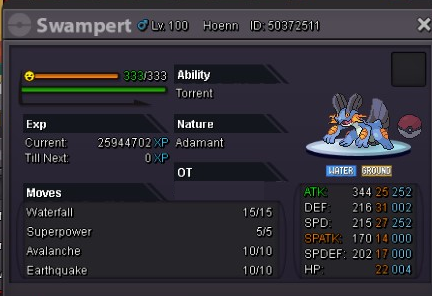
S.O 1M Min Bid 100K Insta 2M Duration 24Hours after first bid Accept pokedollars, CC = 400k, IVS Reroll 750K Offers cannot be cancelled GLHF
-
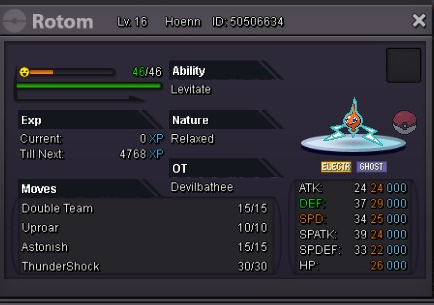
S.O 200K Insta 700K Min raise 50K Duration 24hours after first bid Accepting cash, CC = 400k, iv reroll = 750K Offer cannot be cancelled
-
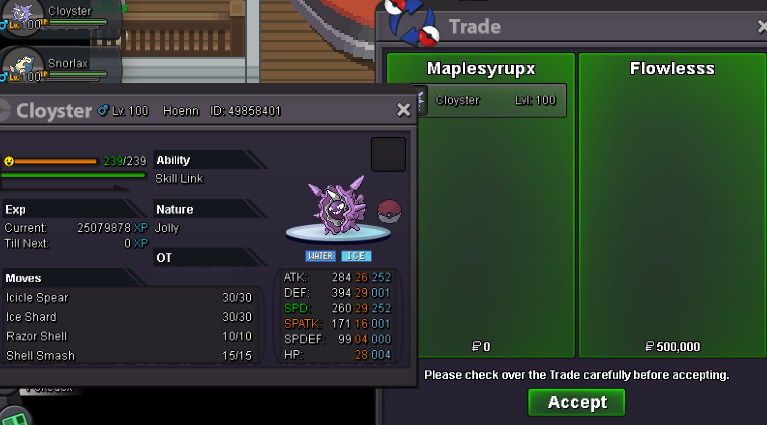
cloyster sold
-
insta reduced
-
-
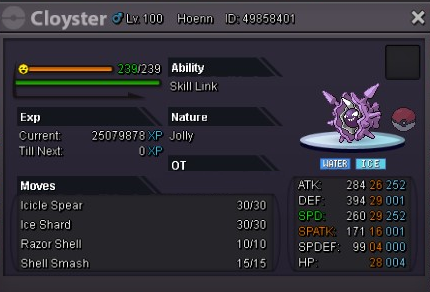
added new cloyster and reduced snorlax price
-
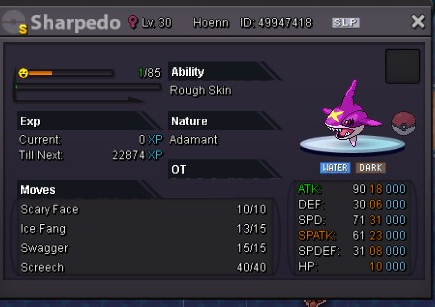
S.O 2M Min Bid 200K Insta 4M Duration : 24Hours after first bid Accept CC = 400K and Rare Candy = 7K Offers CANNOT be Cancelled Good Luck and Have Fun
-
scizor price reduced
-
well people would like to know before spending.
-
H.P??????? seriosly
-
remove munchlax, added snorlax

-
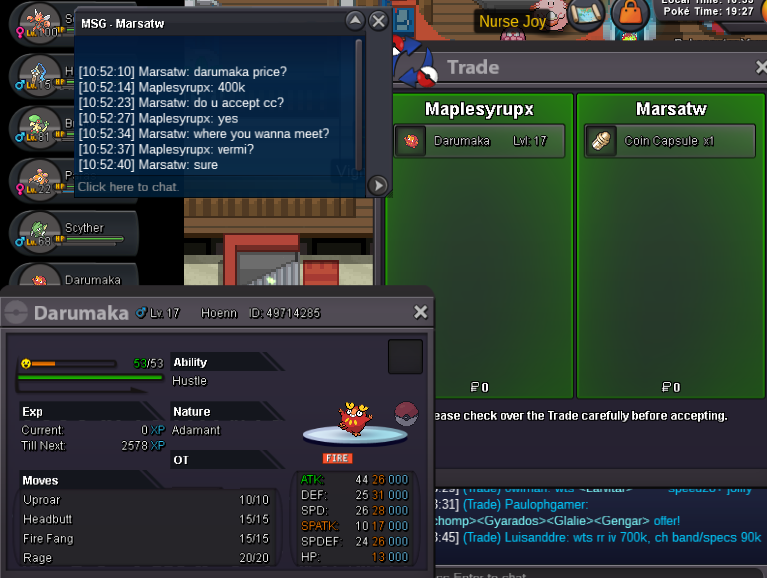
Darumaka sold
-
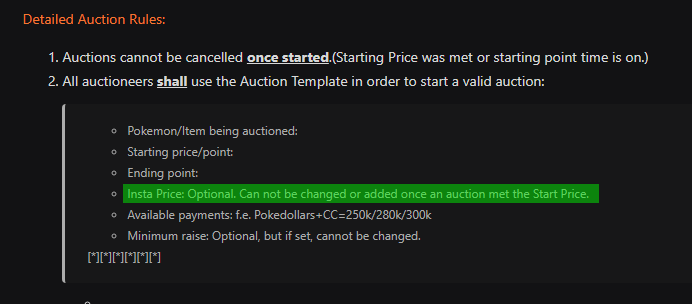
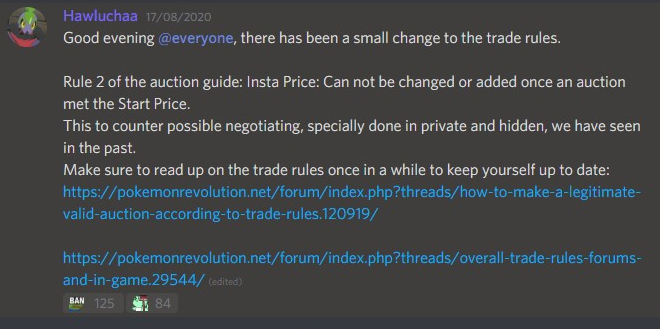
yes, you can read the rules in here https://pokemonrevolution.net/forum/topic/119709-url .. or maybe you can ask for clarification on discord.Hi, a bit info from me. There is new rule as bellow so now the auction (corphish) has start, insta cannot be changed which is no insta
 removed sold scytherCloyster sold
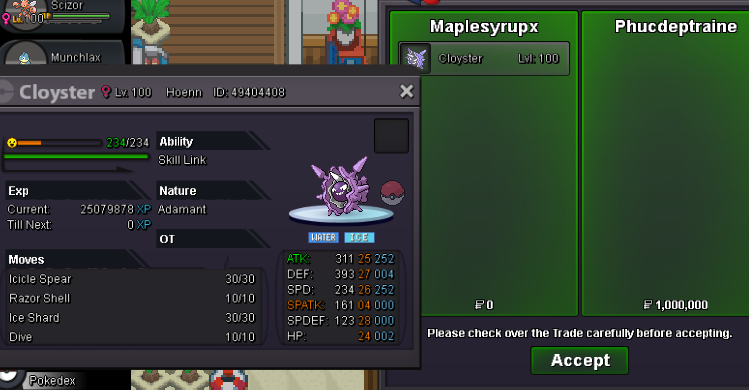 added scizor for mega for 800kreduced priceremoved sold beldum