New Trade Zone
Trade Zone is now live
Use the new Trade Zone for auctions and instant-price trades so Pokemon and item offers are easy to find.


Blueciferr
Suspended
-
Joined
-
Last visited
Everything posted by Blueciferr
-
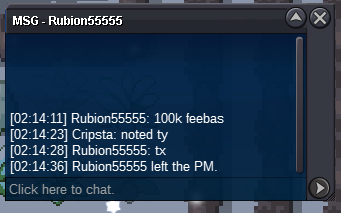
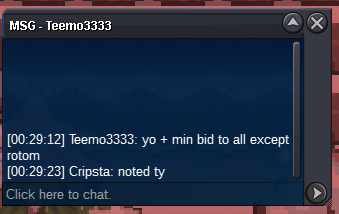
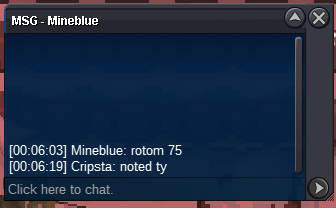
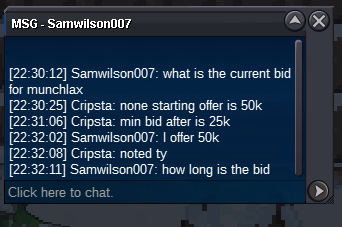
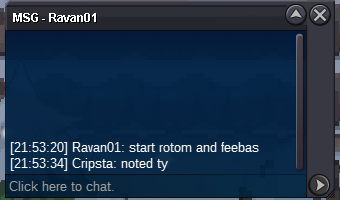
S.O Charmander 300k, Min Bid 100k S.O Feebas 50k, Min Bid 25k S.O Rotom 50k, Min Bid 25k S.O Munchlax 50k, Min Bid 25k End Time 48hrs After S.O Met No Insta On Any Accept Only Pokedollars Not A Bundle End Times Rotom and Feebas, https://www.tickcounter.com/countdown/4707663/start-rotom-feebas Charmander, https://www.tickcounter.com/countdown/4707807/my-countdown Munchlax, https://www.tickcounter.com/countdown/4707750/munchlax-start
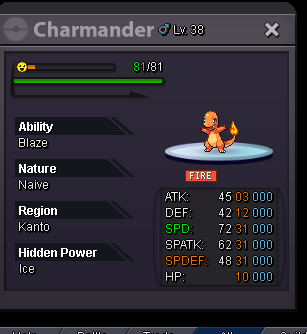
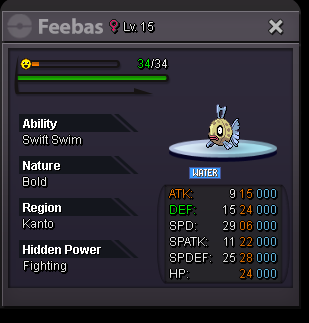
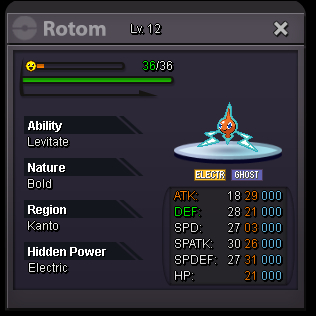
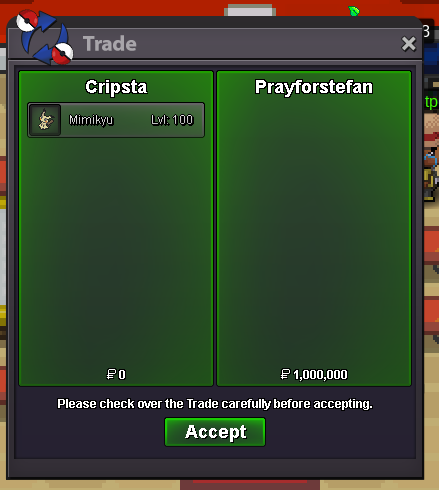
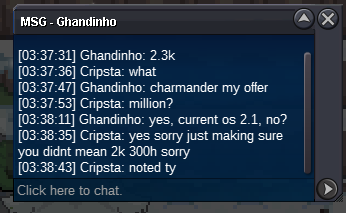
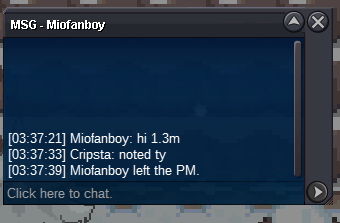
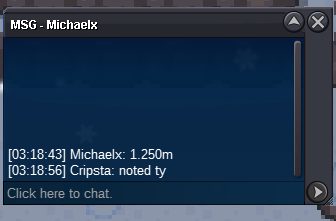
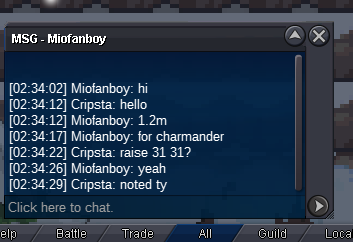
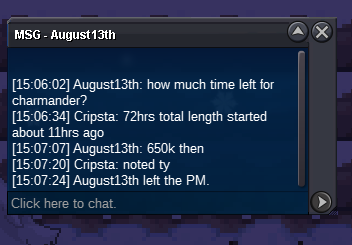
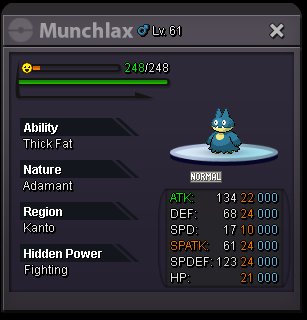 I am aware that players may have 1 active thred per forum for example I have an auction that is over but 1 Mon is still awaiting trade am I allowed to create another thread for fresh auction now or must I wait until I have traded last charmander and got screenshot for old auction. thank you for your timeCharmander over sold to Michaelx for 5m awaiting tradeBump 10hrs 39mins left 31 31 charmanderhttps://www.tickcounter.com/countdown/4703463/my-countdown Count down for 31 31 CharmanderI buy shiny arena trapI pmd you I apologise for any confusion I accidentally made this link messy. If anyone has any questions you may ask in pm here or in game however you like, sincere apologies for any confusion or inconvenience causedMy apologies I am halve asleep and can’t really understand if you mean 500k or 1.5 so I’ll just assume 500k, please correct me if I’m wrongMimikyu over sold for 1m to Prayforstefan
Account
Navigation
Search
Configure browser push notifications
Chrome (Android)
- Tap the lock icon next to the address bar.
- Tap Permissions → Notifications.
- Adjust your preference.
Chrome (Desktop)
- Click the padlock icon in the address bar.
- Select Site settings.
- Find Notifications and adjust your preference.
Safari (iOS 16.4+)
- Ensure the site is installed via Add to Home Screen.
- Open Settings App → Notifications.
- Find your app name and adjust your preference.
Safari (macOS)
- Go to Safari → Preferences.
- Click the Websites tab.
- Select Notifications in the sidebar.
- Find this website and adjust your preference.
Edge (Android)
- Tap the lock icon next to the address bar.
- Tap Permissions.
- Find Notifications and adjust your preference.
Edge (Desktop)
- Click the padlock icon in the address bar.
- Click Permissions for this site.
- Find Notifications and adjust your preference.
Firefox (Android)
- Go to Settings → Site permissions.
- Tap Notifications.
- Find this site in the list and adjust your preference.
Firefox (Desktop)
- Open Firefox Settings.
- Search for Notifications.
- Find this site in the list and adjust your preference.