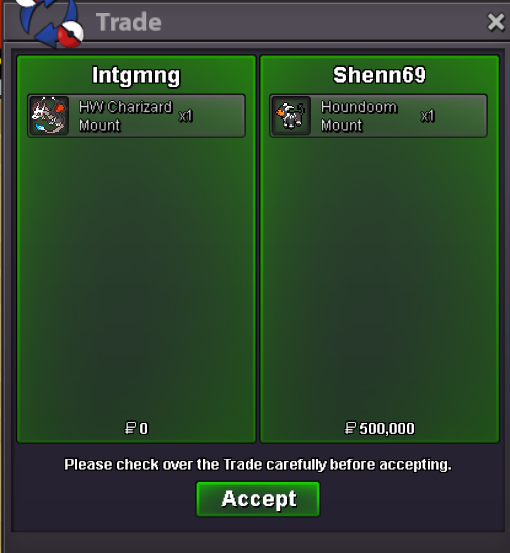
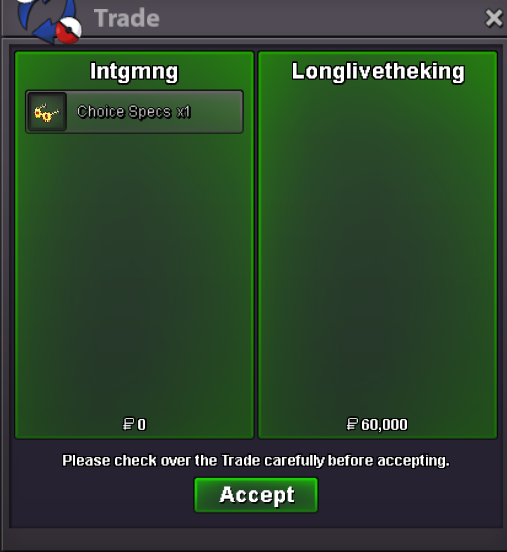
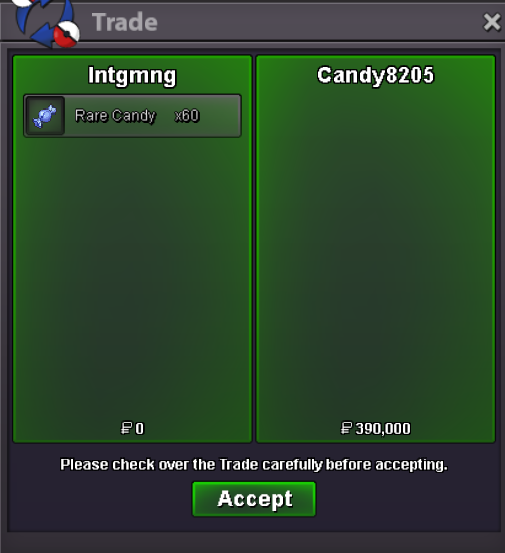
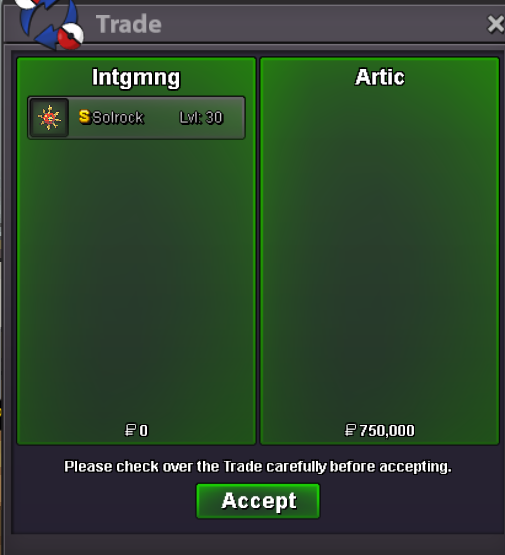
New Trade Zone
Trade Zone is now live
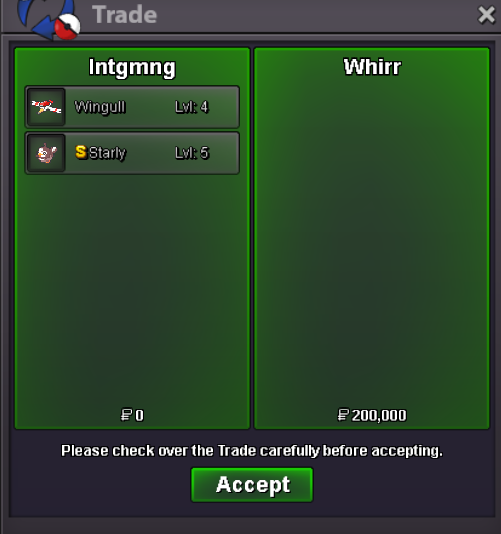
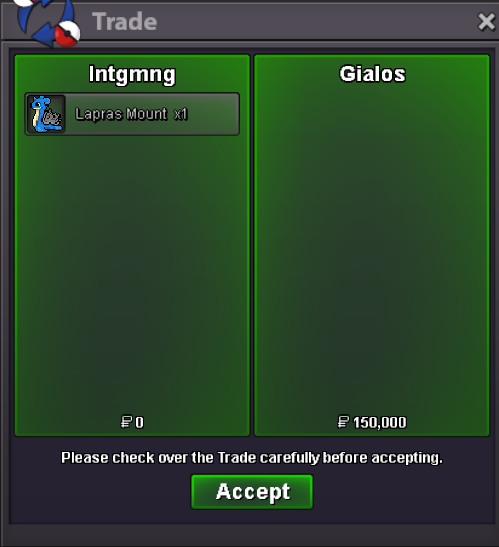
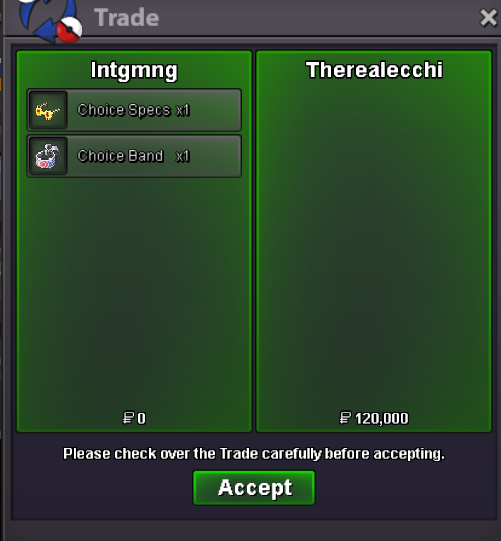
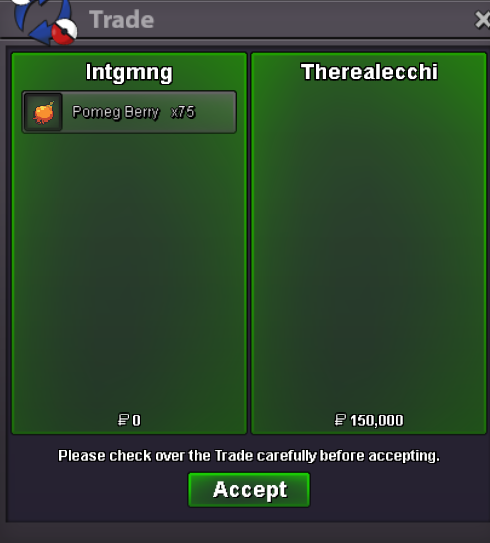
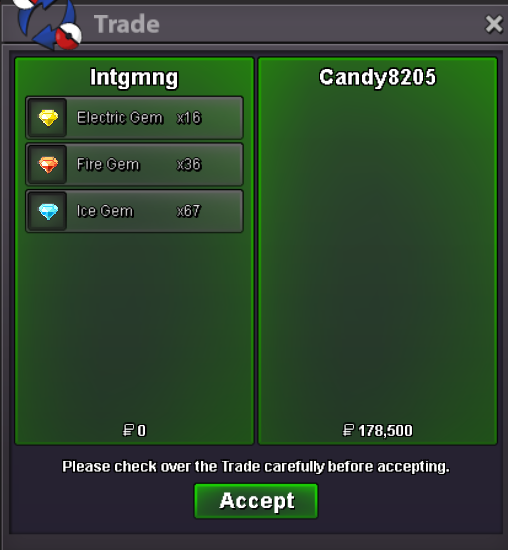
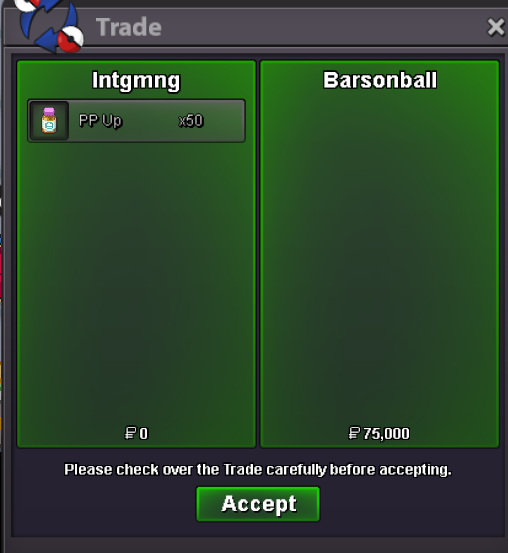
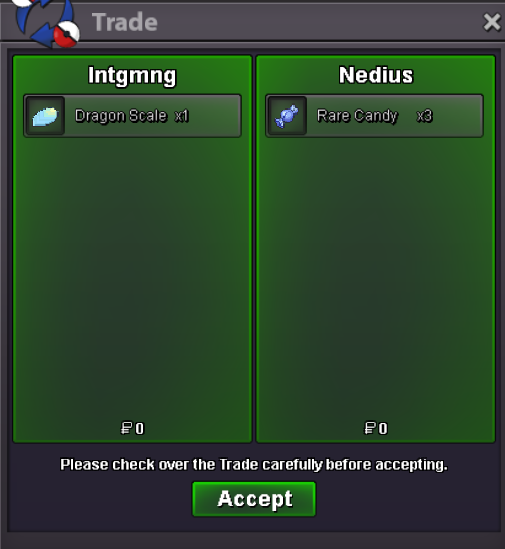
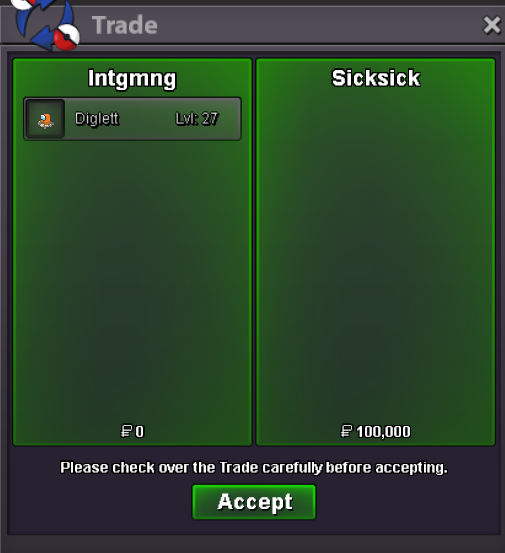
Use the new Trade Zone for auctions and instant-price trades so Pokemon and item offers are easy to find.

Intgmng
Registered User
-
Joined
-
Last visited
Everything posted by Intgmng
-
its tracking them correctly now! tysm for the quick fix
-
im in safari area 2 if that makes a difference ^^ i havent tracked on a route with only one of the two yet
-
so i actually did just find a bug with it, the tracker doesnt add spawns to the data for nidoran M or nidoran F, i tried relaunching, reselecting, changing the gui size, and moving the window but nothing helped it
-
it makes it the window always on top, so if i click back into PRO the tracker wont disappear behind the game also ty ❤️also is there any way you could add in an "always on top" toggle option?is there a way i can import some previous data sheets i collected using betterfarm? ive got around 20k spawns worth of data and want to switch to your tracker over betterfarm but starting all my data over kinda stingsstart
Account
Navigation
Search
Configure browser push notifications
Chrome (Android)
- Tap the lock icon next to the address bar.
- Tap Permissions → Notifications.
- Adjust your preference.
Chrome (Desktop)
- Click the padlock icon in the address bar.
- Select Site settings.
- Find Notifications and adjust your preference.
Safari (iOS 16.4+)
- Ensure the site is installed via Add to Home Screen.
- Open Settings App → Notifications.
- Find your app name and adjust your preference.
Safari (macOS)
- Go to Safari → Preferences.
- Click the Websites tab.
- Select Notifications in the sidebar.
- Find this website and adjust your preference.
Edge (Android)
- Tap the lock icon next to the address bar.
- Tap Permissions.
- Find Notifications and adjust your preference.
Edge (Desktop)
- Click the padlock icon in the address bar.
- Click Permissions for this site.
- Find Notifications and adjust your preference.
Firefox (Android)
- Go to Settings → Site permissions.
- Tap Notifications.
- Find this site in the list and adjust your preference.
Firefox (Desktop)
- Open Firefox Settings.
- Search for Notifications.
- Find this site in the list and adjust your preference.