New Trade Zone
Trade Zone is now live
Use the new Trade Zone for auctions and instant-price trades so Pokemon and item offers are easy to find.

Horuto
Registered User
-
Joined
-
Last visited
-
Instead of reworking every existing boss, how about they add some new expiremental bosses that ban different strategies such as baton pass. They would have their own reward pool and difficulty tiers seperate from that of normal bosses and have a seperate cool down aswell.
-
Why specifically 5 and not 6. 6 is a whole team, which allows you to auction custom teams. The different between 5 and 6 seems arbitrary but the qol it sucks out of being able to auction teams should not be overlooked.
-
S.o. 1mil min bid 100k Insta 5mil Ends 24hrs after s.o. is met Accepted payments: cc=400k, nrr=350k, rr=700k
-
-
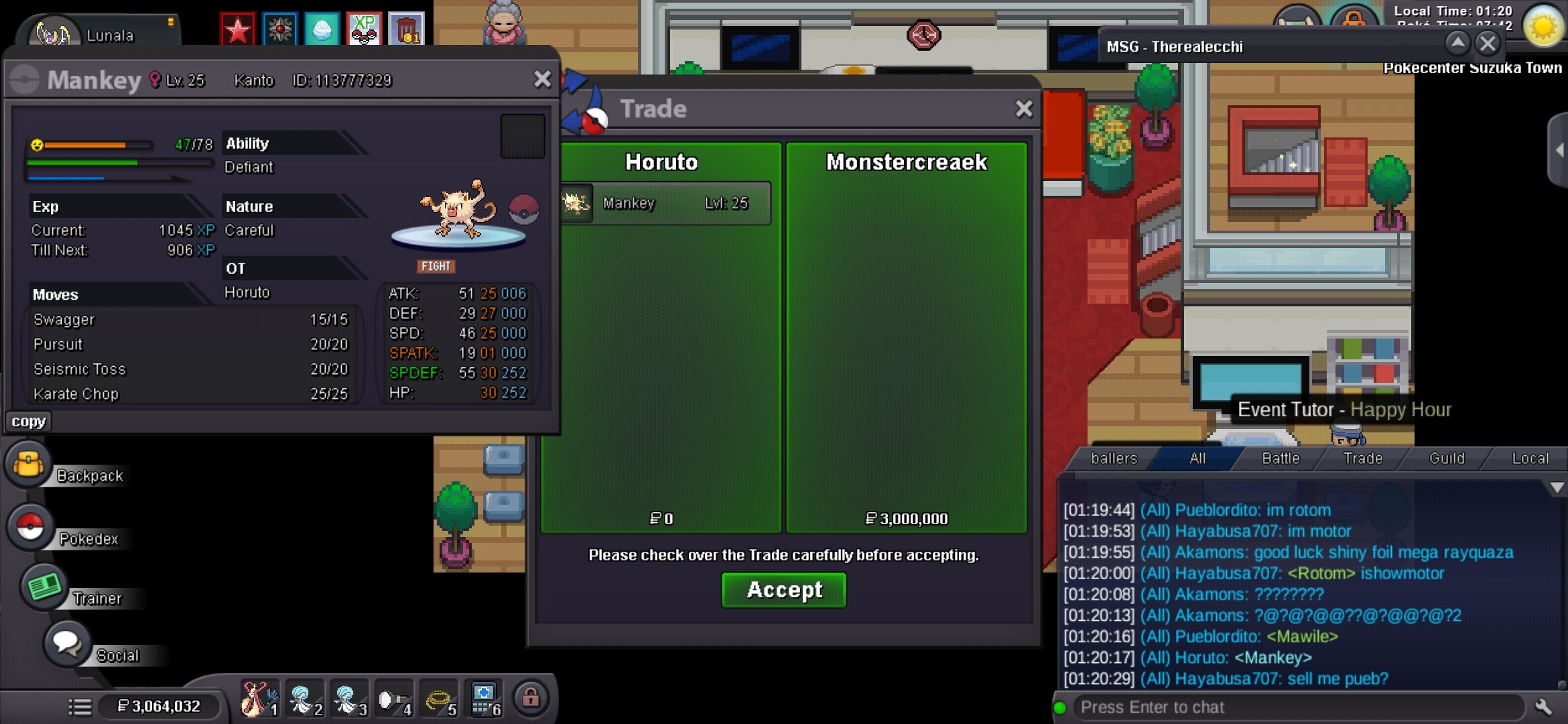
Monstercreek wins with the insta price of 3mil for Alpha Mankey
-
13hours 13mins remaining for Alpha Mankey
-
Bidding start 5:50am cst on Alpha monkey
-
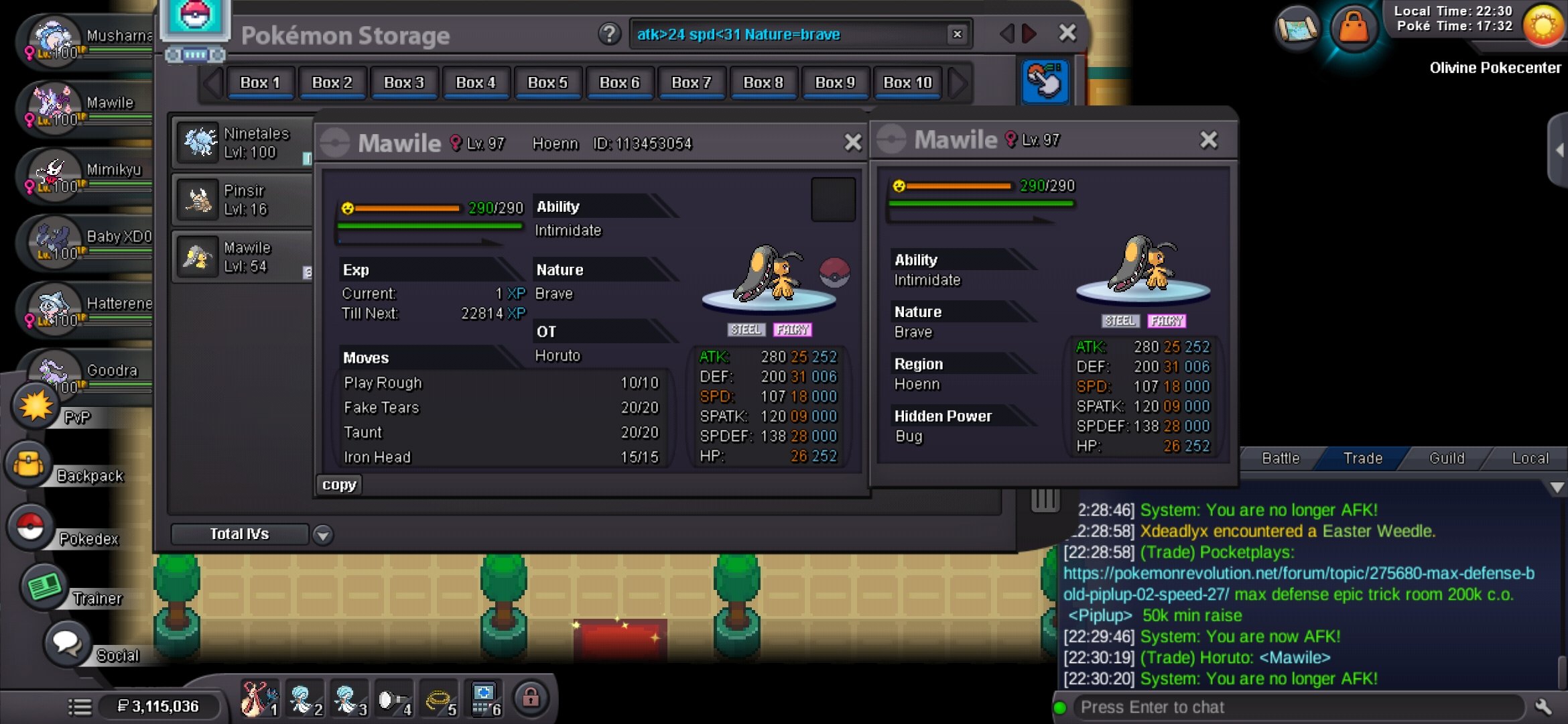
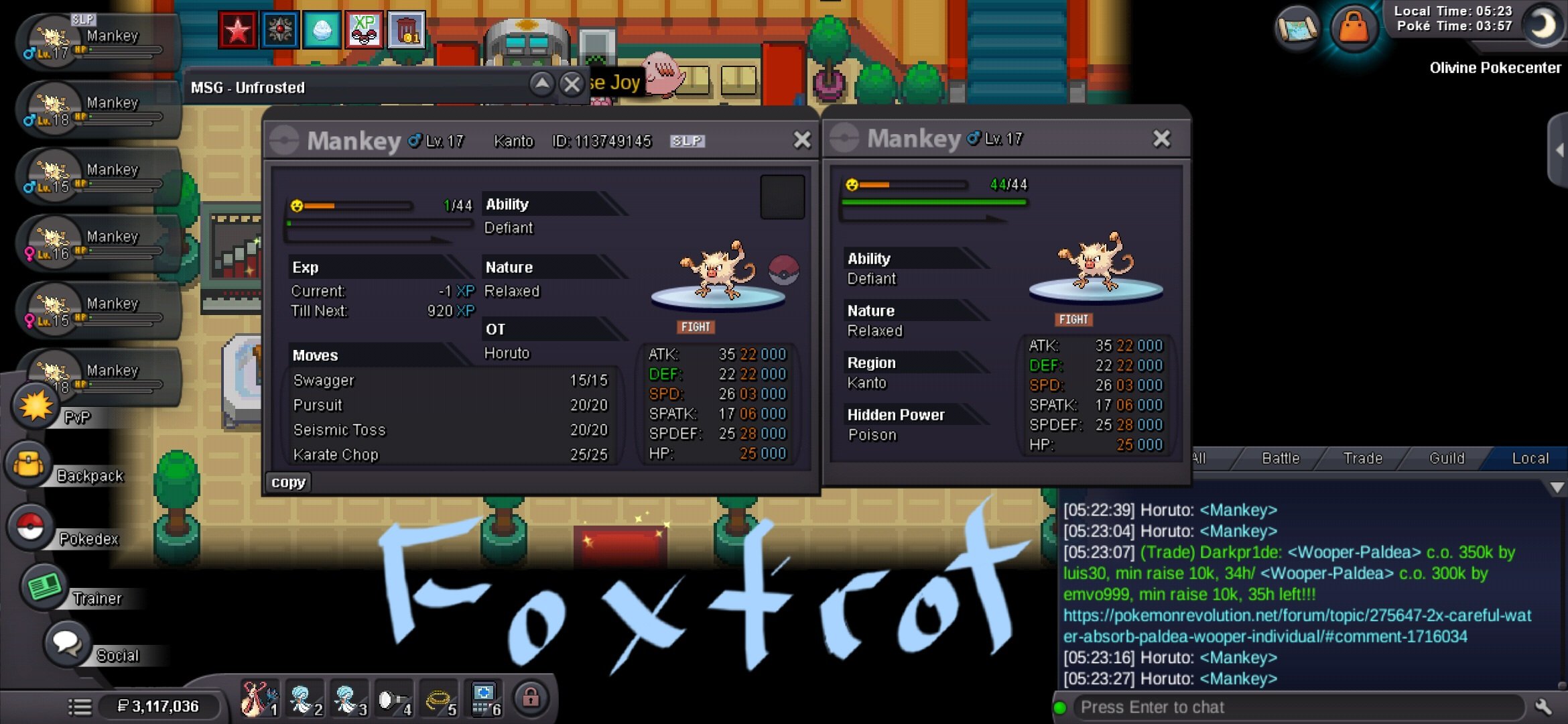
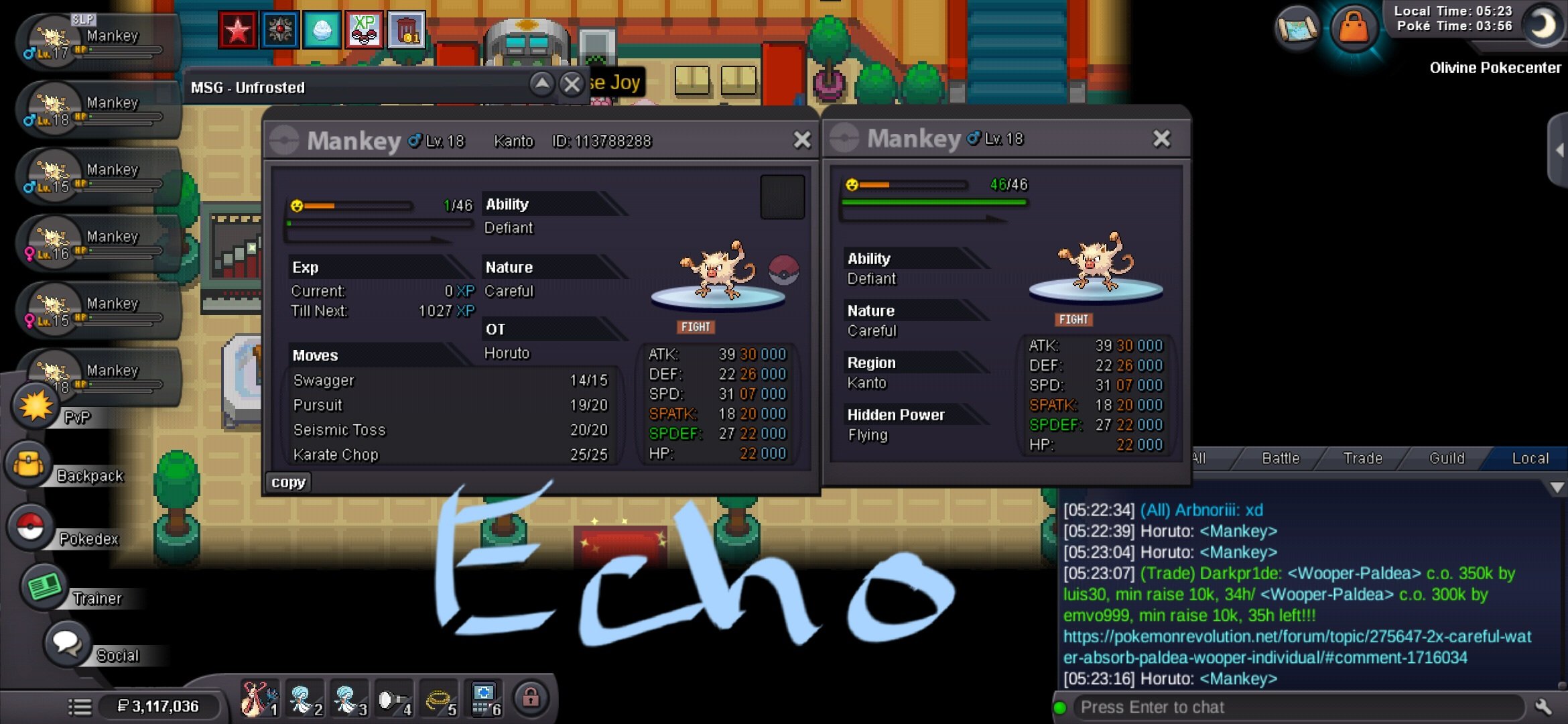
Mankey Alpha: s.o. 1mil, min bid 100k, insta:3mil, ends 24hr after starting offer is met Mankey Bravo s.o. 300k, min bid 100k, insta:1mil, ends 24hr after starting offer is met Manky Charlie: s.o. 200k, min bid 50k, insta: none, ends 24hr after starting offer is met Manky Delta: s.o. 200k, min bid 50k, insta:none, ends 24hr after starting offer is met Mankey Echo: s.o. 200k, min bid 50k, insta: none, ends 24hr after starting offer is met Mankey Foxtrot: s.o. 200k, min bid 50k, insta: none, ends 24hr after starting offer is met Accepted Payment(s) for all the above auctions: CC=400k, rr=650k, nrr=325k.
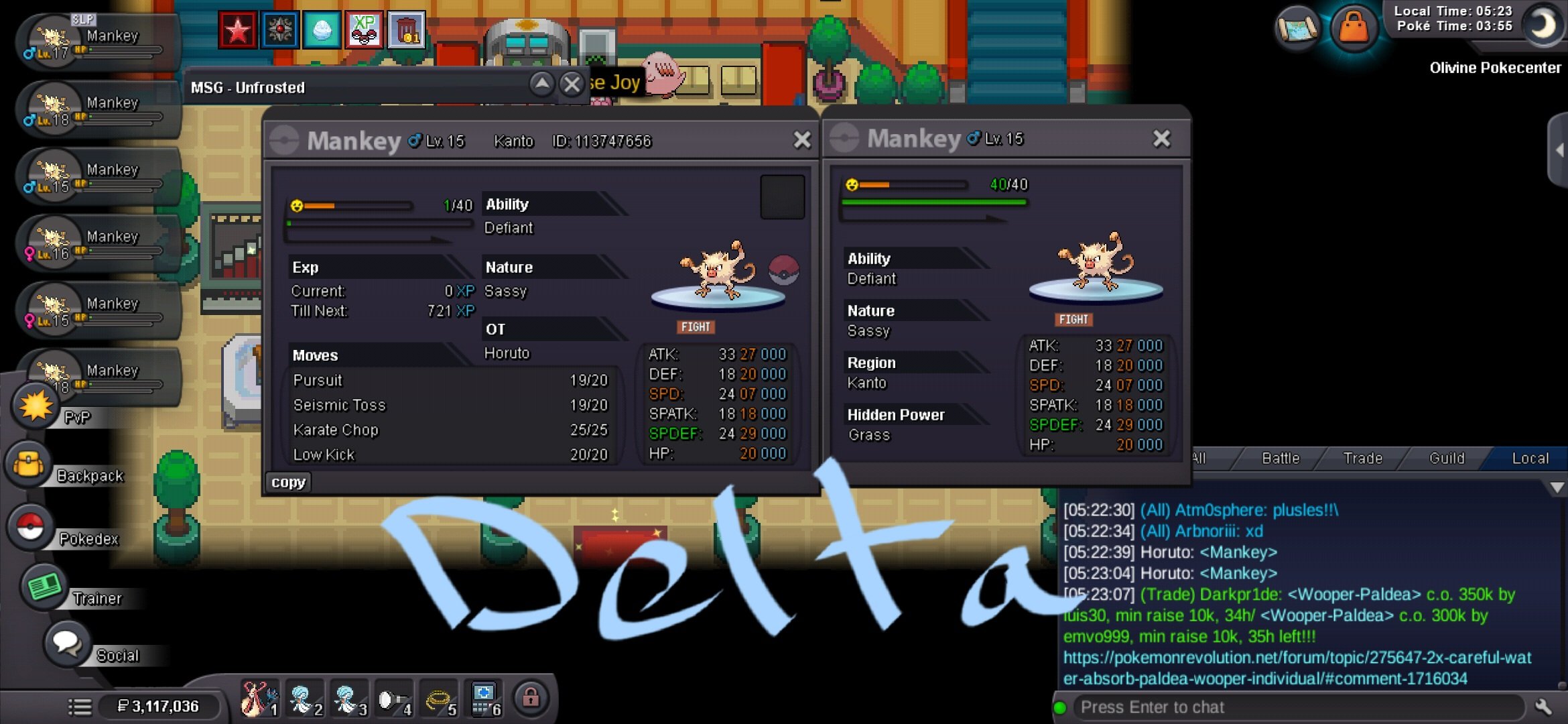
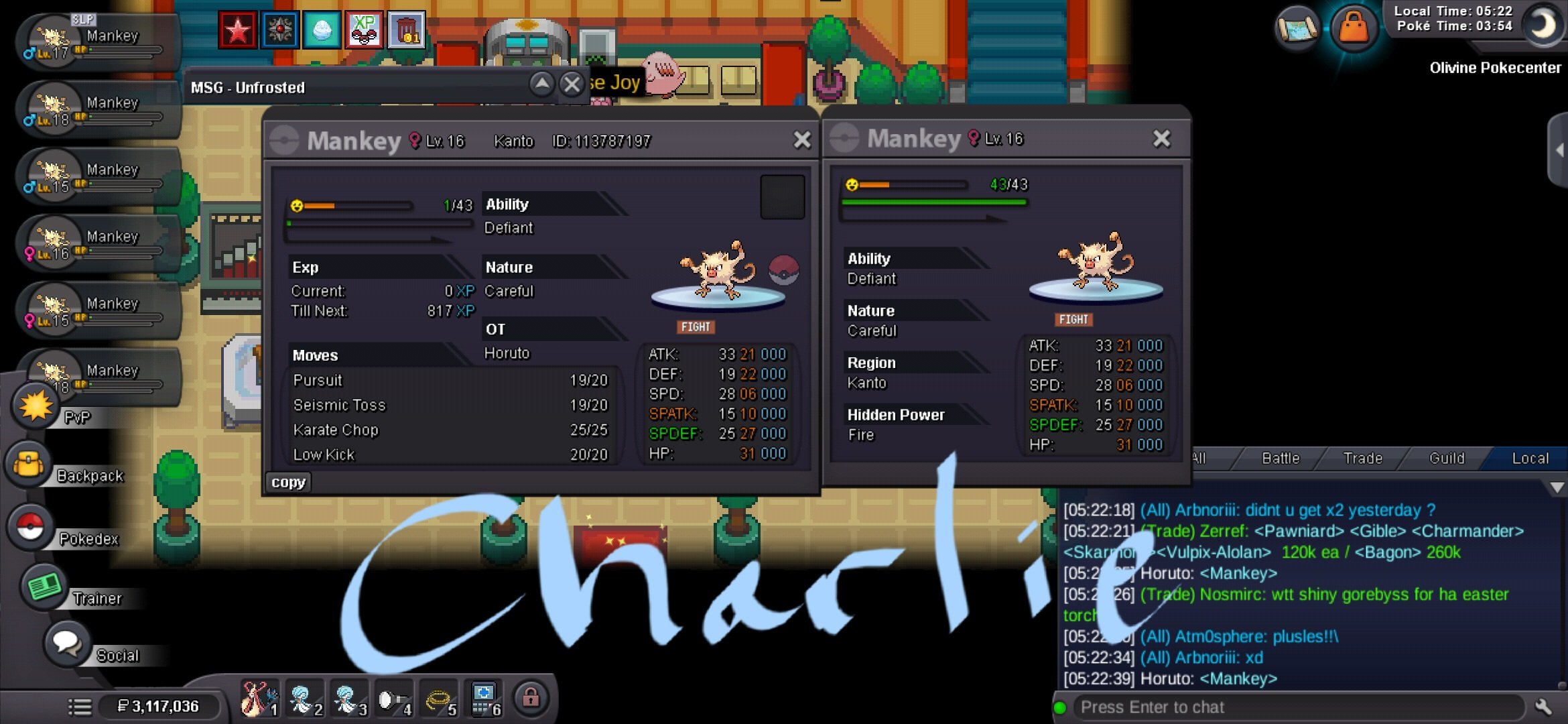
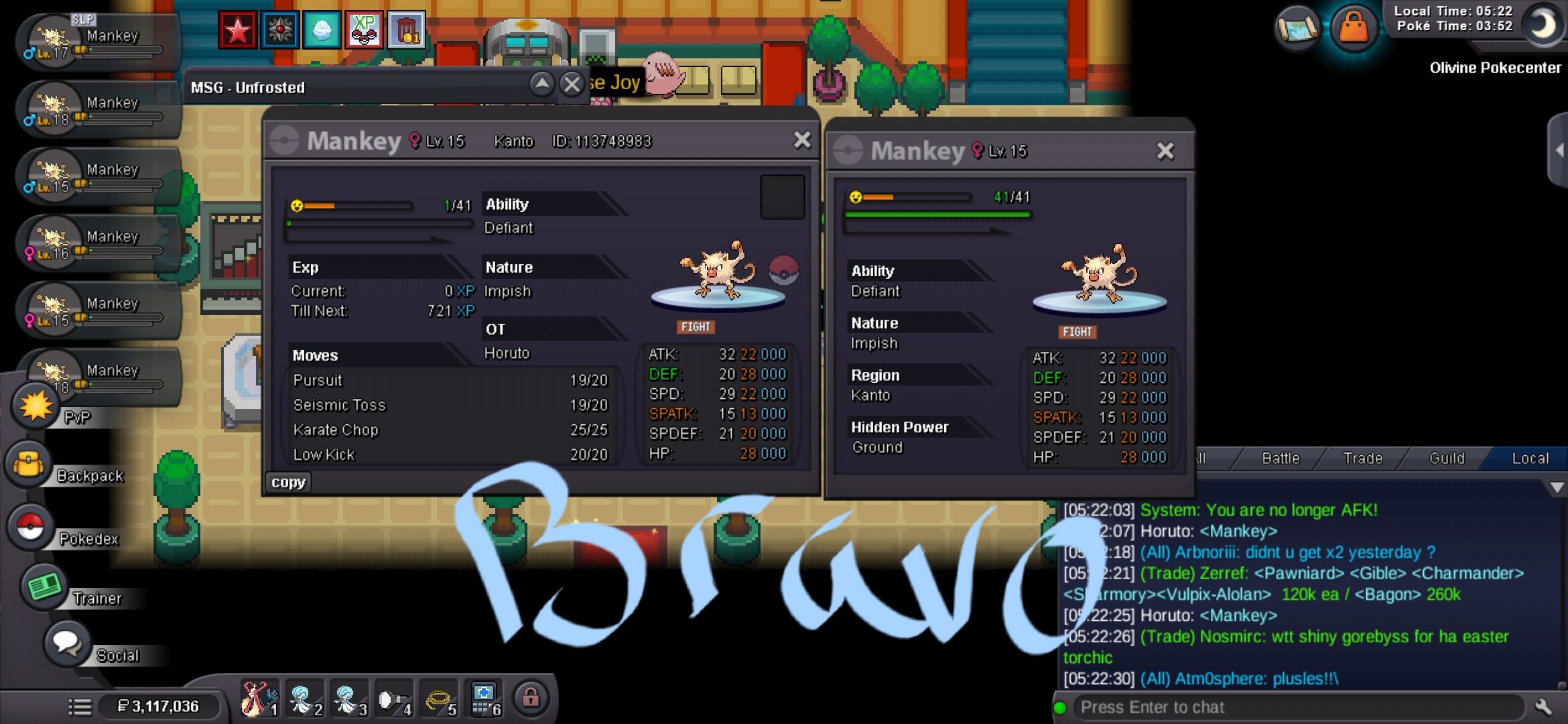
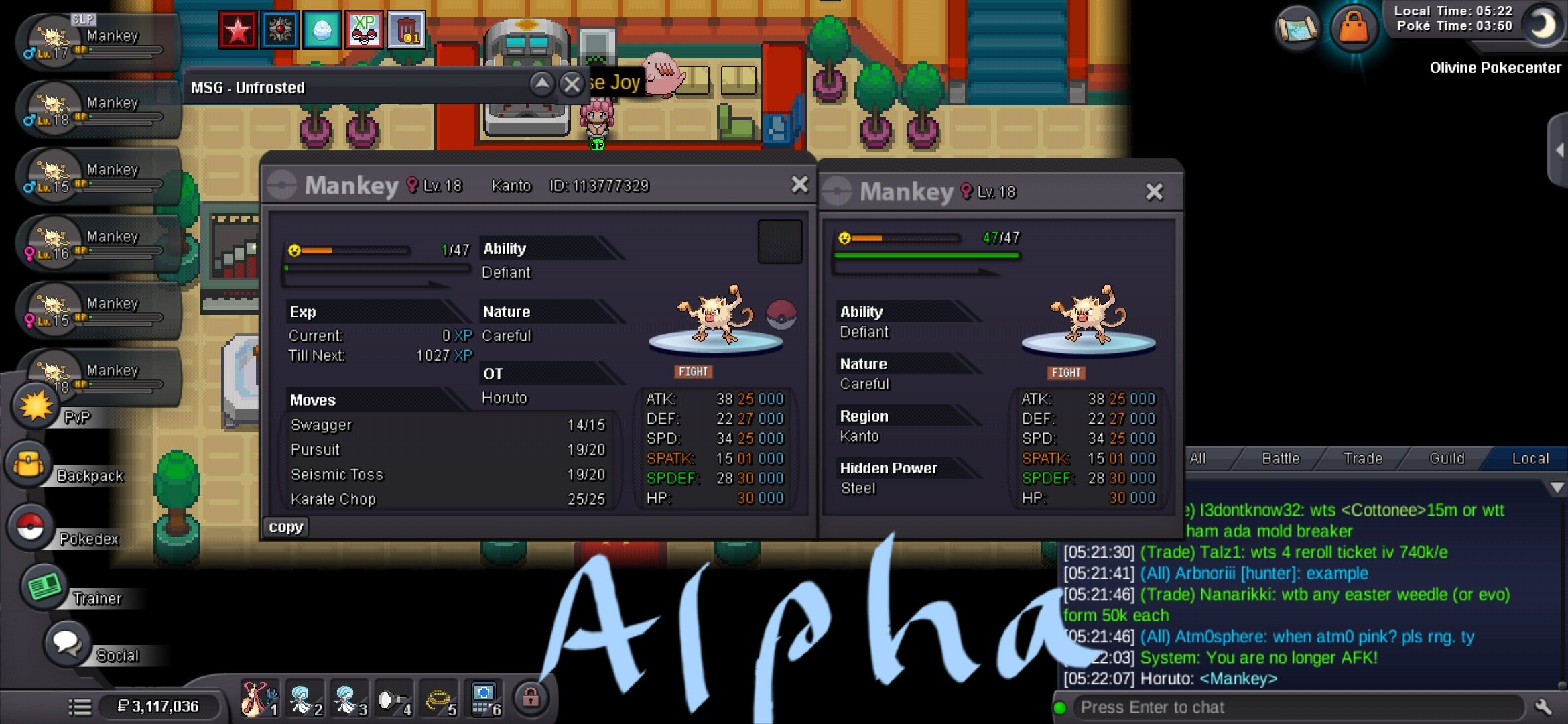
-
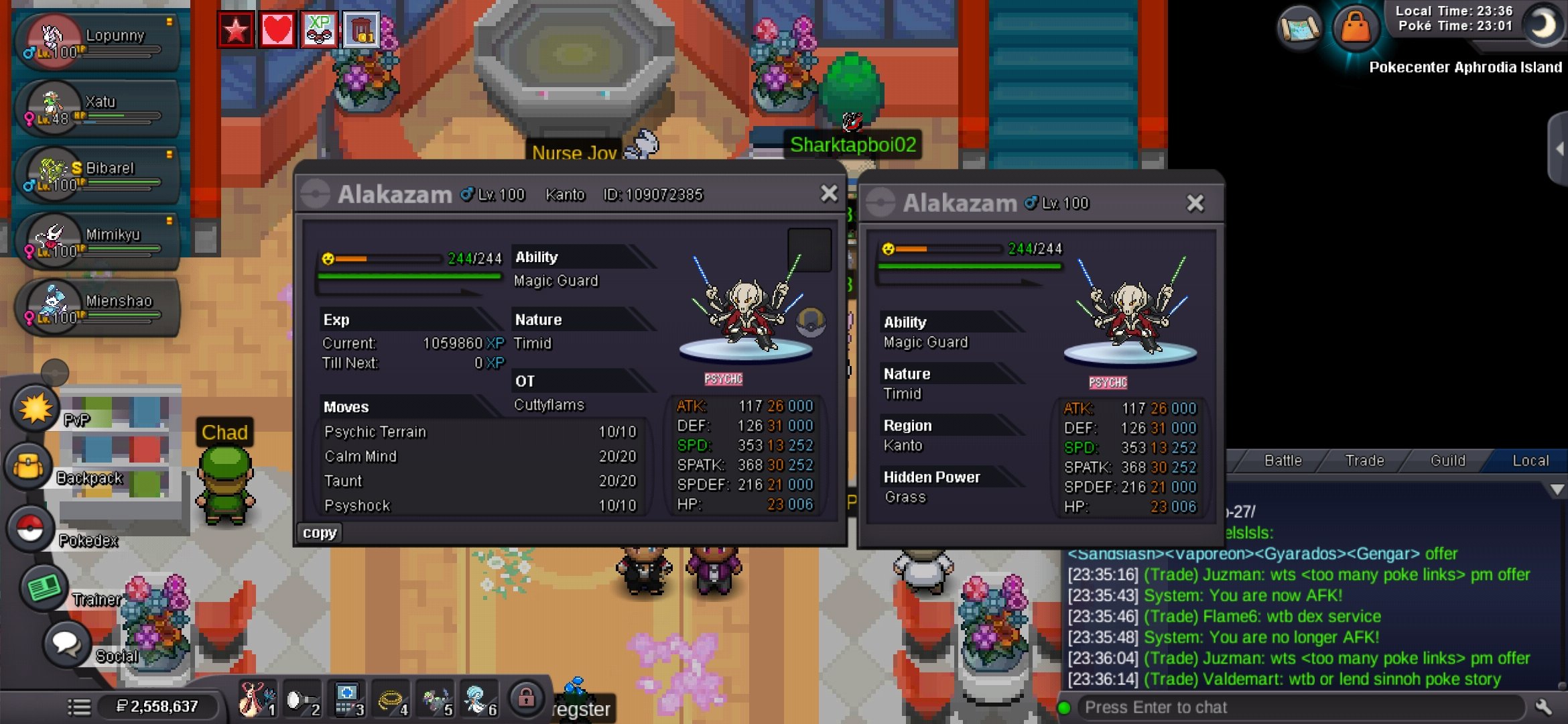
[Star Wars Alakazam] Start Point/Price: 2.5 million poke$ End Point: 48hrs after S.o. is met Insta: 6 million poke$ Min. Raise: 100k poke$ Accepted Payment(s): CC = 400k, RR = 650k, Nrr= 325k
-
4.4 mil
-
4.2 mil
-
3.8 mil
-
3.6 mil
-
3.4 mil
-
3.1 mil