




New Trade Zone
Trade Zone is now live
Use the new Trade Zone for auctions and instant-price trades so Pokemon and item offers are easy to find.

Nachoej
Registered User
-
Joined
-
Last visited
Everything posted by Nachoej
-
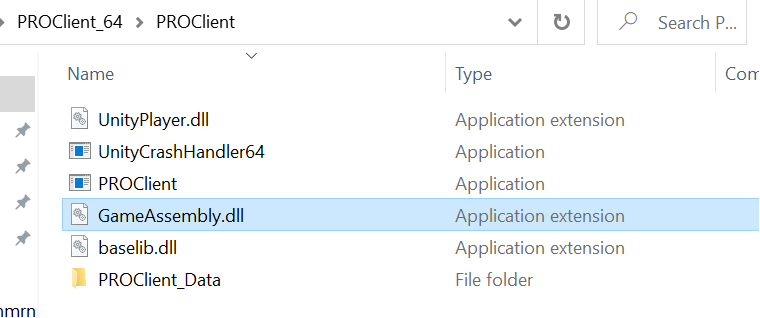
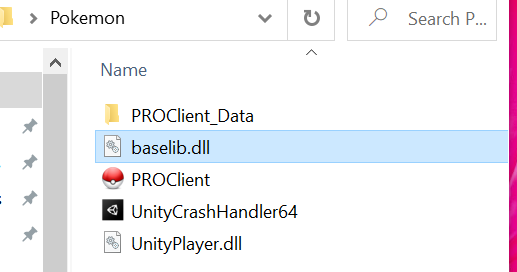
Top image is the Compressed. Second is the extracted. Whatever I try even copying the GameAssembly won't move.
-
So I've now copied and pasted it. All the files work except Gameassembly.
-
Hi, I've had PRO on the Laptop I'm currently using however, for some reason the game wouldn't start and so I redownloaded it. Now, upon redownloading it I have all the files. My issue lies with extracting the files. Upon extracting I only have "baselib.dll". I've spoken to support on the Discord. They gave me a range of things to do to try and amend it such as antivirus but there was no result. What can I do?
-
So, I had completed the Shaymin quest long ago and finally decided to train it to use against bosses. Using Shaymin-Land I fully EV trained it aswell as teach the moves; Synthesis, Seed Flare, Ice Beam and Scald. Now, when changing it to Shaymin-Sky I lost all of my moves and now I just have tackle. I am aware that Shaymin-Sky is banned in PvP however, I don't believe this should have happened. When inspecting the move relearner, Shaymin-Land has the ability to re-learn all of its levelled moves however, Shaymin-Sky did not.