




New Trade Zone
Trade Zone is now live
Use the new Trade Zone for auctions and instant-price trades so Pokemon and item offers are easy to find.

Vipez006
Registered User
-
Joined
-
Last visited
Everything posted by Vipez006
-
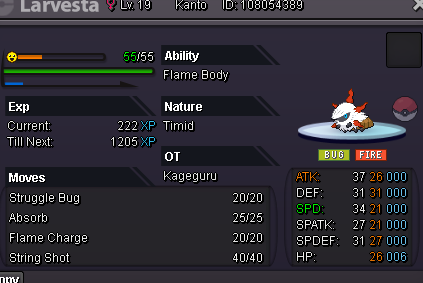
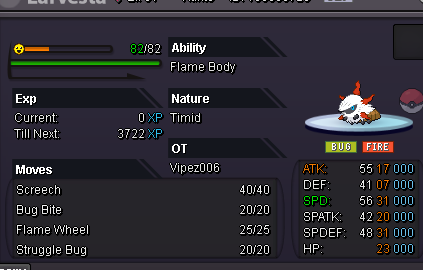
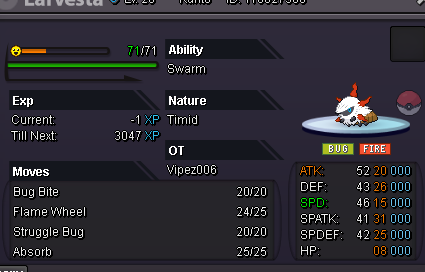
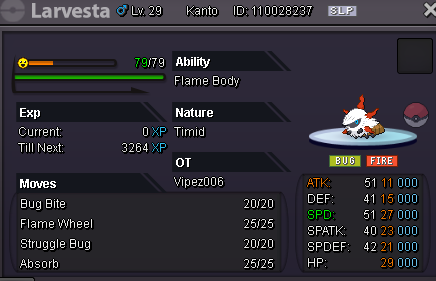
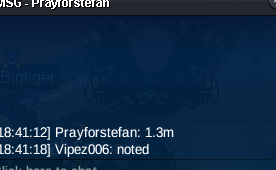
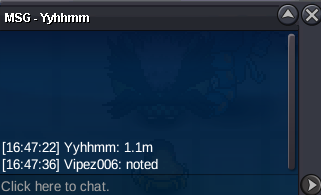
closed startprice for all: 100k Min raise : 50k insta: 1m 2h time after time is met ( just meet kanto johto) 15 min rule active cc=500k
-
Closed: startprice: 300k Minraise 100k intsa 3m after time is met( just meet in kanto or johto) cc=500k 15min rule active 24h time
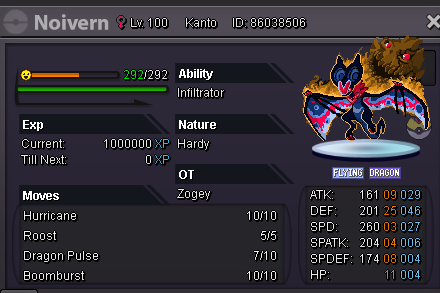 auction closed
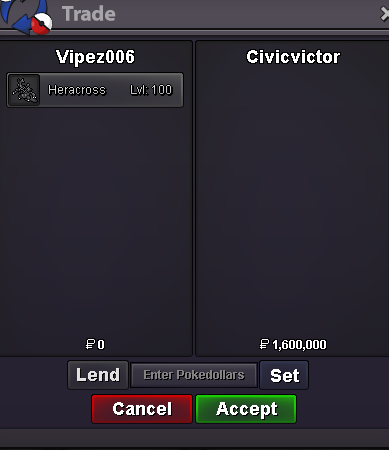 civivictor you wonstartprice;500k min raise;100k time; 24h no insta cc=500k after time is met ( just kanto and johto meet) 15 min rule active;
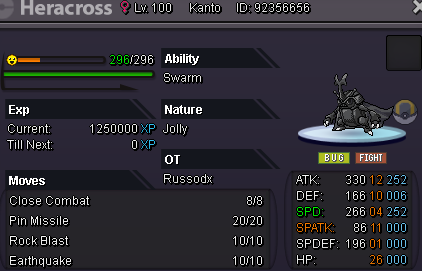 Demonking07 you won the auction790kstart price: 500k min bid: 100k 24h time just in kanto after startprice is met Insta: 3m accept payments cc=500k 15 min rule active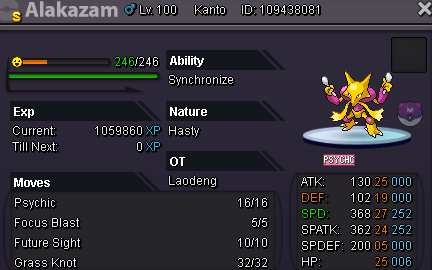
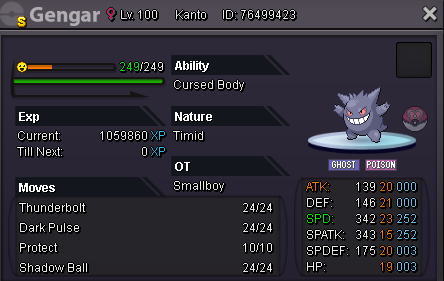
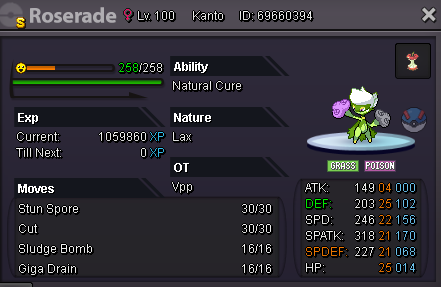 startprice: 100k Bid: 50k time 2h meet just in kanto after startprice met no insta 15 min rule active cc=500k
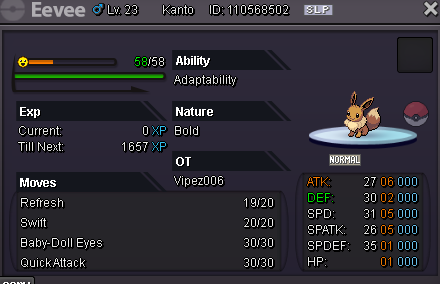 Diab 10 won
 startprice: 500k min raise: 100k insta 4m: 24h time after startprice meet 15 min rule active cc= 500k
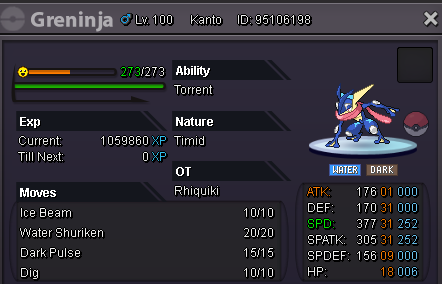 startprice: 100k Min raise: 100k time: 24h after startprice is meet no insta accept = reroll ticket; cc=500k 15 min rule acctive
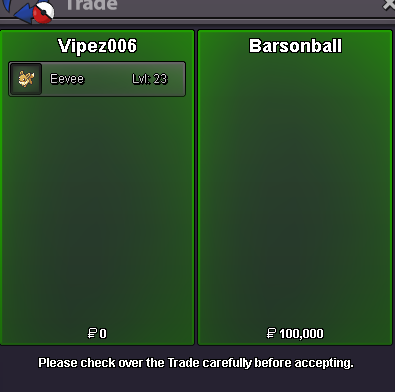
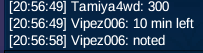
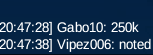
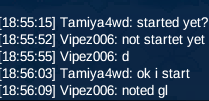
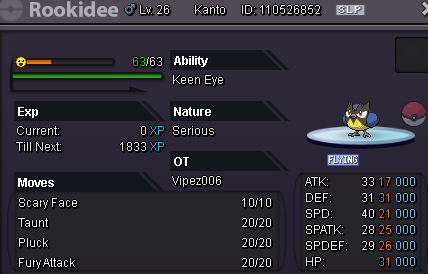 Wait, we understand now, that's how it is, it can't be changed, so what's the point of the screenshot?I didn't know that, so the 15-minute rule applies to everyone; there's no need to write it in separately or anything. I've now sold it because I didn't want the hassle.starprice:200k min raise:50k insta: 2m end after :2h cc=500k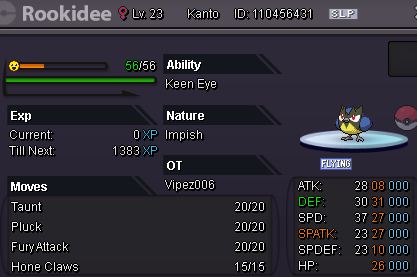

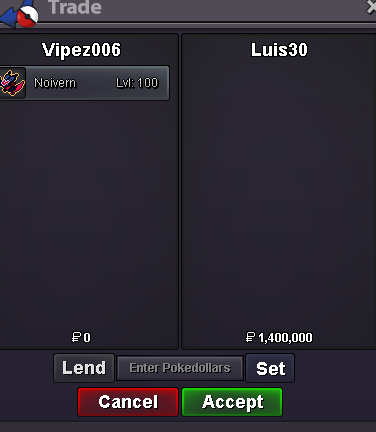

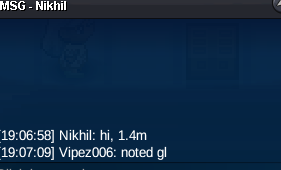


Account
Navigation
Search
Configure browser push notifications
Chrome (Android)
- Tap the lock icon next to the address bar.
- Tap Permissions → Notifications.
- Adjust your preference.
Chrome (Desktop)
- Click the padlock icon in the address bar.
- Select Site settings.
- Find Notifications and adjust your preference.
Safari (iOS 16.4+)
- Ensure the site is installed via Add to Home Screen.
- Open Settings App → Notifications.
- Find your app name and adjust your preference.
Safari (macOS)
- Go to Safari → Preferences.
- Click the Websites tab.
- Select Notifications in the sidebar.
- Find this website and adjust your preference.
Edge (Android)
- Tap the lock icon next to the address bar.
- Tap Permissions.
- Find Notifications and adjust your preference.
Edge (Desktop)
- Click the padlock icon in the address bar.
- Click Permissions for this site.
- Find Notifications and adjust your preference.
Firefox (Android)
- Go to Settings → Site permissions.
- Tap Notifications.
- Find this site in the list and adjust your preference.
Firefox (Desktop)
- Open Firefox Settings.
- Search for Notifications.
- Find this site in the list and adjust your preference.