New Trade Zone
Trade Zone is now live
Use the new Trade Zone for auctions and instant-price trades so Pokemon and item offers are easy to find.
.png.97e0aaa0570abec87be74f61a81c7e52.png)

Fulkann
Registered User
-
Joined
-
Last visited
Everything posted by Fulkann
-
Thank you so much for the help! Please excuse any mistakes as I am using a translator. The issue was that I accidentally downloaded the Visual C++ Redistributable x64 twice; I thought I had downloaded both x64 and x86. I downloaded both again and it worked! Thank you for your time.
-
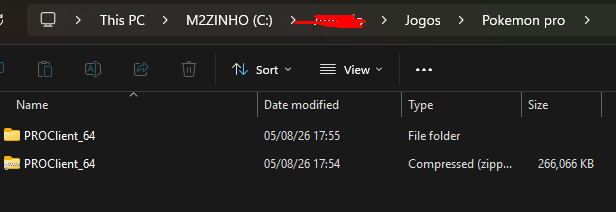
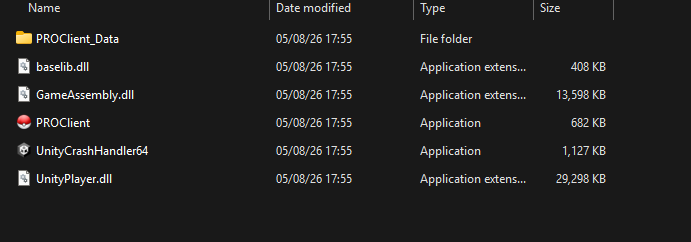
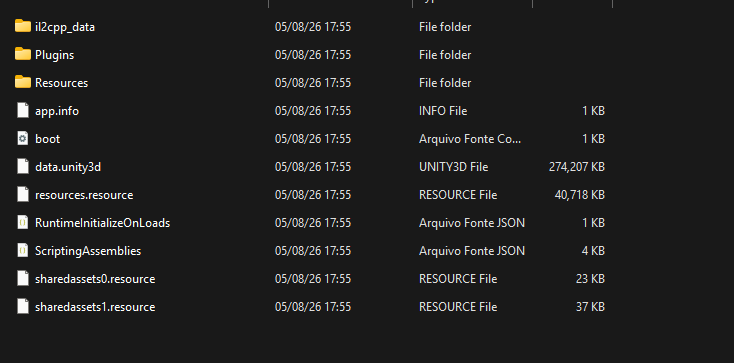
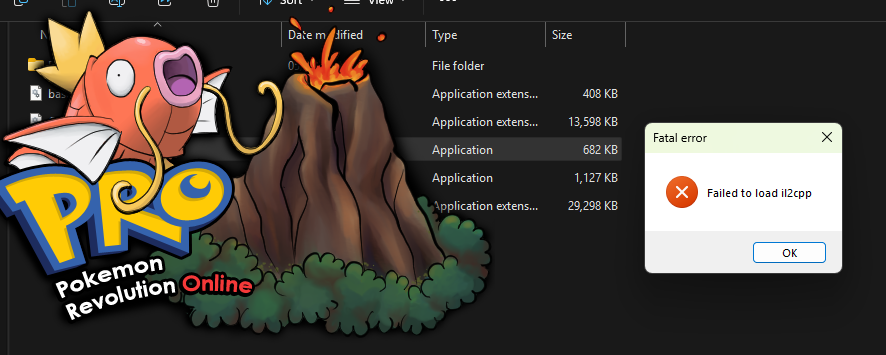
Problem Description: I am unable to launch the Pokémon Revolution Online client. Every time I try to run the executable, I receive the "Failed to load il2cpp" error message. I am using Windows 11 (64-bit). What I have already tried: Visual C++: Installed the latest Visual C++ Redistributable packages x64. Antivirus/Firewall: Added the entire game folder to Windows Defender exclusions. Checked protection history, and no files were quarantined or deleted. File Integrity: Re-downloaded and re-extracted the game files multiple times. Verified that GameAssembly.dll is present in the folder. Permissions: Ran the game as an Administrator. File Path: Moved the game folder directly to C:\ to ensure there are no special characters or long paths. Compatibility: Tried running in compatibility mode and disabling full-screen optimizations. Despite these steps, the error persists. Any help would be greatly appreciated.