New Trade Zone
Trade Zone is now live
Use the new Trade Zone for auctions and instant-price trades so Pokemon and item offers are easy to find.

Ngyenduyphu
Registered User
-
Joined
-
Last visited
Everything posted by Ngyenduyphu
-
-
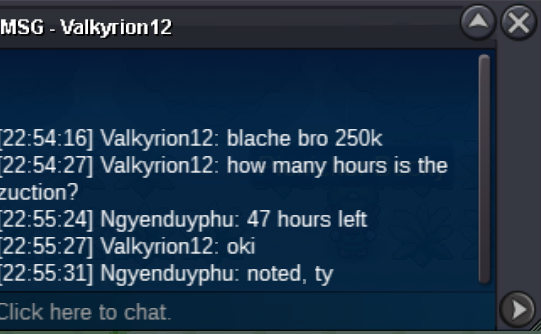
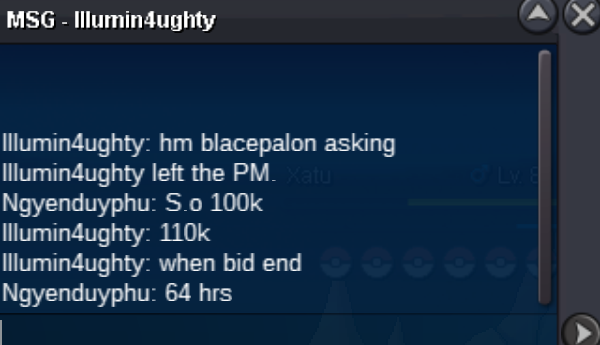
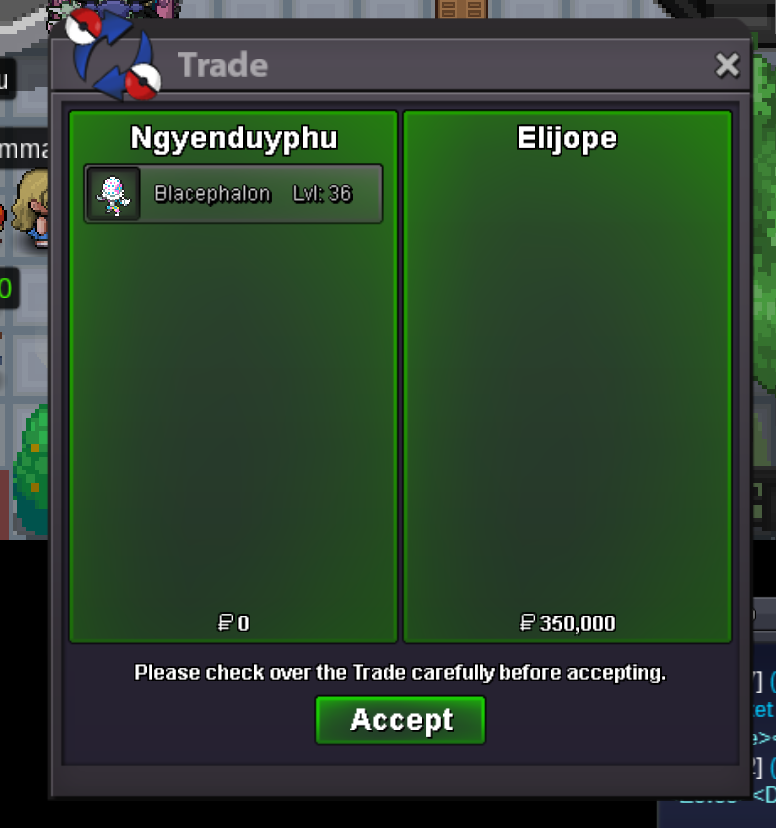
Blacephalon sold
-
-
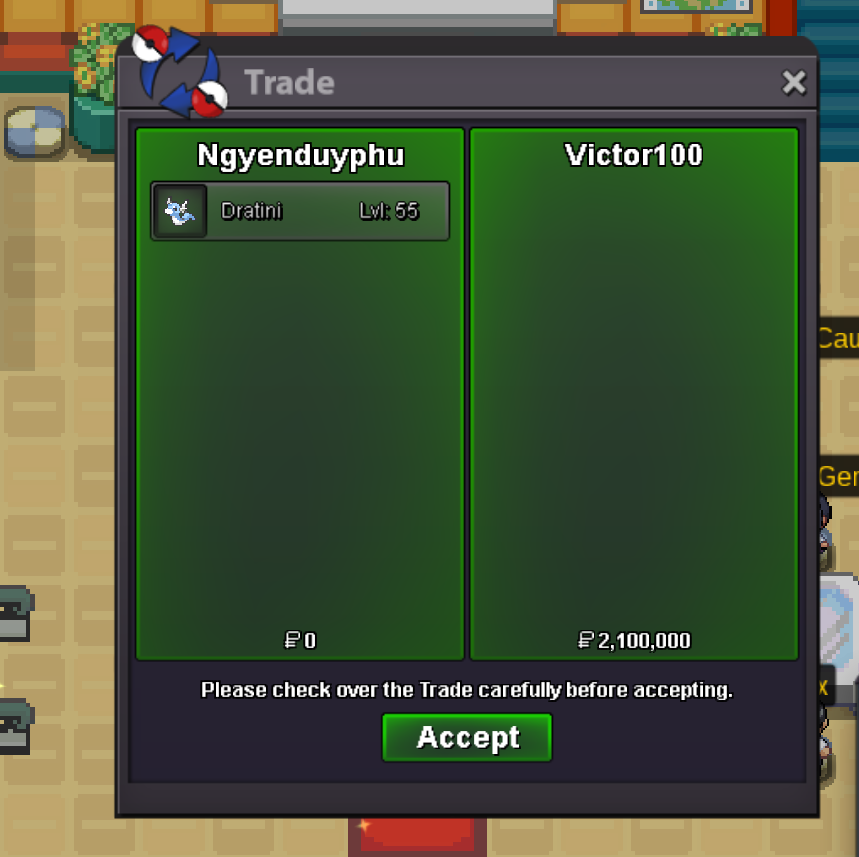
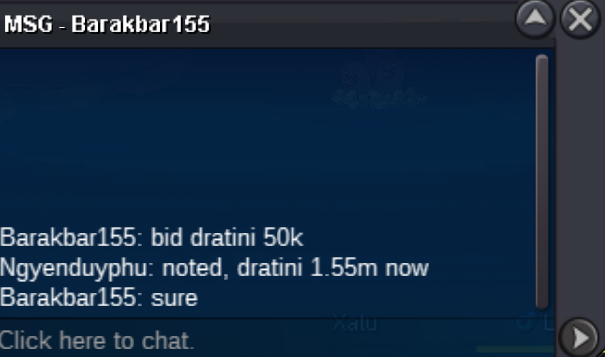
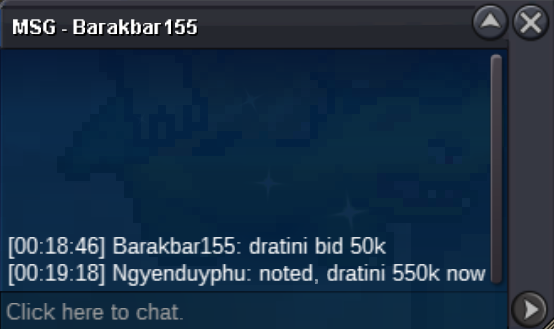
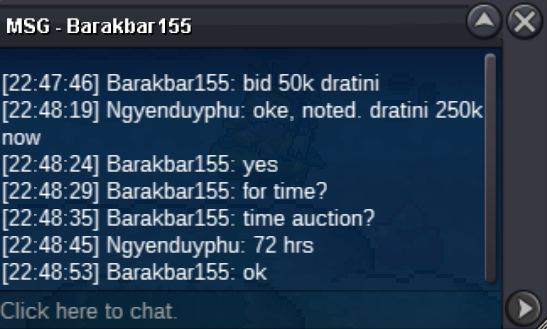
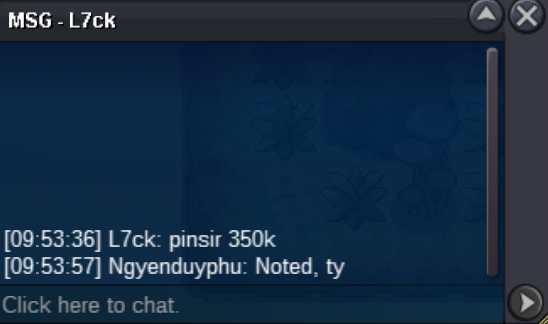
Winning offer: 2.1m Dratini sold (Victor100) Winning offer: 350k Blacephalon sold (Elijope)
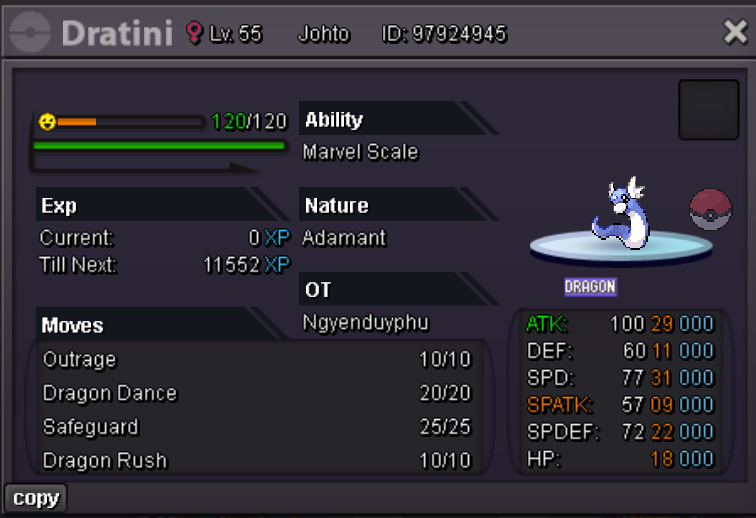
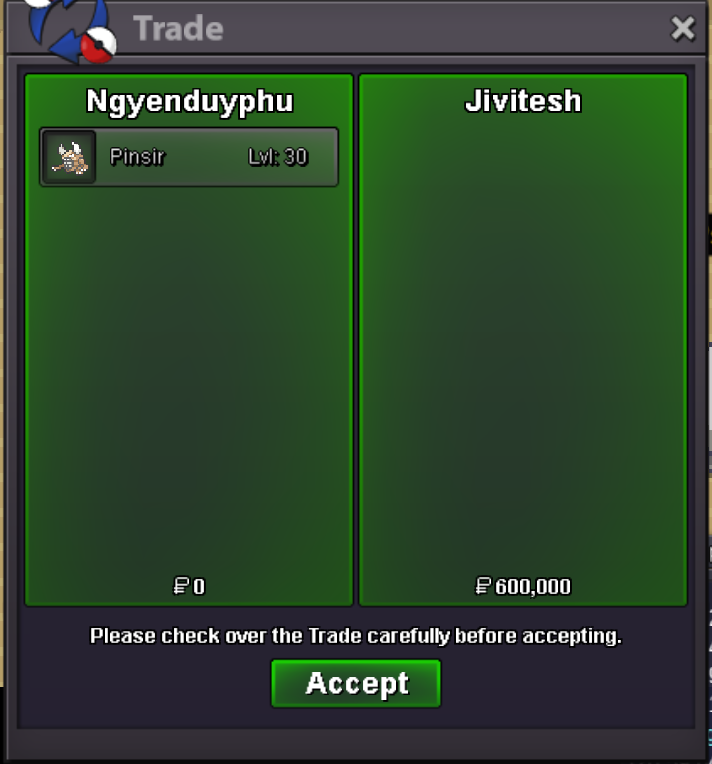
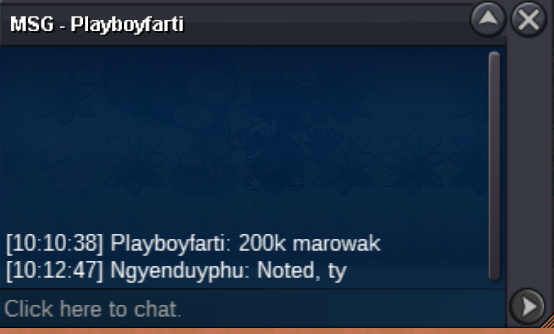
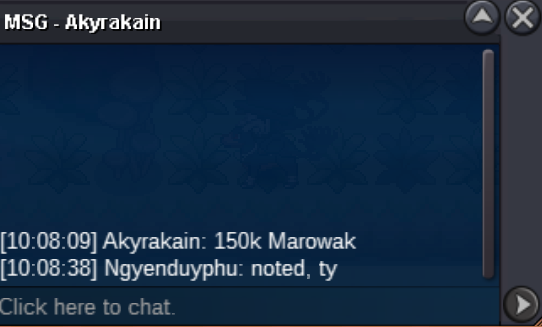
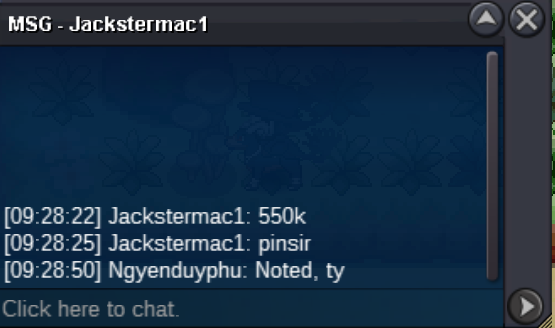
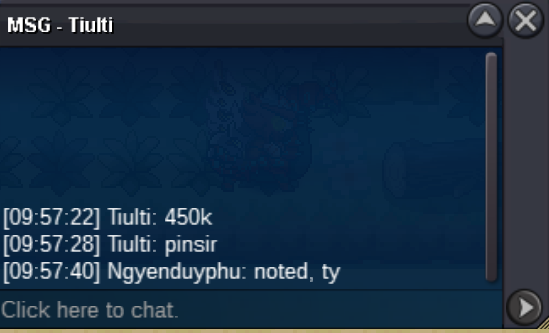
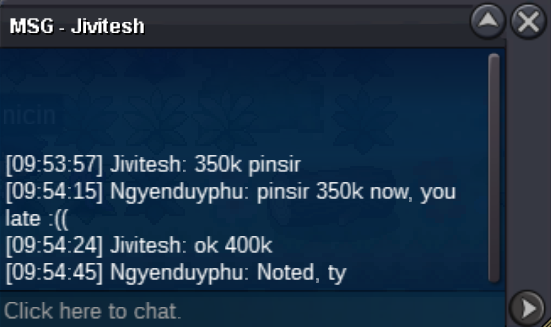
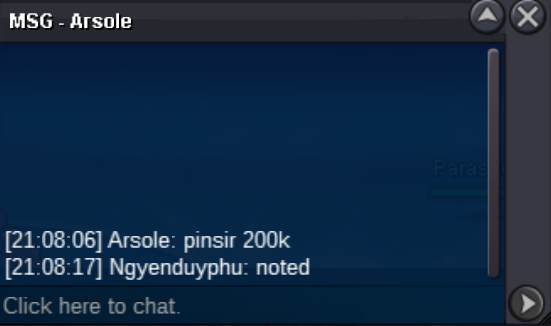
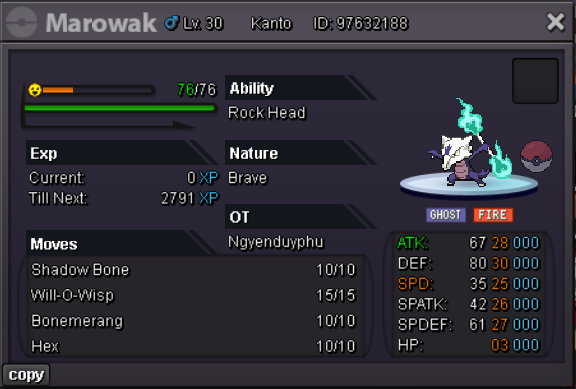
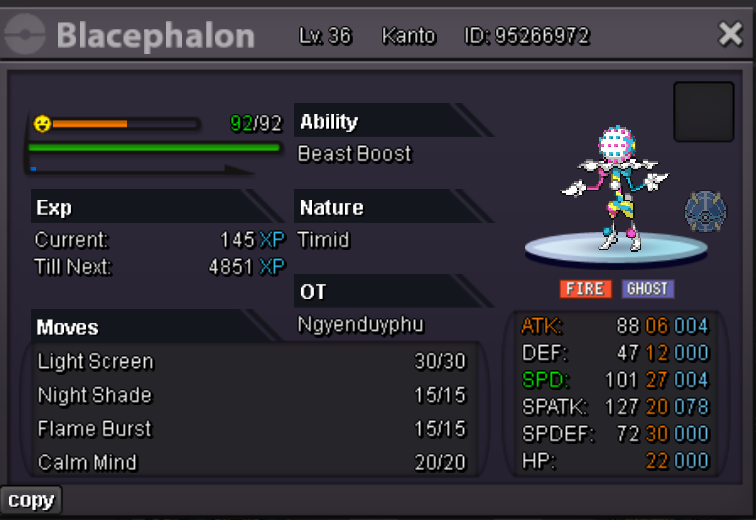 2m (ingame: ngyenduyphu)I had a successful trade with Playboyfarti. I took a screenshot to post to this thread but ran into some technical issues. This message replaces the screenshot (which was accidentally deleted due to an error). Sorry for the inconvenience.Winning offer: 600k pinsir sold (Jivitesh) Winning offer: 200k Marowak sold (Playboyfarti)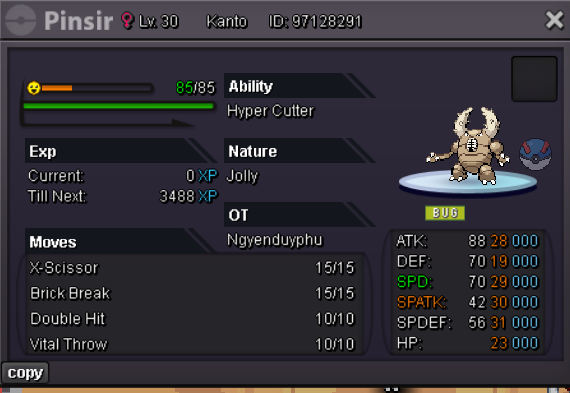
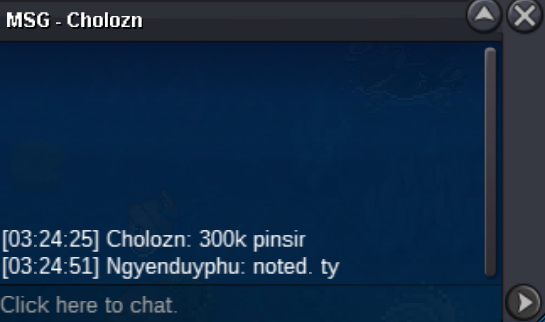
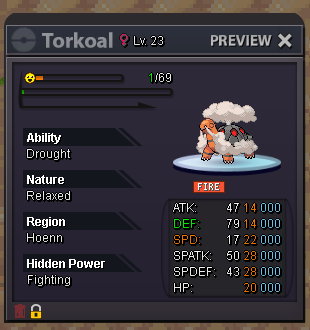
 lopunny 300kHello everyone !!! PROBLEM: The wrong release is a not so rare problem in the game. If I store the Pokemon's information again, it shouldn't be too difficult to get it back. But sometimes I lose that information. For example: If you release too many pokemon at once, it's easy to get mistakes; or sometimes you simply release the wrong pokemon and then log out,... SOLUTION: I hope there will be a feature to lock Pokemon. It makes pokemon impossible to release. It will be a small button (like my illustration) to switch 2 modes (default is unlock: ie releaseable). Once a pokemon has been captured, the trainer can lock it. They can also lock down all their good pokemon. There will be no more mistakes. Thanks for reading to my suggestion ❤️❤️❤️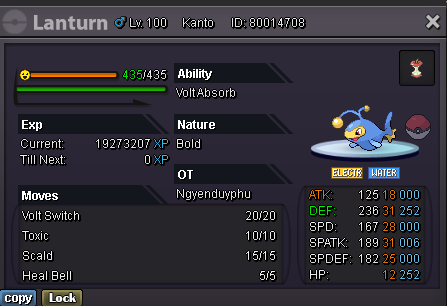
Account
Navigation
Search
Configure browser push notifications
Chrome (Android)
- Tap the lock icon next to the address bar.
- Tap Permissions → Notifications.
- Adjust your preference.
Chrome (Desktop)
- Click the padlock icon in the address bar.
- Select Site settings.
- Find Notifications and adjust your preference.
Safari (iOS 16.4+)
- Ensure the site is installed via Add to Home Screen.
- Open Settings App → Notifications.
- Find your app name and adjust your preference.
Safari (macOS)
- Go to Safari → Preferences.
- Click the Websites tab.
- Select Notifications in the sidebar.
- Find this website and adjust your preference.
Edge (Android)
- Tap the lock icon next to the address bar.
- Tap Permissions.
- Find Notifications and adjust your preference.
Edge (Desktop)
- Click the padlock icon in the address bar.
- Click Permissions for this site.
- Find Notifications and adjust your preference.
Firefox (Android)
- Go to Settings → Site permissions.
- Tap Notifications.
- Find this site in the list and adjust your preference.
Firefox (Desktop)
- Open Firefox Settings.
- Search for Notifications.
- Find this site in the list and adjust your preference.