




New Trade Zone
Trade Zone is now live
Use the new Trade Zone for auctions and instant-price trades so Pokemon and item offers are easy to find.

Arrowde
Registered User
-
Joined
-
Last visited
-
Okay I just recently found the solution ! The problem is that despite erasing the PRO files, the parameters are still registered in the registry entries. To erase those parameters in the registry entries you must access the registry by typing "regedit" into the Windows search bar and pressing Enter (Be cautious when working with the registry, as deleting the wrong entries can cause issues with your system). Then look for HKEY_CURRENT_USER\Software\ and search the file corresponding to your game (it should be named PROteam or something like this). This file stores the parameters of your game thus you must erase it. Then it should fix the problem 🙂
-
I tried with the 32 bit version but still the same error. Guess I won't be able to play the game ahah
-
This is a classical "stopped working error". I do also get a message from the UnityCrashHandler telling me that the program has failed but did not manage to take a screenshot of it.
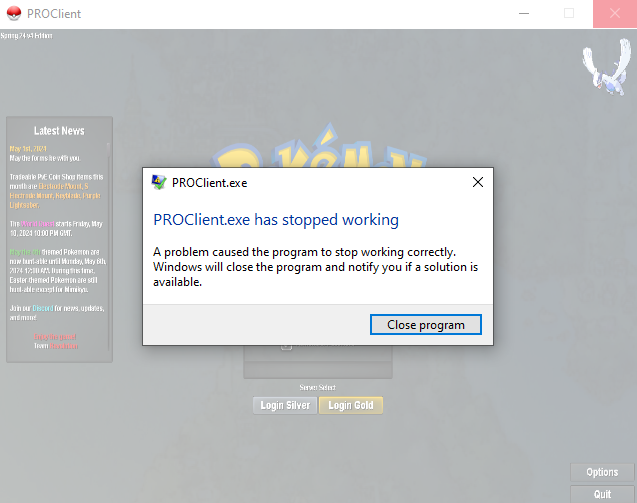
-
I tried but unfortunately it didn't solve the problem... I still got the error despite erasing the old file, and reinstalling using mega.
-
Hey ! I recently redownloaded the game and while trying to reconfigure it, I put the resolution to the lowest one. Since then the game crash when I launch it and I can't manage to the open the console (pressing f2 doesn't do anything despite being on desktop). I tried to reinstall the game but the parameters are still the same. Do you know any solution to this problem ?