New Trade Zone
Trade Zone is now live
Use the new Trade Zone for auctions and instant-price trades so Pokemon and item offers are easy to find.

Nadebothd
Registered User
-
Joined
-
Last visited
Everything posted by Nadebothd
-
I found the issue, apparently windows 10 creates a ghost service for PRO and you can't find it but if I run PRO in a sandbox program it launches fine. It's a bandaid for the situation but it works and I'm am in no position to rush any fixes. But something is happening the first time you launch PRO on windows 10 platforms causing it to hide a PRO service somewhere making it believe their is already an instance running. Thanks for your help again.
-
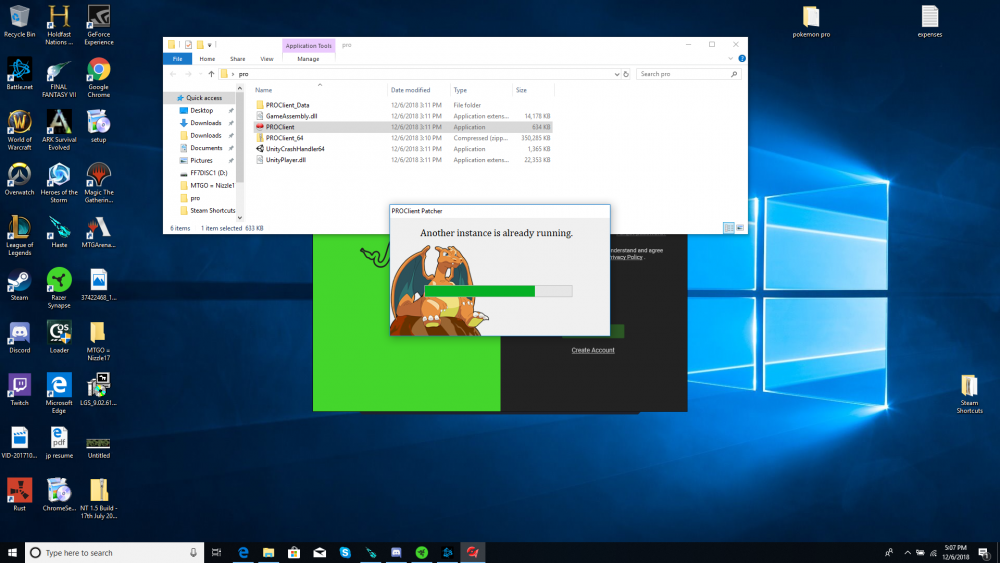
This is the error message, I couldn't post it from my screenshot because it said screenshot size was to big. But that is the same error message I am receiving.
-
I tried disabling all anti-viruses and firewalls. It still tells me the same error about another instance running. Thanks for your response though.
-
Hi, I don't wanna bombard you but I'm having the same exact issue mentioned above. Client will open, start to download the patch, then close and pull up the "another instance is currently running". I searched some other posts and see fixes for other similar situations but so far the steps you listed above and the other various fixes on the forums aren't working. You think it could be a patching issue?