




New Trade Zone
Trade Zone is now live
Use the new Trade Zone for auctions and instant-price trades so Pokemon and item offers are easy to find.

Yumetsuki
Registered User
-
Joined
-
Last visited
Everything posted by Yumetsuki
-
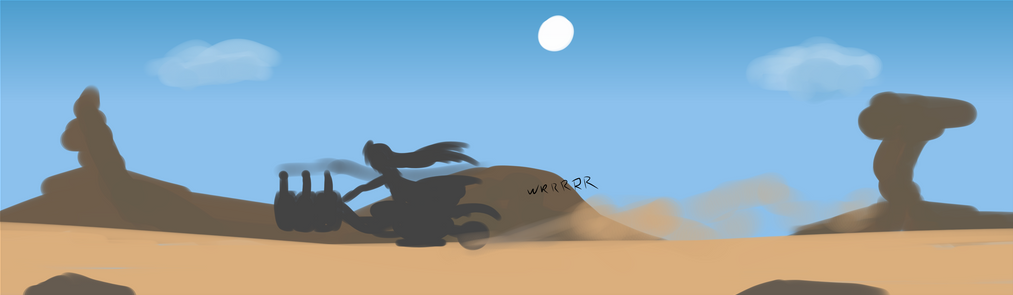
Oh boy, the last page of the year 😆And now the final page of this extra ~ Tomorrow we're going to enter Chapter 4 and then it's back to the regular weekly friday update schedule.Now before the chapter starts, it's time for the the Extra I've been talking about that's releasing for Zinelocke. Unfortunately it seems the release date has been delayed by a few days. But until then I'll still be posting the extra pages one by one evert day... :xWith chapter 3 now entirely officially out of the way it's time to reveal the cover for chapter 4 😄The next few weeks are going to include daily updates, starting now.
Account
Navigation
Search
Configure browser push notifications
Chrome (Android)
- Tap the lock icon next to the address bar.
- Tap Permissions → Notifications.
- Adjust your preference.
Chrome (Desktop)
- Click the padlock icon in the address bar.
- Select Site settings.
- Find Notifications and adjust your preference.
Safari (iOS 16.4+)
- Ensure the site is installed via Add to Home Screen.
- Open Settings App → Notifications.
- Find your app name and adjust your preference.
Safari (macOS)
- Go to Safari → Preferences.
- Click the Websites tab.
- Select Notifications in the sidebar.
- Find this website and adjust your preference.
Edge (Android)
- Tap the lock icon next to the address bar.
- Tap Permissions.
- Find Notifications and adjust your preference.
Edge (Desktop)
- Click the padlock icon in the address bar.
- Click Permissions for this site.
- Find Notifications and adjust your preference.
Firefox (Android)
- Go to Settings → Site permissions.
- Tap Notifications.
- Find this site in the list and adjust your preference.
Firefox (Desktop)
- Open Firefox Settings.
- Search for Notifications.
- Find this site in the list and adjust your preference.
