




New Trade Zone
Trade Zone is now live
Use the new Trade Zone for auctions and instant-price trades so Pokemon and item offers are easy to find.


Taskiner
Registered User
-
Joined
-
Last visited
Everything posted by Taskiner
-
left 15 min
-
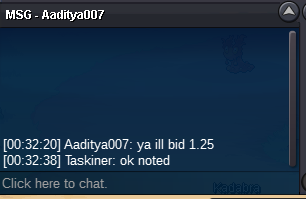
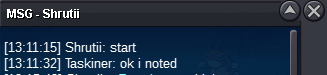
ok noted
-
24 min left
-
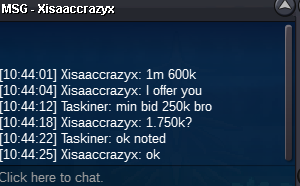
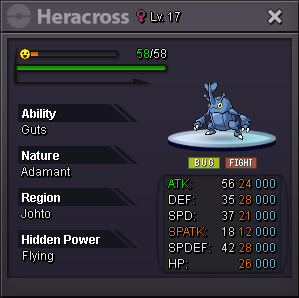
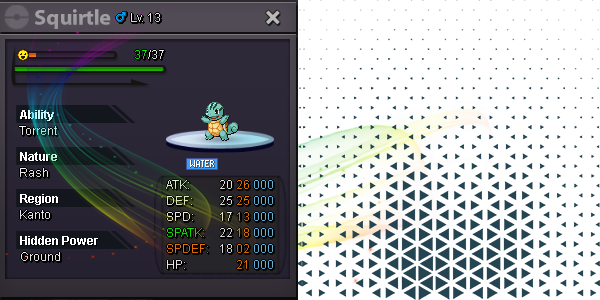
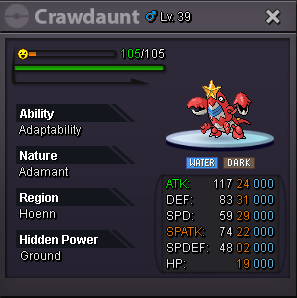
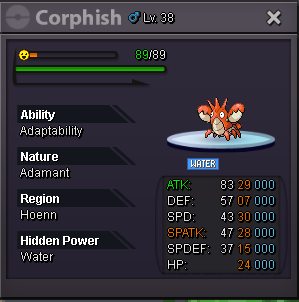
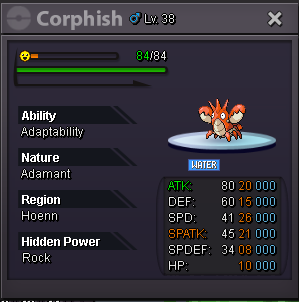
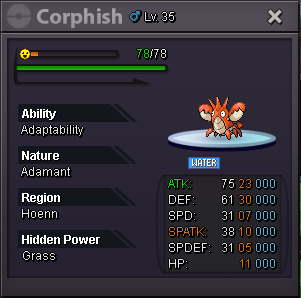
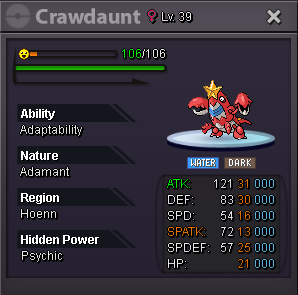
[Poke60454916]c.o 1,5m by adiiiiiit , min bid 250k , insta 7m, 12 hour leftsorry rishi u offer 600+360+650= 1m 610 k next bid min +250 k , current offer : 1.5m17 hour leftok noted left 1day 1 hourAuction S.o- 1m Min bid- 250k Insta-7m Time-4 DAY Accepted payments CC - 360K RR- 650K PokeDollars Please mention your server while bidding!
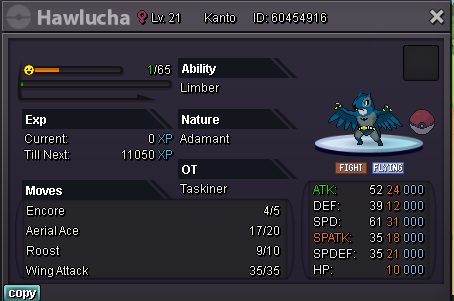 I am login broi'm working at work , let's meet tomorrow at 20.00 according to turkey timewin snowblues123c.o 600k by snowblues123
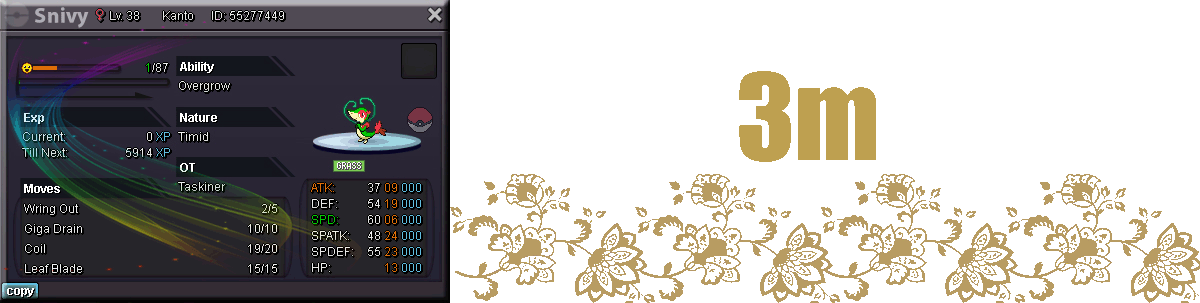
 Starting Offer - 500k Insta Bid - 5m Min Raise - 100k Duration - 12 hours from the starting bid. Acceptable payment Poke dollars Coin Capsules - 400k IV Reroll - 650K IGN: taskiner
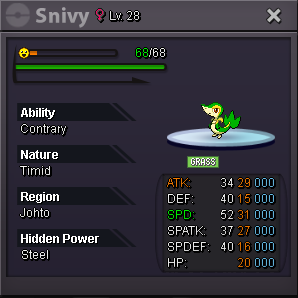 1,2m but this poke evolved salamace not tranied
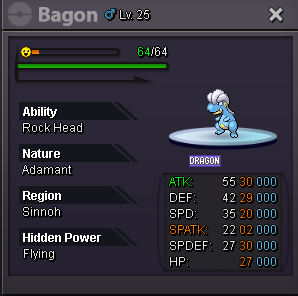 gastly 300k klefki 600k , mahnemite 900k , meditite 1,2mThe shop taskiner has been opened and new pokes have been added











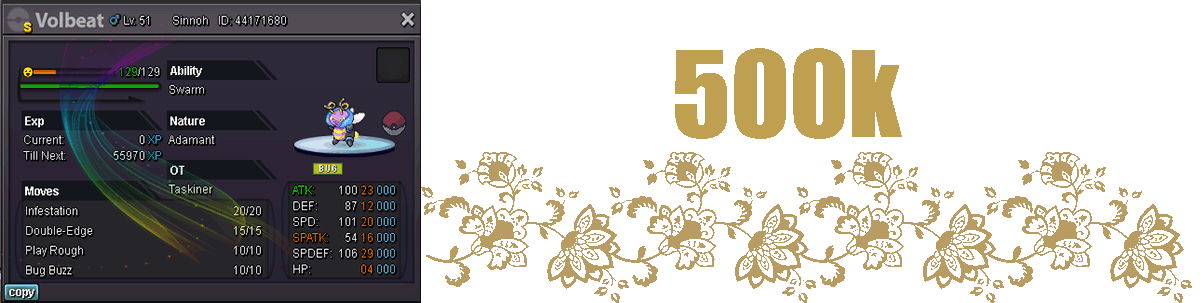
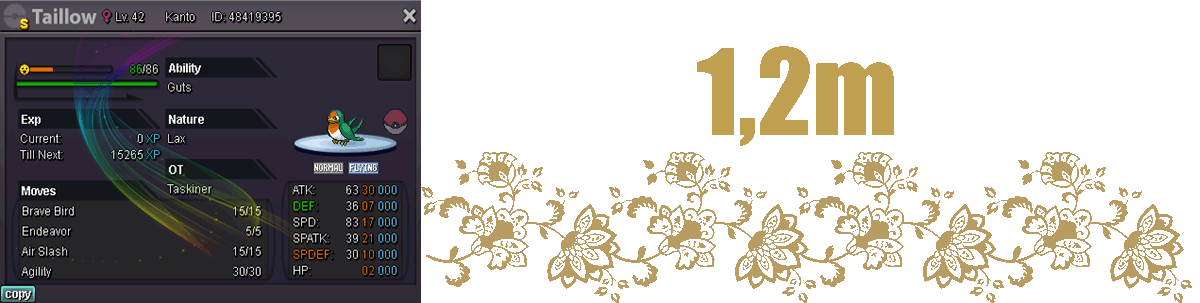
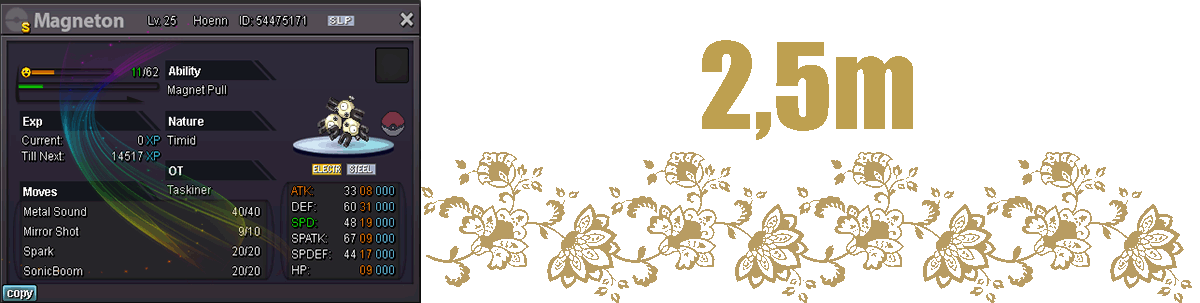
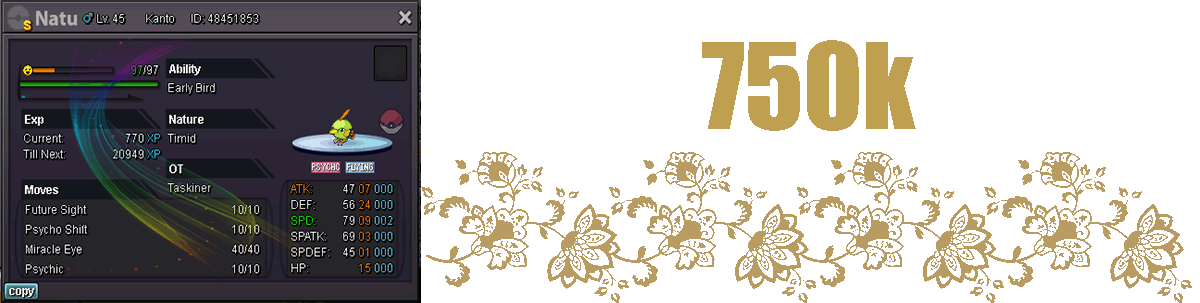
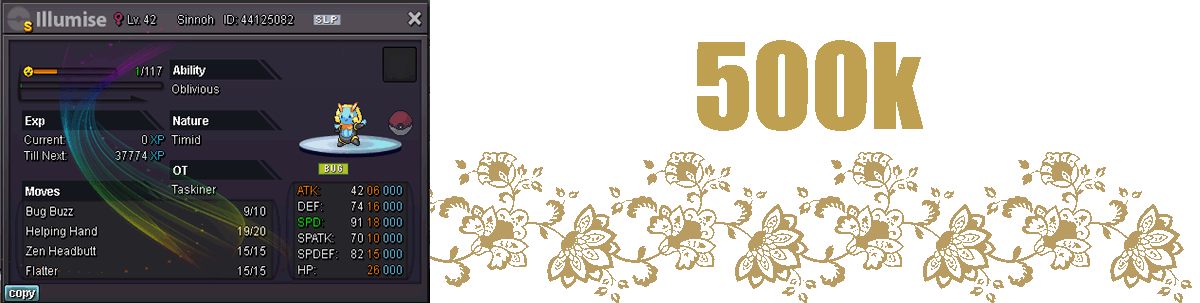
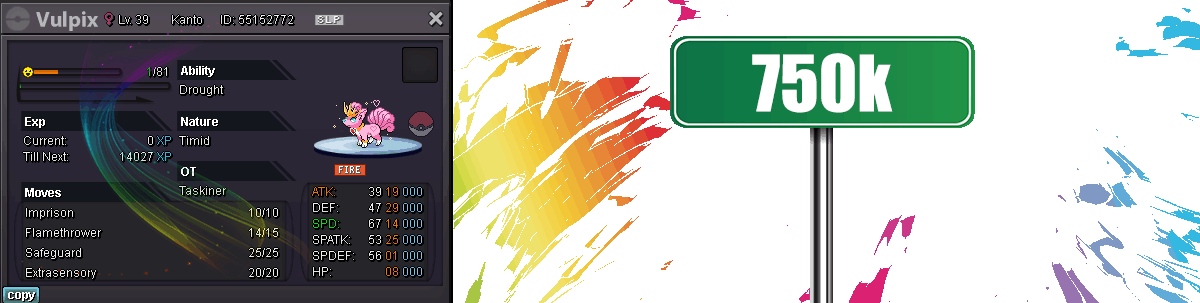
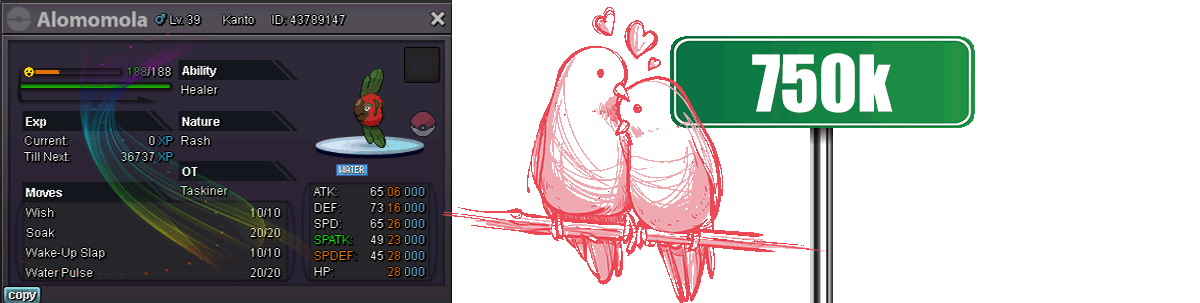
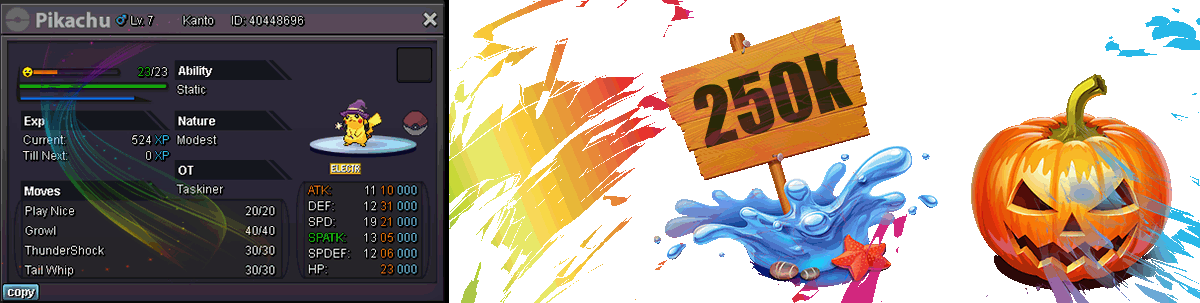
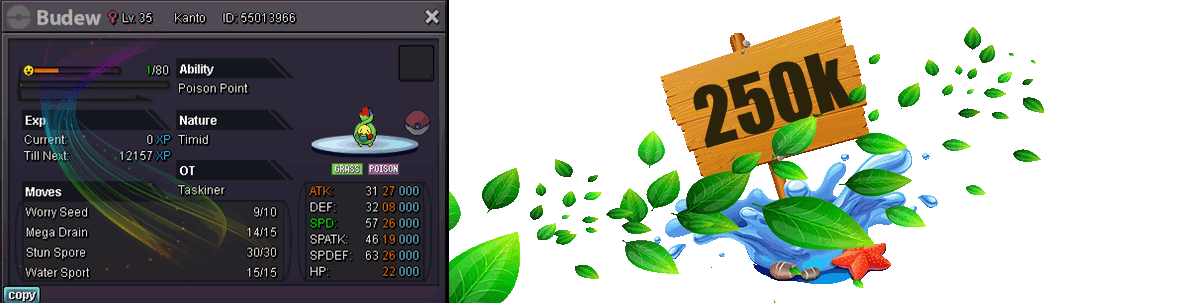

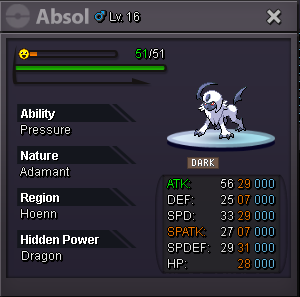
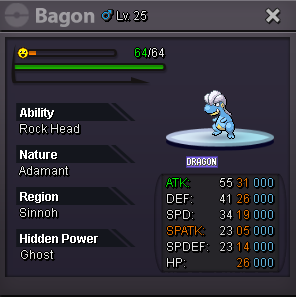
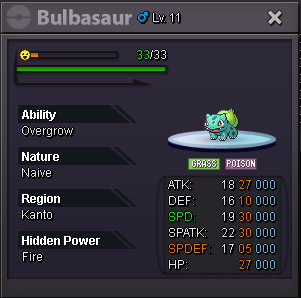
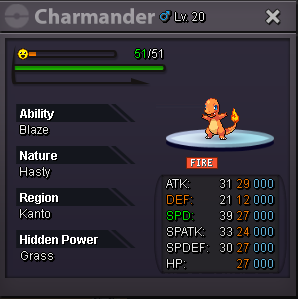
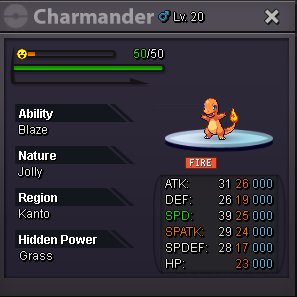
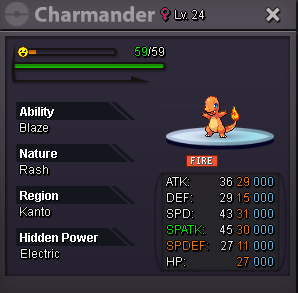
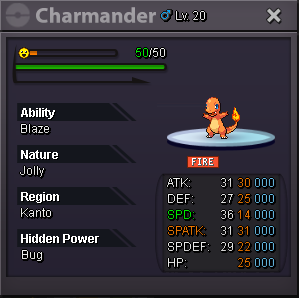
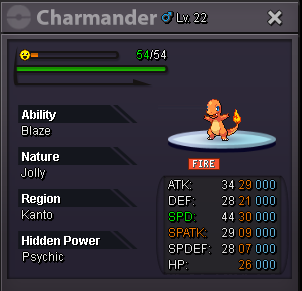
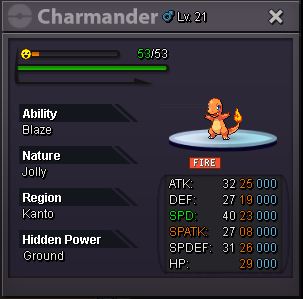
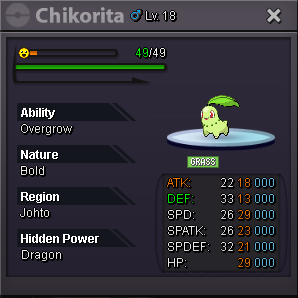
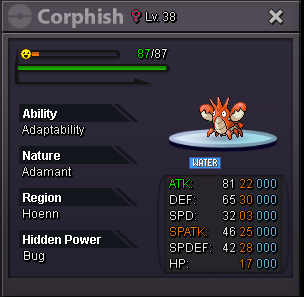

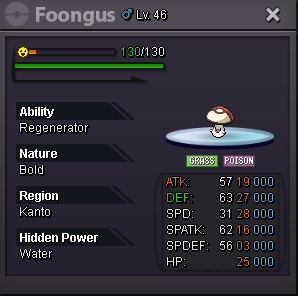
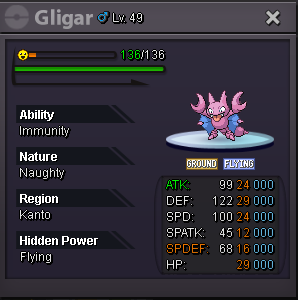
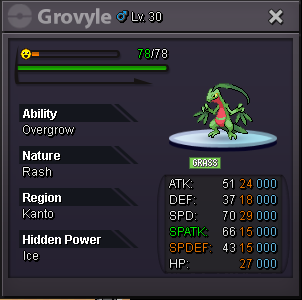
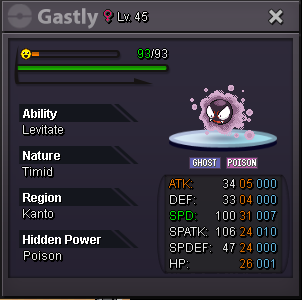
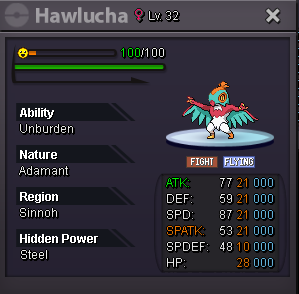
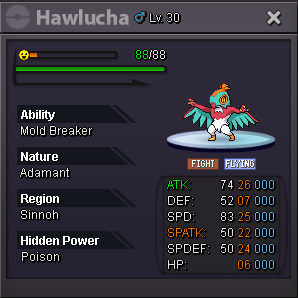
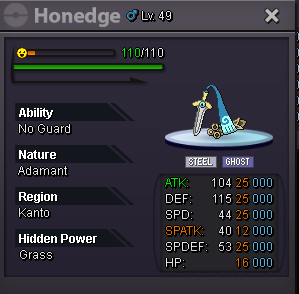
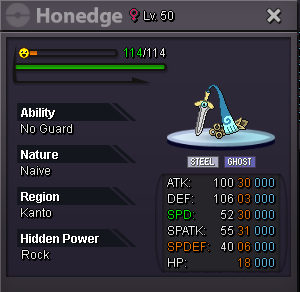
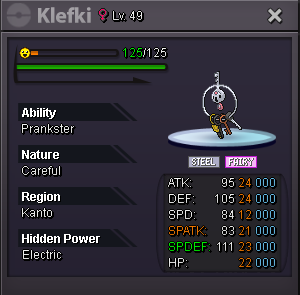
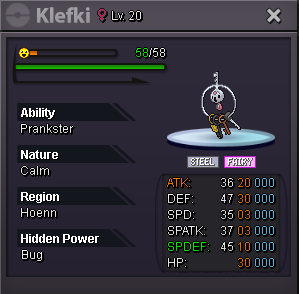
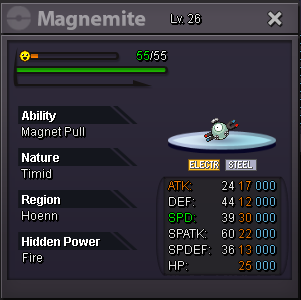
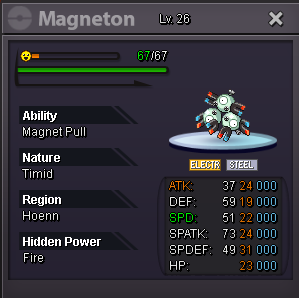
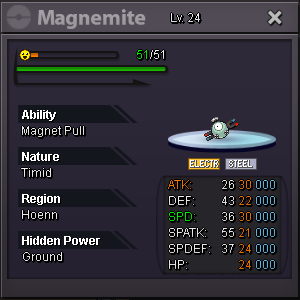
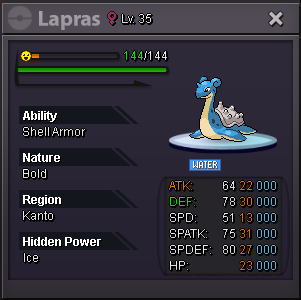
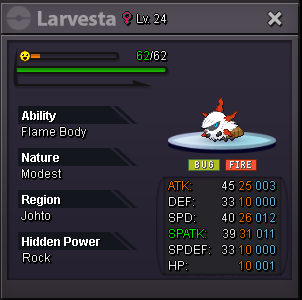
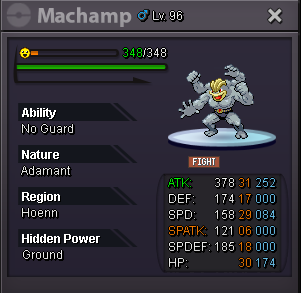
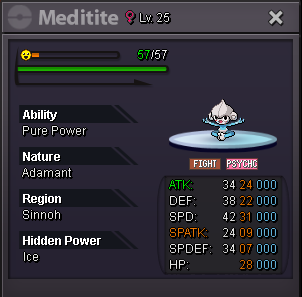
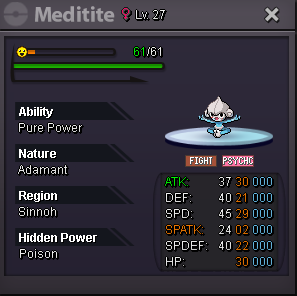
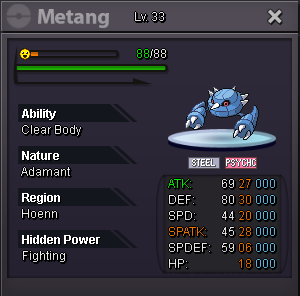
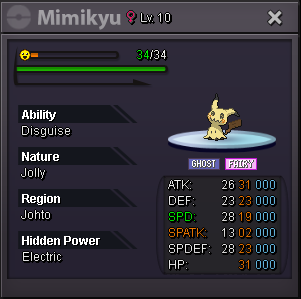
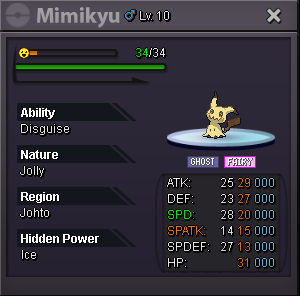
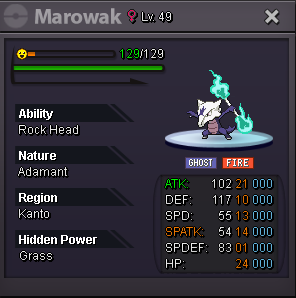
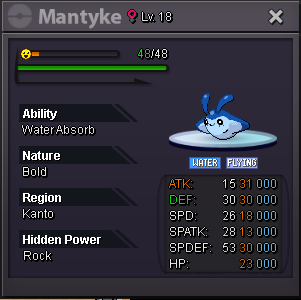
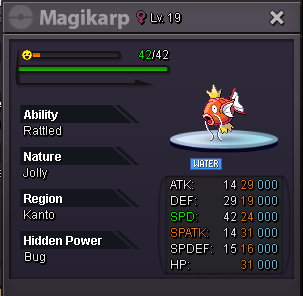
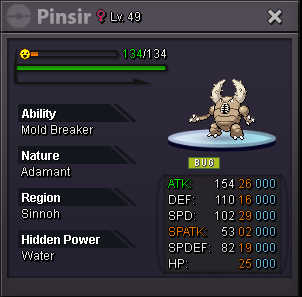
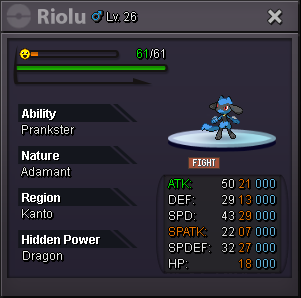
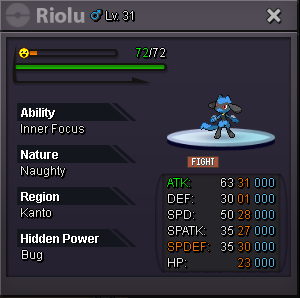
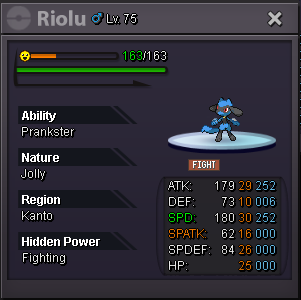
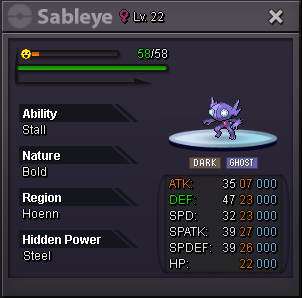
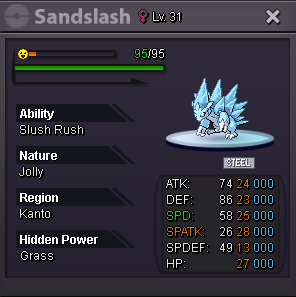
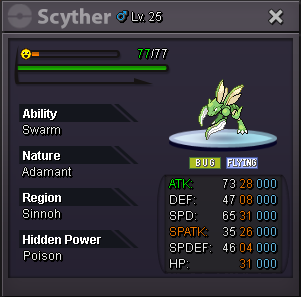
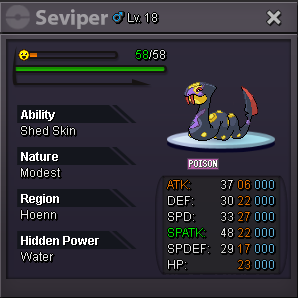
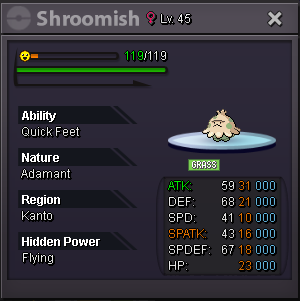
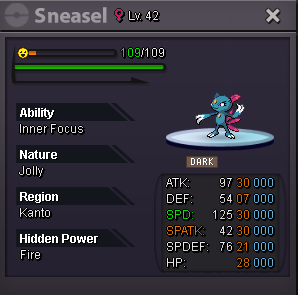
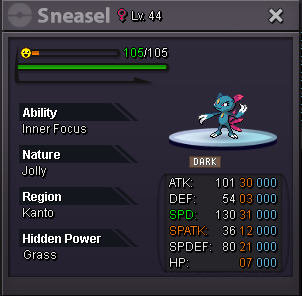
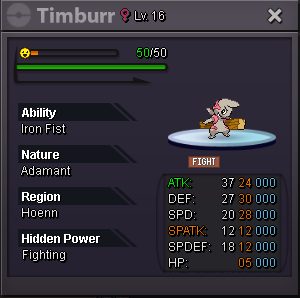
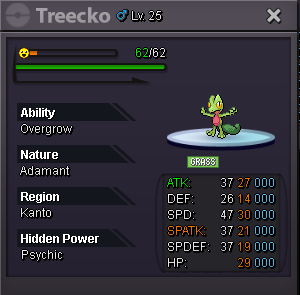
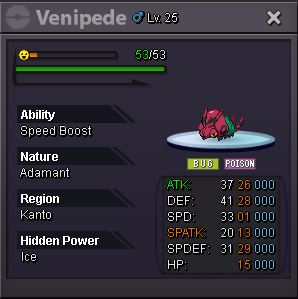
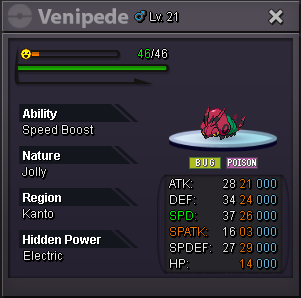
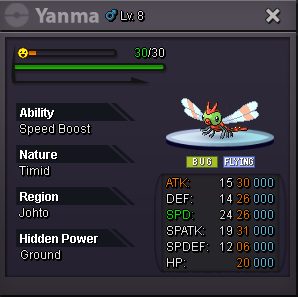

.gif.3e69561e135cc0914c3056a67268f84d.gif)
Account
Navigation
Search
Configure browser push notifications
Chrome (Android)
- Tap the lock icon next to the address bar.
- Tap Permissions → Notifications.
- Adjust your preference.
Chrome (Desktop)
- Click the padlock icon in the address bar.
- Select Site settings.
- Find Notifications and adjust your preference.
Safari (iOS 16.4+)
- Ensure the site is installed via Add to Home Screen.
- Open Settings App → Notifications.
- Find your app name and adjust your preference.
Safari (macOS)
- Go to Safari → Preferences.
- Click the Websites tab.
- Select Notifications in the sidebar.
- Find this website and adjust your preference.
Edge (Android)
- Tap the lock icon next to the address bar.
- Tap Permissions.
- Find Notifications and adjust your preference.
Edge (Desktop)
- Click the padlock icon in the address bar.
- Click Permissions for this site.
- Find Notifications and adjust your preference.
Firefox (Android)
- Go to Settings → Site permissions.
- Tap Notifications.
- Find this site in the list and adjust your preference.
Firefox (Desktop)
- Open Firefox Settings.
- Search for Notifications.
- Find this site in the list and adjust your preference.