



New Trade Zone
Trade Zone is now live
Use the new Trade Zone for auctions and instant-price trades so Pokemon and item offers are easy to find.
All Activity
Past hour
-
The same happened again just now.
-
Hfhfhfghgf joined the community
-
-
Today
Yanshen joined the communityAlphared1 joined the communityBumpSchliemak joined the communityStill?+1up+1Roxschall joined the communityserver transferbump!Eonreo joined the communityHi there, I appreciate the suggestion, but this was already recommended in the initial troubleshooting instructions. Regards, Brambleghast+1, Good feature to keep track on the battery percentage..Especially for those who play for long time..Hello there, Can try VPN too and check whether it works..This depends on the device you are using. For Windows, do the following: Head into your settings, then click "Network & Internet" Click "Manage known networks", then find your current connection Click the arrow on the right, next to the "Forget" button You should now see DNS and IP assignment For Android, do the following: Head into your settings, then click your current connection Under "IP settings" tap "Static" You should now see DNS and IP assignment I am personally unfamiliar with other operating systems so for MacOS, it is best you refer to the guide I provided earlier Hope this helps! Kind regards, BrambleghastA not very detailed suggestion but for players on tablet or mobile, having an icon with battery perctage would be a nice quality of life addition. Nothing crazy but like a battery icon with the charge percentage in the top right (maybe under PokeTime). That's all 🙂thanks, ill try, btw where is this DNS setting located?Ah! I'm happy something has worked for you, but I am unable to diagnose exactly why you are having issues on your regular home internet. It is possible that it is something to do with your local service provider. Sometimes users have found that the issue resolves itself over time. Are you able to use your cellular data in the meantime?I have a few other tips and tricks for you to try, if you don't mind. Disconnect your device from the Wi-Fi (in your device settings) for 30-60 seconds, then reconnect and try to login again. Redownload the latest client from the official download page, then try to login again. Manually configure a DNS of 1.1.1.1 by following the instructions found on this page and try to login again. Again, please let me know if any of these tips help, and best of luck logging back in. I'm very sorry that you are experiencing this and want to try to get you back into the game. Kind regards, Brambleghastive tried my mobile provider i can login, but only my wifi connection cannot login to gold server but my wifi can login to silver server, why is that?Johnjamesthe joined the communityyes i have, but still cannot login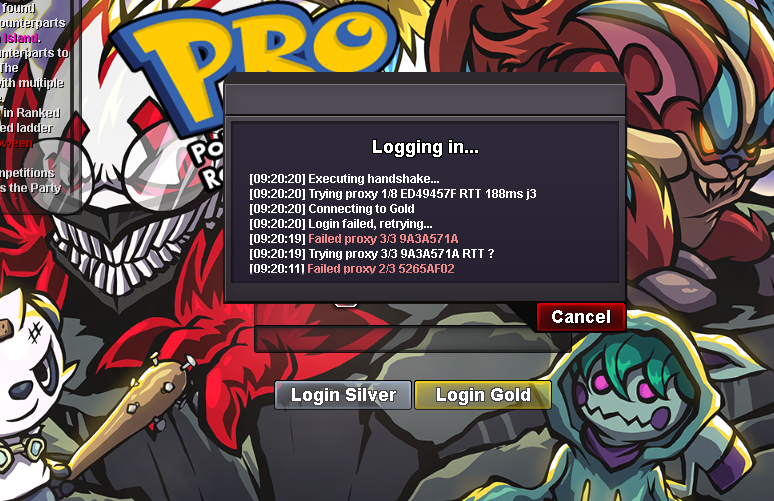 Clockedout joined the communityHave you tried the other troubleshooting steps yet? Any one of those could potentially resolve the problem. Regards, Brambleghasti tried to attempt login to other server which is silver but it runs normal, and can login directly, only gold server is error login issues, ive using vpn too, but keep failed