New Trade Zone
Trade Zone is now live
Use the new Trade Zone for auctions and instant-price trades so Pokemon and item offers are easy to find.

Mawilight
Registered User
-
Joined
-
Last visited
Everything posted by Mawilight
-
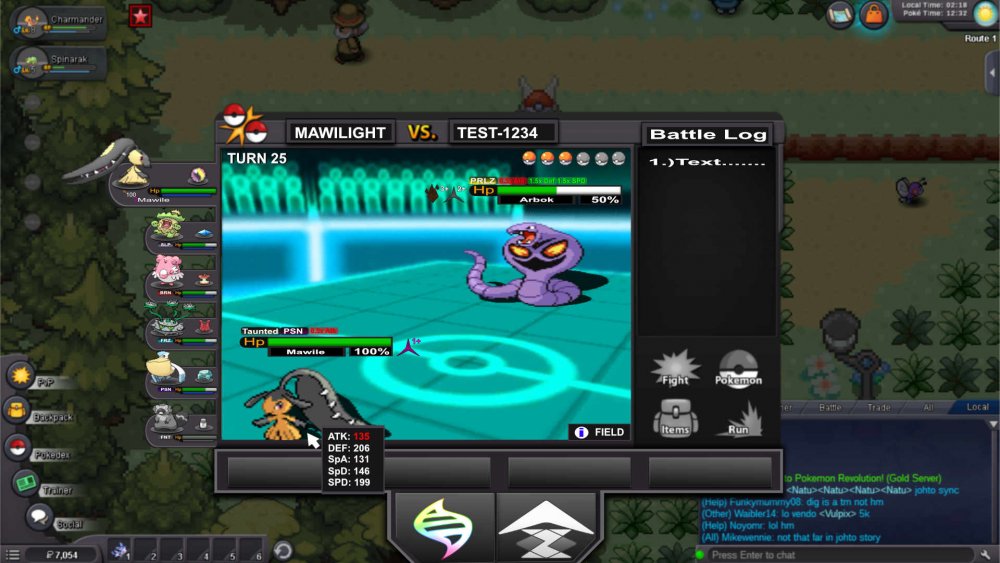
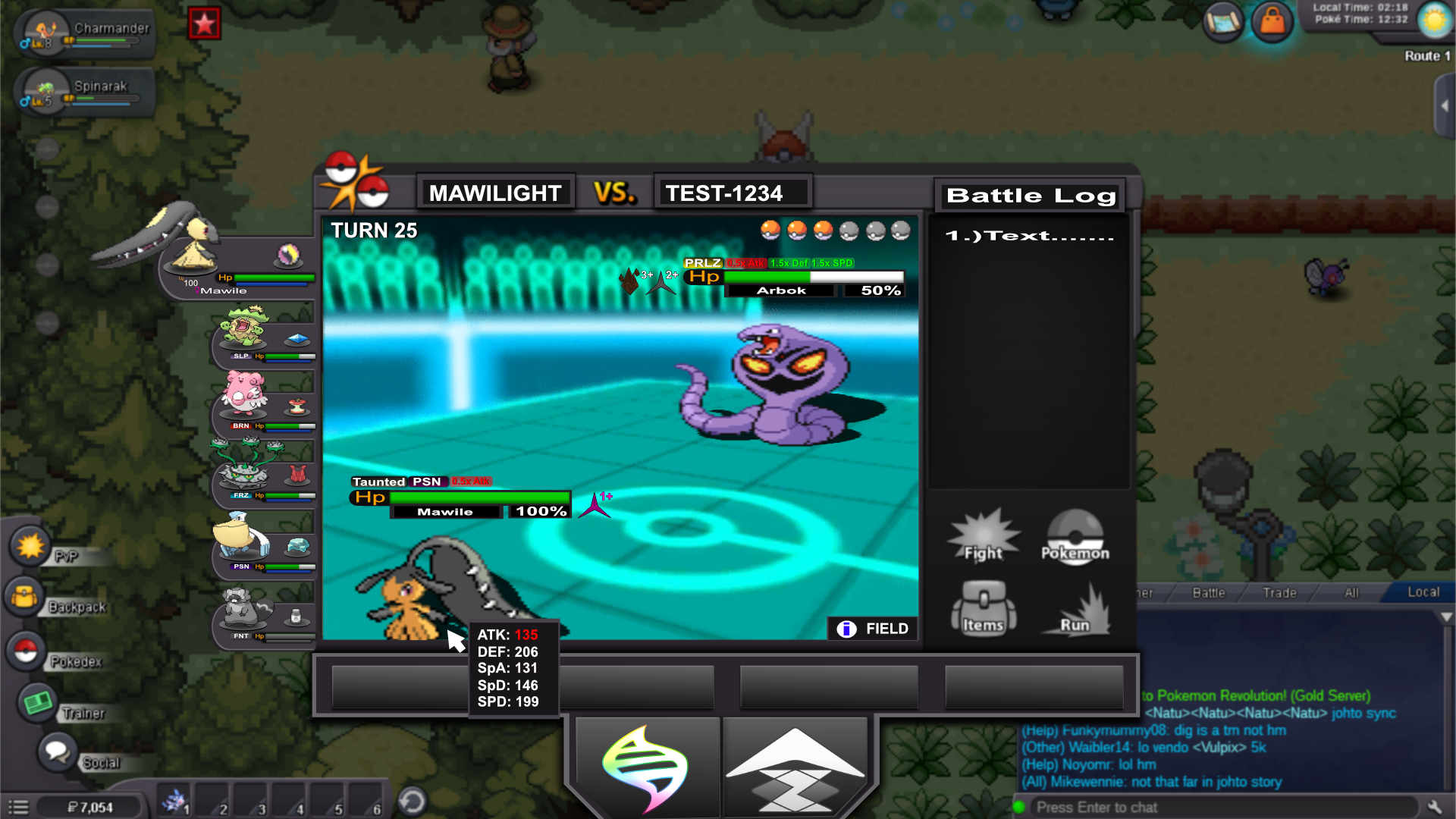
I know its super late, but I've only played this game for a day, not even a hour. But I've seen the ingame announcement and went into making this. The overall design of the UI is already nice, I've made some tweaking to incorporate the new mega-evolution and z-move mechanic. I've tried to stay as close to the overall design as possible and tried to use the same colors as the old UI. My design is pretty much self explanatory. major changes: 1.) Ive added the pokemon list on the left side for easy access, it also show the status, includes both HP and XP, Held item. 2.) Incorporated Pokemon Showdown style of HP bar with custom status, hazards and stat changes. having Hp in percentage gives players easy time on reading the damage including helping them learn the sets the opponent is running (this is base from my time playing Pokemon Showdown) 3.) On the rightside where the attack use to be, I've made into a Battle Log similar to Pokemon Showdown 4.) Similar to Pokemon Showdown hovering your cursor to the pokemon shows stats 5.) Ive put Field with and info button, this shows weather , how much turn left on other field affecting moves (trick room, rain dance, mirrors, etc.) 6.) staying true to the design at the button same colorway, Ive moved the pokemon's moves with an added Z-move and megavolve options ( if z move is available it shines, vice versa with megastones) TY.