New Trade Zone
Trade Zone is now live
Use the new Trade Zone for auctions and instant-price trades so Pokemon and item offers are easy to find.

Kenshinv
Registered User
-
Joined
-
Last visited
Everything posted by Kenshinv
-
- Forum: If a bid is received in the final 15 minutes of the auction, the end point will be delayed by 15 minutes from that bid, and will be delayed by 15 minutes for each new bid thereafter, until the current offer has been held for a full 15 minutes. Must be accurate to the minute that the auction is set to end. › e.g. If the auction ends at 15:00, it will end at 15:00:00. If a late bid is received in the final 15 minutes, at 14:46, the auction will end at 15:01. If another user bids at 15:00, the auction will be extended again, and will end at 15:15, this will be repeated until the current offer has been held for a full 15 minutes.Hi, StartHi, i buy this
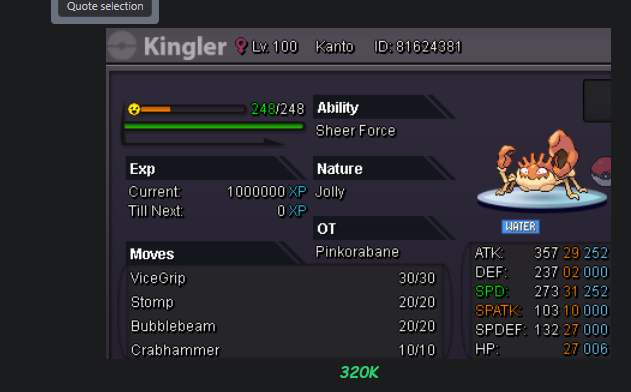 Start Offer : 50k Min Bid : 50k Auction end 24h after first bid Start Offer : 50k Min Bid : 50k Auction end 24h after first bid Start Offer : 50k Min Bid : 50k Auction end 24h after first bid Start Offer : 50k Min Bid : 50k Auction end 24h after first bid Start Offer : 50k Min Bid : 50k Auction end 24h after first bid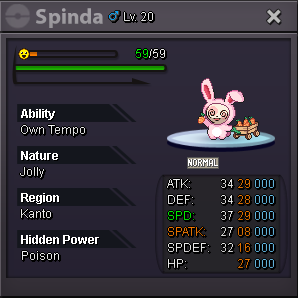
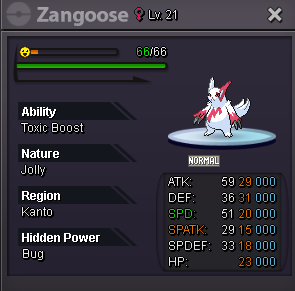
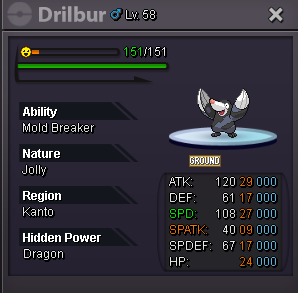
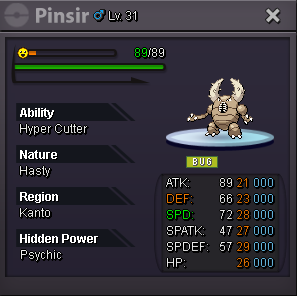
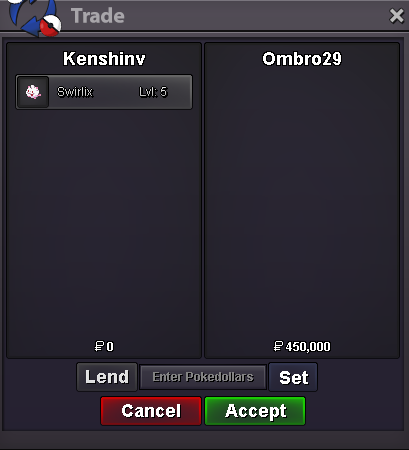
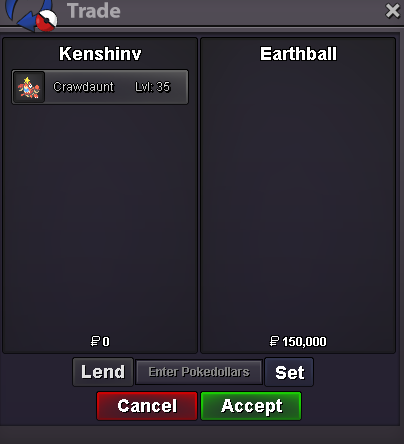
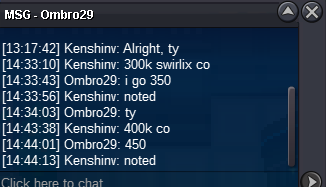
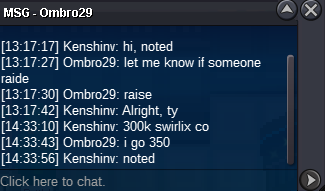
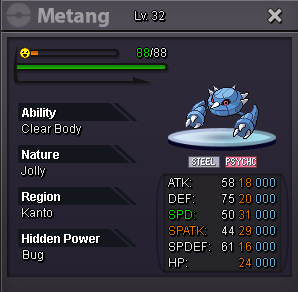 @Earthball You won crawdaunt1.3m elec1m elec800k electrike750k
Account
Navigation
Search
Configure browser push notifications
Chrome (Android)
- Tap the lock icon next to the address bar.
- Tap Permissions → Notifications.
- Adjust your preference.
Chrome (Desktop)
- Click the padlock icon in the address bar.
- Select Site settings.
- Find Notifications and adjust your preference.
Safari (iOS 16.4+)
- Ensure the site is installed via Add to Home Screen.
- Open Settings App → Notifications.
- Find your app name and adjust your preference.
Safari (macOS)
- Go to Safari → Preferences.
- Click the Websites tab.
- Select Notifications in the sidebar.
- Find this website and adjust your preference.
Edge (Android)
- Tap the lock icon next to the address bar.
- Tap Permissions.
- Find Notifications and adjust your preference.
Edge (Desktop)
- Click the padlock icon in the address bar.
- Click Permissions for this site.
- Find Notifications and adjust your preference.
Firefox (Android)
- Go to Settings → Site permissions.
- Tap Notifications.
- Find this site in the list and adjust your preference.
Firefox (Desktop)
- Open Firefox Settings.
- Search for Notifications.
- Find this site in the list and adjust your preference.