New Trade Zone
Trade Zone is now live
Use the new Trade Zone for auctions and instant-price trades so Pokemon and item offers are easy to find.

1790561
Registered User
-
Joined
-
Last visited
Everything posted by 1790561
-
It was working the day the server got updated but it stopped working the second day after the update so it might be because of a McAfee update or maybe if you are using a school computer like me it might be because the school added some restriction for McAfee so it can quarantine more files. Let me know if you have any suggestions and sorry for the late reply I stopped playing a lot like I used to because of my school computer
-
wtb shiney magicarp
-
-
I tried that on my Anti Virus but I can't put the file in my white-list because I am using my school laptop and it always worked until yesterday when it updated and when I restore the file it just quarantines it again

-
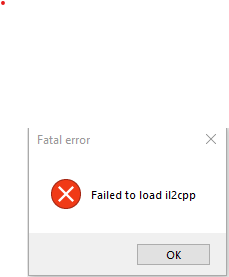
When trying to run the game it says "Failed to load il2cpp", And I think I know the problem my Anti Virus is quarantining the file "Game Assembly.dll". I trired restoring it but it never worked, same thing happened over and over. I tried disabling my Anti Virus but I use my school laptop so I can't disable my antivirus. More Information: This started happining after the christmas event this year (2021)