




New Trade Zone
Trade Zone is now live
Use the new Trade Zone for auctions and instant-price trades so Pokemon and item offers are easy to find.


Shishagames
Registered User
-
Joined
-
Last visited
Everything posted by Shishagames
-
-
-
-
-
-
-
07/22/2026 Update TLDR - Fixed some spawn typos that were due to manually updated all the Sinnoh spawns (Galarian -> Galar and Sinnoh Victory Road B1F Deep Entrance now properly has Hippowdon shoutout @Weepiestend4 for bringing that up). Also added some fuzzy matching logic to try to account for instaces where the OCR misreads certain letters as the wrong thing (e.g., reading an "I" as a "l". Yes, those are two different letters). Updated build can be found on the download link in the forum post. Some further testing was done with the help of @Daworker who brought attention to a requirement that I hadn't considered. To use this tool, you need the English language pack on your machine. Otherwise the OCR will not work as it doesn't recognize the text. Finally, if you are having issues with resolutions lower than the recommended 1024x768, @Raghav1234 reported good results by increasing the size of the Battle Window (which can be done in the in-game settings). As always, thanks you everyone's help. If you run into any issues please comment them here and I will address them as soon as I can. 🤓
-
07202026 Updates: Updated tracker available for download. Follow the instructions on the post. PSA: If you want accurate numbers in an area that has had its spawns changed, I recommend clearing your historical tracker section. If you want, go into your /data folder and save a copy of the .json for your own keeping. Notes: The Tracker has been updated with all of the newly update Sinnoh Spawns. BCC and FCC areas have been updated to include the newly added spawns. Secondary monitor selection support has been added You can now select your screen on monitors other than your main monitor. Resolution testing Testing varying resolutions and identified 1024x768 or higher as resolution that did not appear to miss any spawns. Added check sums for OCR parsing errors such as parsing a l into an I (looking at you Alolan variants). Revamped file I/O calls to reduce the amount of times files are referenced (increasing app speed) Removed day cycle information (may add back later but for now it was irrelevant information for the scope of this application) Removed the text label for Common, Uncommon, and Rare. This decision was made to allow the numbers to shine through. Added Excavations to selectable hunting areas! All sites and associated spawns have been added. Once you finish a site, select the Stop Tracking button, select the next site you are going to, and the resume hunting. That's all I can think of that was changed. If you run into any bugs please let me know and I will do what I can to address them. Be advised, this may not be in a very timely manner so apologies before hand. 🫠
-
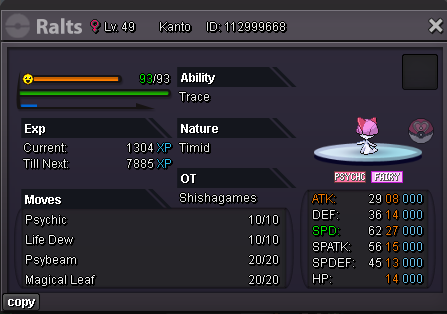
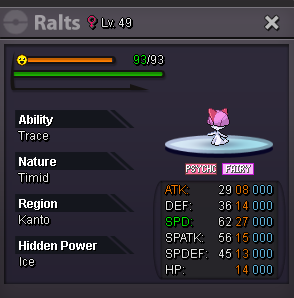
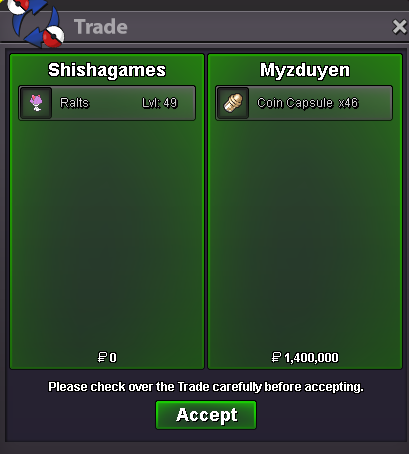
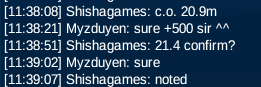
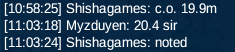
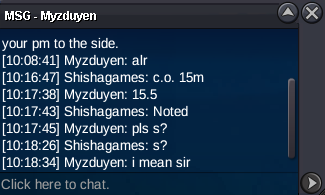
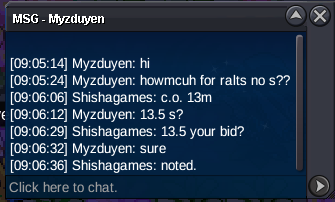
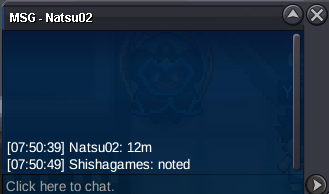
Congratz @Myzduyen You won the Ralts. DM me in game to meet up.bumpAuction Details ♠ Start Price: 10m ♠ End Point: 48 hours (after start price is met) ♠ No insta ♠ Minimum Raise: 100k ♠ Accepted Payment: Pokedollars, Coin Capsules (x1 Coin Capsule = 500k), IV-Reroll Tickets (x1 IV-Reroll Ticket = 750k) Important Reminders: ♠ This is a Silver Server auction. You may bid from any server but you are responsible for transferring to Silver to claim if you win. ♠ If you intend to purchase with an alt account, specify the account alongside your bid. ♠ If a bid is received in the final 15 minutes of the auction, the end point will be delayed by 15 minutes from that bid, and will be delayed by 15 minutes for each new bid thereafter, until the current offer has been held for a full 15 minutes. Happy Bidding!
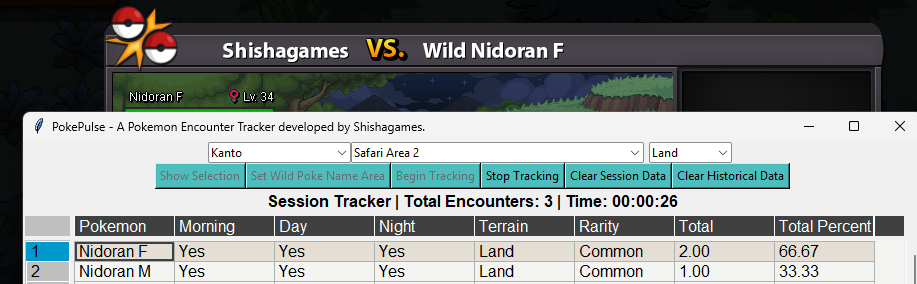
 05/23/2026 Update A new column has been added, "OBE", to signify sets that are believed to be or are confirmed to be out of rotation. Rather than having the data removed from the tracker, it receives a strikethrough. This ensures that we do not lose the data in case the set returns and allows us to restore it if improperly marked. Move set adjustment, set removal, and +300 new sets (including new Pokemon and new Megas) have been added. Note: many changes were in accordance to the Randoms Update Log found here. Finally, if you come across sets or Pokemon that are missing and would like to contribute, please post a full screenshot of the Pokemon's ID card as described in the forum post. We hope that this tracker continues to assist you all and to those that have assisted in gathering the new data, many thanks.Thank you for bringing this bug to my attention. This was due to the parsing not accounting for the fact that Nidoran is an edge case where it's name is gendered. I have made changes and tested it myself (shown in screenshot) so let me know if it works for you as well. A bug fix has been applied and the app has been updated. You will need to redownload and extract the new files into the same location as your current PokePulse location. For more direct instructions on how to update, please check the How to Update section of the main post. If you run into any more bugs please let me know and I will address them as quickly as I can!
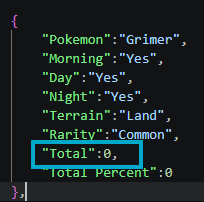
 Ahh! Yeah so that's not available at the moment and noted in the TODO list. It is going to be the main objective over the next few months. As I continue to update (whether it is changes to the app or updating the spawn data), I will be sure to comment on the thread with the update for awareness. Be sure to follow the thread to keep up with these updates. If you run into any bugs during your usage, feel free to comment them here!While there is no built in way to import it, you can update the .json files. These files are found in the folder that you extracted the application to (extracted_folder/data). This folder has a .json file for each location that you have been tracking on. Specifically, you would need to create the .json file via the application (it is made the moment you select the location and then press "Show Available") and then open that .json file and update the value in "Total". For example, if I had hunting data for Grimer (500 encounters) from another app for Cinnabar Mansion 2. I would open the .json file and change the number under total to 500. A screenshot is provided below with a blue box around what needs to be changed. Is this referring to having a specific Pokemon be at the top?
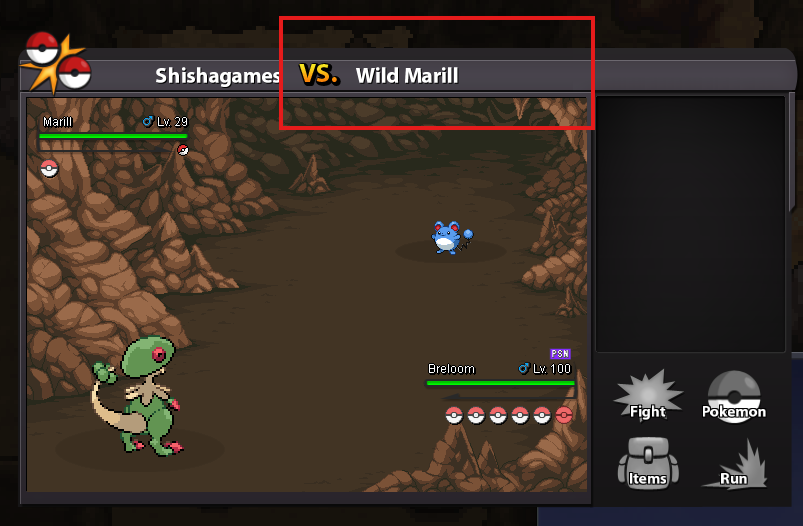
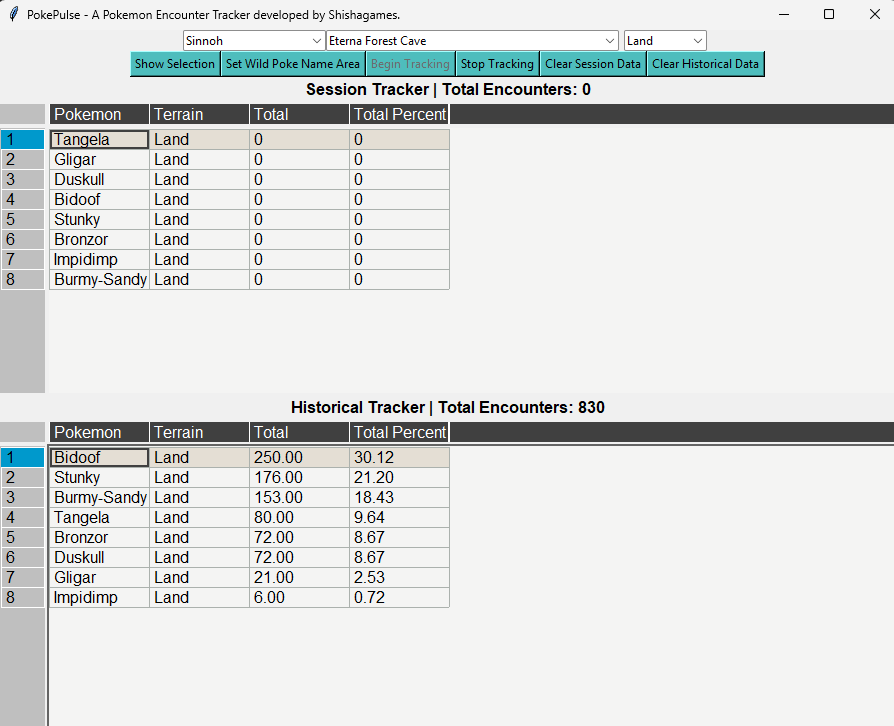
 5/12/2026 Updates: Updated the forum post to include information on how to update your download as well as a FAQ section. Updated the tracker with the most update to date spawns.PokePulse: A Pokemon Encounter Tracker PokePulse is a Pokemon encounter tracker written purely in Python. This tracker is written and tested in Windows (Linux support may follow in the future). This has been a passion project of mine for roughly the last year and as of now, it is in a stable state where I feel comfortable sharing it with you all. PSA: PokePulse is not a Bot and will NOT play the game for you. This application's only ability is to take a screenshot and parse the text from the screenshot. Spoiler How does it work? PokePulse uses utilizes the mss Optical Character Recognition (OCR) module to parse out the name of the Wild Pokemon that has been encountered and then updates both a Session Tracker and a Historical Tracker. The UI is built using Tkinter. The focal point of this tracker is to provide a higher confidence in the tracking capability first. While I understand that it is plain, it was designed to be a functional application that provides data rather than a pretty application that you want to stare at all day. How to Acquire? The .zip file can be downloaded from Google Drive. Once downloaded, extract the files into a dedicated folder on your system. Once the files have finished extracted, you are ready to begin setup and use. How to Update? When an update is released, you will need to download the new .zip file from the Google Drive link. Then extract the files in the exact same folder that your current version is in. When it extracts, it will ask you if you wish to replace files of the same name. Select "Yes to all files". This will replace and update everything except your data files. Once the files have finished extracted, you are ready to use the tracker once again. Note: if spawns in a hunting area have changed, they will no longer appear in the Session Tracker; however, you will see them in your historical tracker. If you would like this information to no longer be there, you can delete the row in the table of the Historical Session and once you encounter your next Pokemon it will update and remove it from the historical data that is saved. Setup Once you have downloaded and extracted the files, run the PokePulse.exe. After you run the application, you will need to go through some setup. First, you need to select the hunting information associated with your planned hunt. There are three options here: - "Select a Region": Associated with the Kanto, Johto, Hoenn, Sinnoh, Event Maps, Pinkan Island, and Excavation - "Select a Hunting Location": The Routes, Cities, etc. that exist within the selected region. - "Land": Hunting Terrain (the other option is Surf) NOTE: For best results, it is recommend to use with at least client resolution of 1024x768 or higher. Lower resolutions may result in missed encounters. Spoiler Once you have input your desired hunting information, click the "Show Selection" button to populate the spawns of that area. After you have populated the spawns, you need to set the area for the application to read. The best way to do this is to encounter a wild Pokemon and then click the "Set Wild Poke Name Area" button. The area that you need to select is a rectangle a bit larger than the size of the "VS. Wild <Pokemon Name>" text area. It is recommend to give the area a bit of space to the right to account for longer Pokemon names (e.g., Exeggutor-Alolan) Spoiler Once you have set your area, click the "Begin Tracking" button to have your encounters tracked. Bells and Whistles PokePulse has two trackers built in: Session Tracker and Historical Tracker. The Session Tracker tracks your current hunting session while the Historical Tracker keeps track of your encounters over all sessions. The data table for the Session and Historical Tracker are interactable. These tables can have rows added (e.g., shiny, form, etc.) that can be manually updated along the way. While these tables allow for things such as column deletion, do not delete the columns. Doing so will break the structure of the table so no touchy. Furthermore, the tables have the following columns: - Pokemon: The name of the Pokemon - Terrain: Identifies the method of hunting required. - Total: The total you have encounter (either in that session or all time). - Total Percent: The percentage (out of 100%) that the Pokemon is associated with. Session Tracker The Session Tracker comes with the following information: - Current Encounters - The total count of encounters that you have had since loading the app. - Session Timer - The amount of time you have been tracking your session. Note: if you wish to reset your session data, select the "Clear Session Data". Caution, this will permanently remove the data from the session tracker. Spoiler Historical Tracker The Historical Tracker keeps track of the sum of the total encounter for have for this particular hunting location. This is updated every encounter and persist through all session. Note: if you wish to reset this data, click the "Clear historical Data". This will delete the data that exists in the associated data file for this route. USE WITH CAUTION. Spoiler TODO List: - Opaque Overlay (Unsure of the design) - Automatic location change - UI cleanup - DARK MODE FAQ - I changed my color customization in the tables, how can I change it back to the default? If you have changed the color customization in the tables and wish to reset them, you will need to edit the file in your local .config folder. (.config/pandastable/default.conf). Remove the color information and the default will be restored. - Can this tracker count Event Forms or Shiny? No, not on its own; however, you can add a row in the Historical Session table that will need to be manually updated. If you choose to do this, you must ensure that you add a value for all columns except Percent (as this is recalculated on ever spawn). - Can I delete columns in the table? While you have the ability to delete the columns in the table, be advised that removing certain columns (e.g., Pokemon) will lead to failure to track or unexpected behavior. With that being said, it is recommended to not delete columns. Known Bugs - For some lower resolutions, it has been seen that the tracker does not properly read the Pokemon. - Multi-counting Pokemon will occur if you select an area to track and then you cover that area / uncover it. If you encounter any bugs, please comment on this thread with the steps to reproduce said bug and I will try to address them when I can. HUGE shoutout to the players that have assisted me in play testing the alpha version of this to sort out some initial bugs. @Mrboston, @Stuck, @Farigiraf Without you all, I would not have felt comfortable making it to the finish line.





Account
Navigation
Search
Configure browser push notifications
Chrome (Android)
- Tap the lock icon next to the address bar.
- Tap Permissions → Notifications.
- Adjust your preference.
Chrome (Desktop)
- Click the padlock icon in the address bar.
- Select Site settings.
- Find Notifications and adjust your preference.
Safari (iOS 16.4+)
- Ensure the site is installed via Add to Home Screen.
- Open Settings App → Notifications.
- Find your app name and adjust your preference.
Safari (macOS)
- Go to Safari → Preferences.
- Click the Websites tab.
- Select Notifications in the sidebar.
- Find this website and adjust your preference.
Edge (Android)
- Tap the lock icon next to the address bar.
- Tap Permissions.
- Find Notifications and adjust your preference.
Edge (Desktop)
- Click the padlock icon in the address bar.
- Click Permissions for this site.
- Find Notifications and adjust your preference.
Firefox (Android)
- Go to Settings → Site permissions.
- Tap Notifications.
- Find this site in the list and adjust your preference.
Firefox (Desktop)
- Open Firefox Settings.
- Search for Notifications.
- Find this site in the list and adjust your preference.