New Trade Zone
Trade Zone is now live
Use the new Trade Zone for auctions and instant-price trades so Pokemon and item offers are easy to find.

Arthurleyw1n
Suspended
-
Joined
-
Last visited
Everything posted by Arthurleyw1n
-
Dig Volt Tackle Surf Quick Attack
-
Dig Thunder Wave Toxic Protect
-
Dig Thunderbolt Surf Rock Smash
-
Dig Rock Smash Flash Cut
-
Flash Thunder Wave Double Team Protect
-
Cut Flash Rock Smash Surf
-
Surf Flash Cut Thunderbolt
-
Thunder Wave Reflect Light Screen Thunderbolt
-
Thunder Wave Substitute Toxic Protect
-
Volt Tackle Iron Tail Thunderbolt Quick Attack
-
dig surf flash rock smash
-
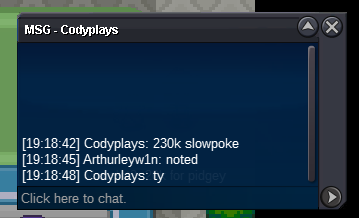
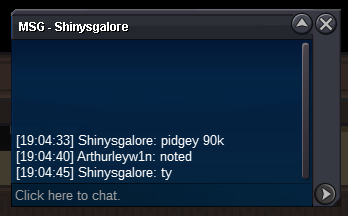
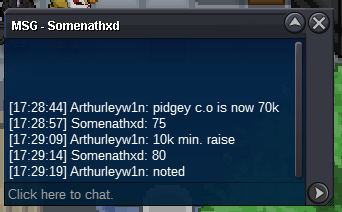
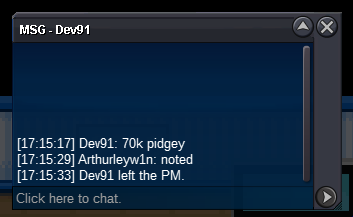
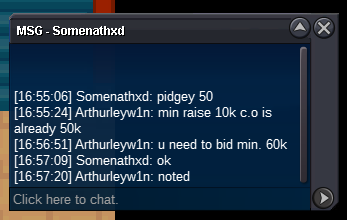
pidgey sold now too (forgot to make picture) can be closed
-
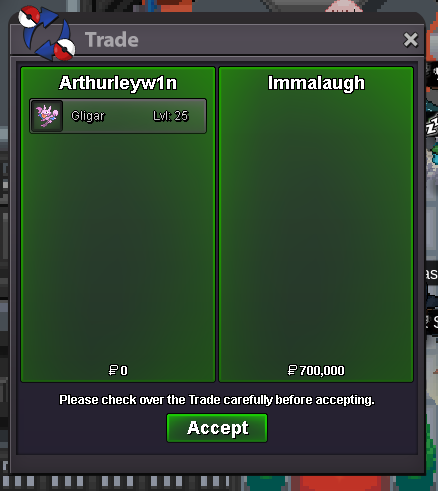
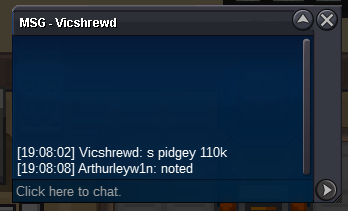
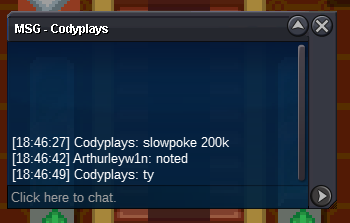
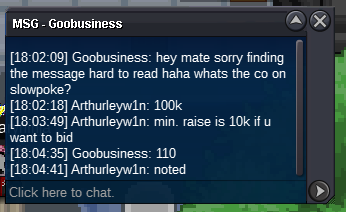
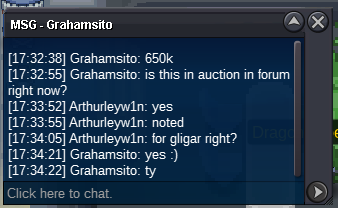
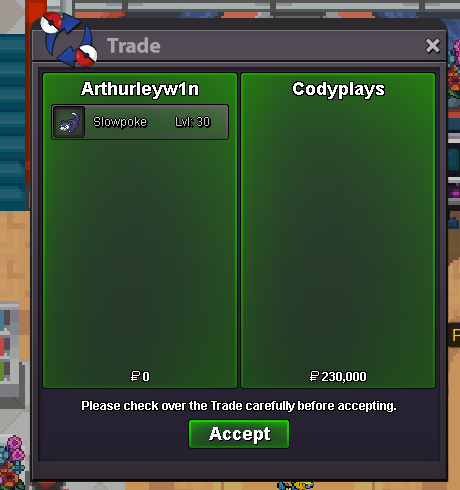
im online now@Immalaugh u won the gligar with 700k pls whisper me for the trade @Vicshrewd u won the shiny pidgey with 110k pls whisper me for the trade
Account
Navigation
Search
Configure browser push notifications
Chrome (Android)
- Tap the lock icon next to the address bar.
- Tap Permissions → Notifications.
- Adjust your preference.
Chrome (Desktop)
- Click the padlock icon in the address bar.
- Select Site settings.
- Find Notifications and adjust your preference.
Safari (iOS 16.4+)
- Ensure the site is installed via Add to Home Screen.
- Open Settings App → Notifications.
- Find your app name and adjust your preference.
Safari (macOS)
- Go to Safari → Preferences.
- Click the Websites tab.
- Select Notifications in the sidebar.
- Find this website and adjust your preference.
Edge (Android)
- Tap the lock icon next to the address bar.
- Tap Permissions.
- Find Notifications and adjust your preference.
Edge (Desktop)
- Click the padlock icon in the address bar.
- Click Permissions for this site.
- Find Notifications and adjust your preference.
Firefox (Android)
- Go to Settings → Site permissions.
- Tap Notifications.
- Find this site in the list and adjust your preference.
Firefox (Desktop)
- Open Firefox Settings.
- Search for Notifications.
- Find this site in the list and adjust your preference.