New Trade Zone
Trade Zone is now live
Use the new Trade Zone for auctions and instant-price trades so Pokemon and item offers are easy to find.
.jpeg.be845f7196fd3a0df3b5fb479236a5f0.jpeg)

Gracee
Registered User
-
Joined
-
Last visited
Everything posted by Gracee
-
-
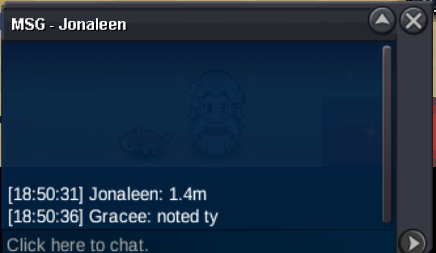
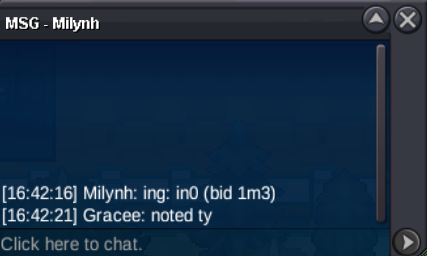
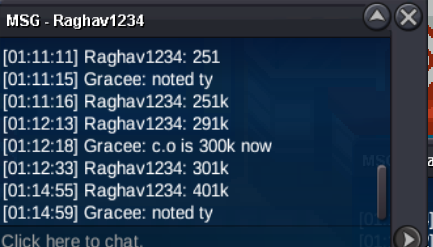
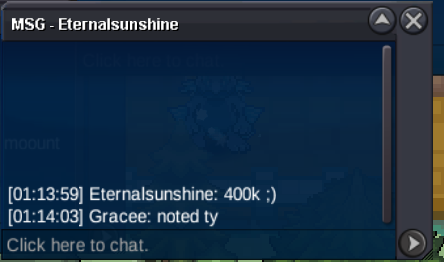
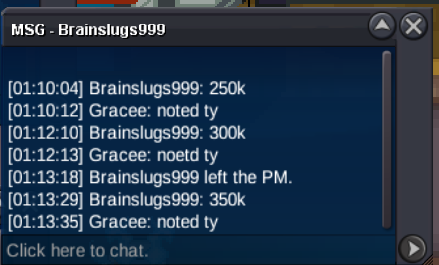
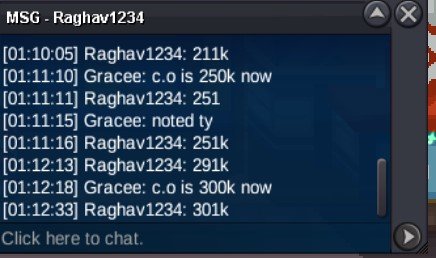
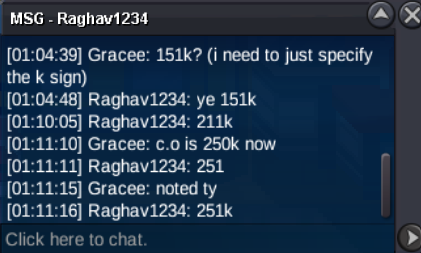
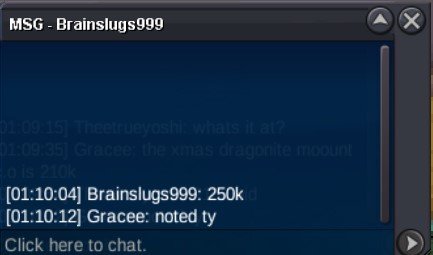
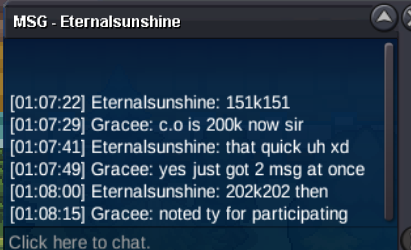
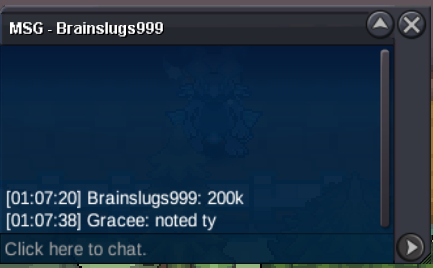
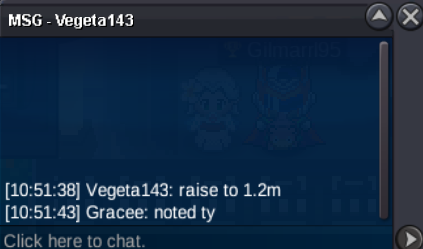
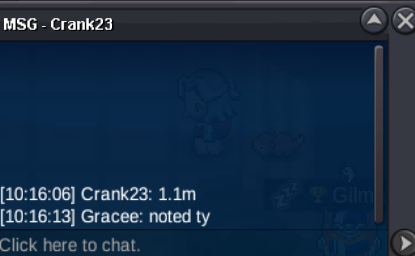
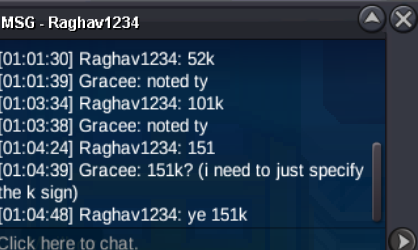
if we follow the rules- If a bid is placed in the last 15 minutes, the auction is extended by 15 minutes from that bid time Bids Placed 4:16 PM by @Valkyrie9191 of 4.2m Within last 15 minutes - auction extends New end time: 4:31 PM 4:28 PM by @In0 of 4.3m Before 4:31 PM and inside last 15 minutes - extends again New end time: 4:43 PM 4:29 PM by @Aergia of 4.5m Before 4:43 PM and inside last 15 minutes - extends again New end time: 4:44 PM Sorry for the earlier misinformation As Mr @Aergia stated the auction should extend 15min, Kind Regards Gracee@Howieeh Congrats for winning the auction lemme know when ur availablesry there is no insta , u gotta bidc.o- 151k
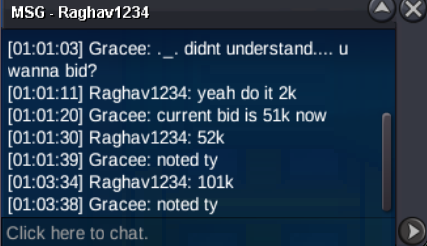
 c.o- 52k
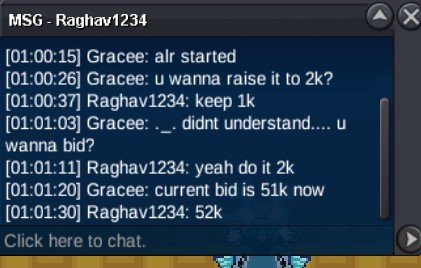 ITS A FUN AUCTION GUYS , HOPE U ALL ENJOY S.O- 1K MIN RAISE- 1K TIME LIMIT- 1HR AFTER S.O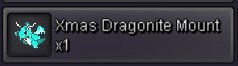

 2m5 nine
Account
Navigation
Search
Configure browser push notifications
Chrome (Android)
- Tap the lock icon next to the address bar.
- Tap Permissions → Notifications.
- Adjust your preference.
Chrome (Desktop)
- Click the padlock icon in the address bar.
- Select Site settings.
- Find Notifications and adjust your preference.
Safari (iOS 16.4+)
- Ensure the site is installed via Add to Home Screen.
- Open Settings App → Notifications.
- Find your app name and adjust your preference.
Safari (macOS)
- Go to Safari → Preferences.
- Click the Websites tab.
- Select Notifications in the sidebar.
- Find this website and adjust your preference.
Edge (Android)
- Tap the lock icon next to the address bar.
- Tap Permissions.
- Find Notifications and adjust your preference.
Edge (Desktop)
- Click the padlock icon in the address bar.
- Click Permissions for this site.
- Find Notifications and adjust your preference.
Firefox (Android)
- Go to Settings → Site permissions.
- Tap Notifications.
- Find this site in the list and adjust your preference.
Firefox (Desktop)
- Open Firefox Settings.
- Search for Notifications.
- Find this site in the list and adjust your preference.