New Trade Zone
Trade Zone is now live
Use the new Trade Zone for auctions and instant-price trades so Pokemon and item offers are easy to find.

Diego237
Registered User
-
Joined
-
Last visited
-
talonflame back bye bye stupid conkeldurr god pls yes
-
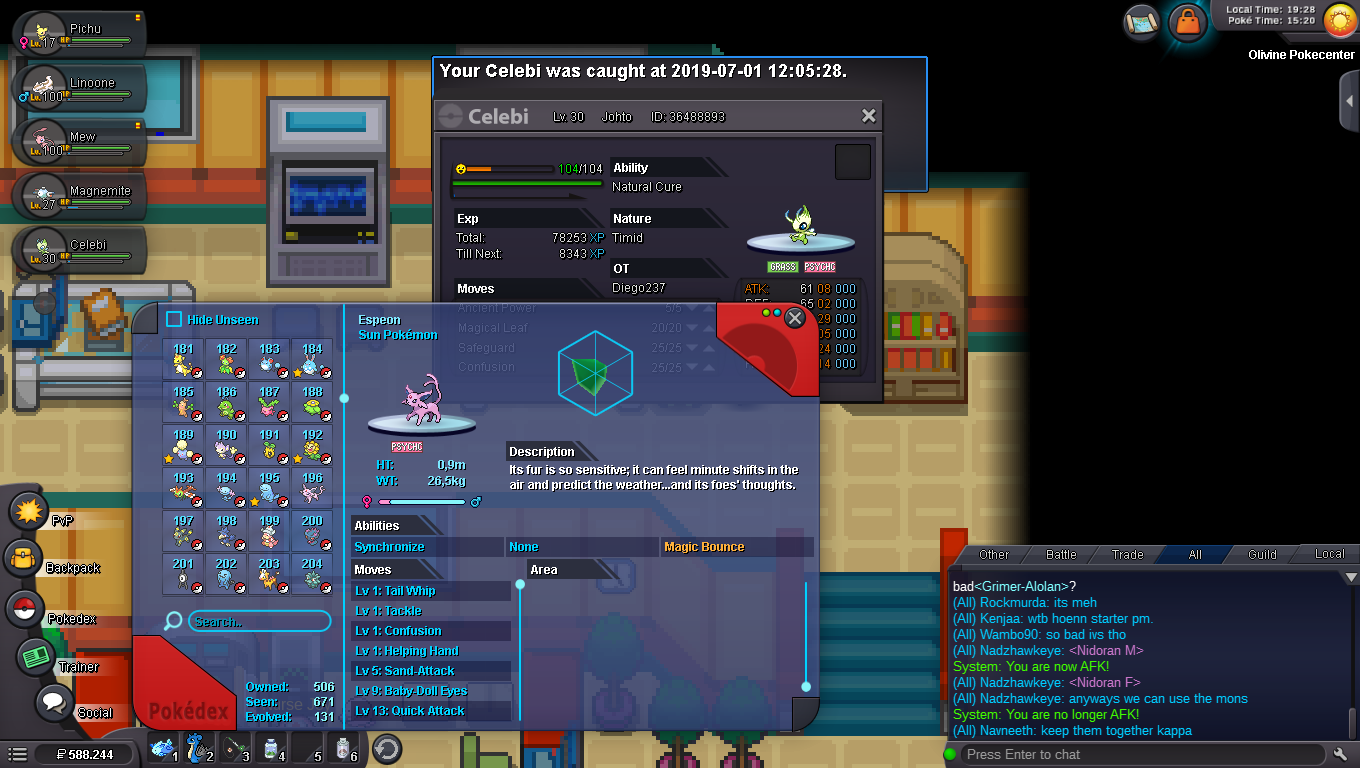
now i was looking at the pokedex for see what i need to evolve and what pokemon i havent got, and i see havent got the caught of espeon, but i remember i got espeon by lend for the quest of celebi. dont knoo if is correlated by the rollback of the day when a caught or other things but i still have the celebi and no data for espeon
-
PLAYER CATEGORY Smartest: luminetor Friendliest: ammiragliozen Funniest: derpro Coolest: crazycatlord2 Comeback Player of the Year: alechan Most Talkative: crazycatlord2 Most Trustworthy: ammiragliozen Most Helpful: luminetor Most Missed: snowbull Most Influential: luminetor Most Intriguing: lassij Most Experienced Player: ikonos123 Best/Funniest Username: madarauchiha24 Most Professional Guide Maker: warlosskastanie Most Professional Discord Moderator: giorgio25 STAFF CATEGORY Best Mapper: skuid Best Artist: aeolus Best Community Coordinator: shaui Best Moderator: waren Best Trade Moderator: saltysully Best Game Master: astraea Best Admin: shane Best Staff Username: mimikyu Most Professional Staff: waren Most Dedicated Staff: waren Funniest Staff: saltysully Friendliest Staff: saltysully Most Honorable Former Staff: shaui Most Missed Former Staff: shaui
-
really cool raffy :y: u did a good work mate