



Skip to content
View in the app

A better way to browse. Learn more.

Pokemon Revolution Online

A full-screen app on your home screen with push notifications, badges and more.
To install this app on iOS and iPadOS
  1. Tap the Share icon in Safari
  2. Scroll the menu and tap Add to Home Screen.
  3. Tap Add in the top-right corner.
To install this app on Android
  1. Tap the 3-dot menu (⋮) in the top-right corner of the browser.
  2. Tap Add to Home screen or Install app.
  3. Confirm by tapping Install.
New Trade Zone
Trade Zone is now live
Use the new Trade Zone for auctions and instant-price trades so Pokemon and item offers are easy to find.
Open Trade Zone

[Tool] PRO Map Editor v1.0.2 | Windows, macOS & Linux

Featured Replies

[Tool] PRO Map Editor v1.0.2 | Windows, macOS & Linux

Hey everyone!

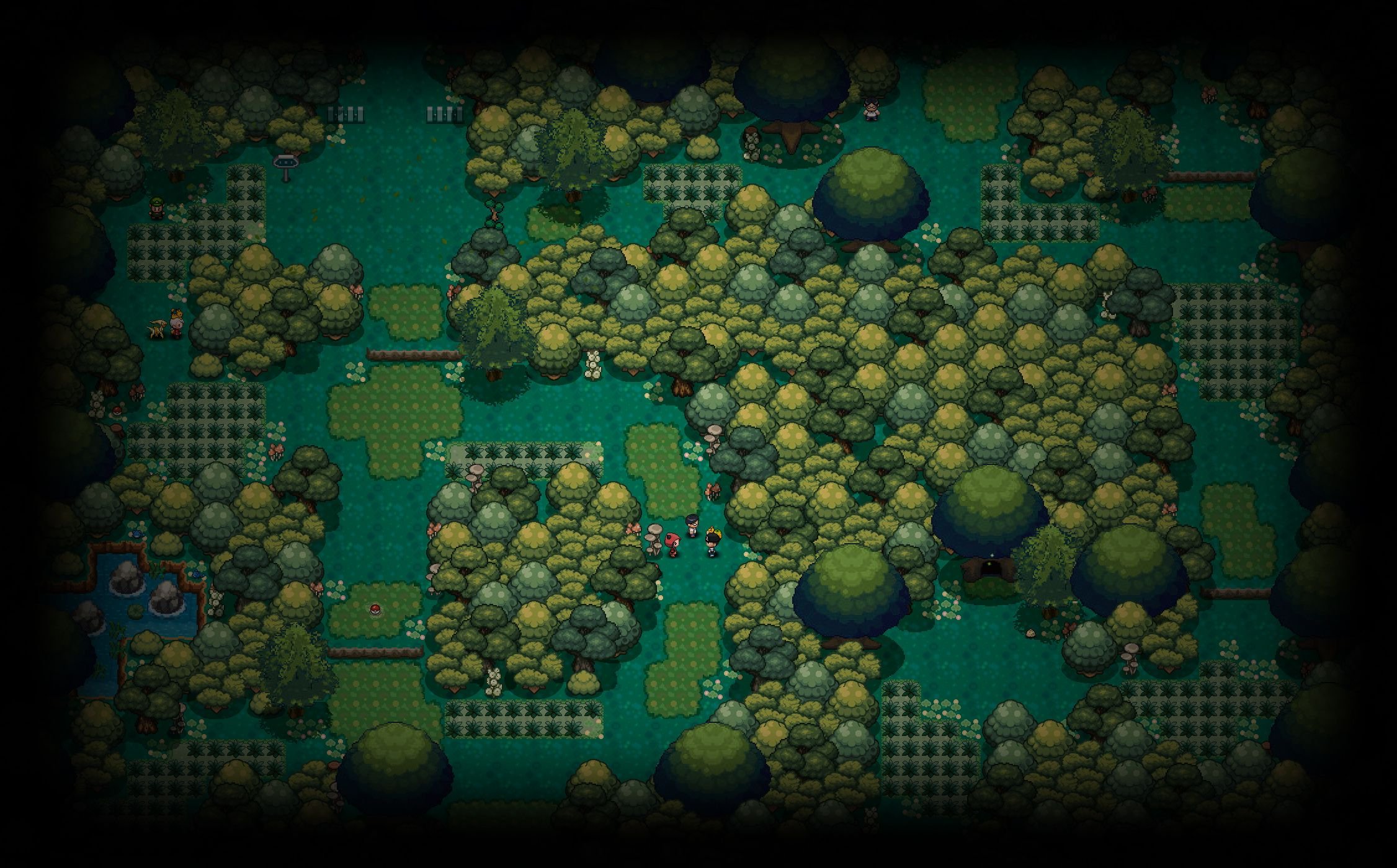
I’ve rebuilt the map editor for Pokémon Revolution Online, and version 1.0 is now available for Windows, macOS, and Linux.

The original editor focused on placing tiles. With this version, you can build across seven layers, populate your maps with NPCs and Pokémon, give them walking routes, and explore your own map directly in the editor.

Download v1.0

Windows

https://dl.protrackerdb.com/mapeditor/stable/PROEditor-win-x64.zi

macOS

Intel Macs

https://dl.protrackerdb.com/mapeditor/stable/PROEditor-osx-x64.zip

Apple Silicon Macs (M1/M2/M3/M4)

https://dl.protrackerdb.com/mapeditor/stable/PROEditor-osx-arm64.zip

(Not sure which you have? Apple menu > About This Mac - if it says

"Apple M1/M2/M3/M4" use the second link, if it says "Intel" use the first.)

Linux

Regular PCs (64-bit Intel/AMD - this is almost everyone)

https://dl.protrackerdb.com/mapeditor/stable/PROEditor-linux-x64.zip

ARM devices (Raspberry Pi 5 and similar)

https://dl.protrackerdb.com/mapeditor/stable/PROEditor-linux-arm64.zip

(Not sure? Run: uname -m in a terminal - "x86_64" means the first link,

"aarch64" means the second.)

📋 Launching Windows

  1. Download.

  2. Extract the Pro Mapper files.

  3. Launch Pro Mapper.

📋 Launching Mac OS

  1. How to start it (first time - about a minute):

  2. Unzip the download (double-click it).

  3. Open Terminal (Cmd+Space, type "terminal", press Enter).

  4. Type: cd followed by a space, then drag the unzipped folder into the

  5. Terminal window, and press Enter.

  6. Run this command:

  7. bash macos-start.sh

📋 Launching Linux

  1. How to start it (first time - a few minutes, it installs what it needs):

  2. Extract the zip.

  3. Open a terminal in the extracted folder.

  4. Run this command:

  5. bash linux-start.sh

What’s new in 1.0?

  • Seven map layers. The editor now has seven layers, up from four, giving you more room to separate terrain, buildings, and decorative details. You can toggle layers individually to see what you’re working on.

  • NPC and Pokémon sprites. Browse the sprite panels and place characters or Pokémon directly on the map.

  • Movement paths. Click points on the map to create routes for NPCs and Pokémon. You can add pauses along the way, whether you’re setting up a guard patrol or having a Pokémon wander through a village.

  • Favorites. Right-click any tile or multi-tile brush to save it to Favorites so you can grab it again without searching through the sheets.

  • Custom appearance. Start with a preset such as Dark, Midnight, Light, or Candy, then adjust the interface and map colors to your liking. Changes apply immediately and are saved for next time.

Test your map

The Test menu has two options:

  • Walk around your map. Start on a random walkable tile and explore the map yourself. Try entrances, paths, and obstacle edges to see where the player can go.

  • Run the Map Checker. See which mapping rules your map fails and catch details that are easy to miss, such as a missing corner tile on a tree.

Before you do a walk test: The first five tile sheets have collision preset. For tiles from the remaining sheets, you decide which ones should block movement. Use Mark blocking, next to Favorites at the top of the Tiles panel, to set up the collision your map needs.

Screenshots

Screenshot 2026-11-04 120849.pngScreenshot 2026-11-04 121019.pngScreenshot 2026-11-04 120944.png

Screenshot 2026-11-04 120927.pngScreenshot 2026-11-04 120913.pngScreenshot 2026-11-04 121010.png

Feedback and map showcases

If you make a route, village, or anything else with the editor, I’d love to see it. Feel free to share screenshots in this thread.

If you run into a bug, please include your operating system, what you were doing when it happened, and a screenshot or error message if you have one. Suggestions for future versions are welcome too.

Happy mapping!

Edited by Blackfoot

  • Author

11/4/2026 (8 hrs later)

Fixed an issue where all 66 tile sheets were not appearing.

Fixed an issue where you could only see all the tiles when expanding.

Added in Custom Tiles

Upload your own custom tile sheets.

Create your own tile sheets. (No trying to figure out how)

Added in a warning when selecting layers 5, 6, or 7 that they are not visible outside of the editor/tester, and should not be used with Pokémon revolution online. The game only shows the first 4.

After the first warning it will not appear again.

Added the ability to detach both side panels.

Edited by Blackfoot

  • Blackfoot changed the title to [Tool] PRO Map Editor v1.0.1 | Windows, macOS & Linux

If 1+1 is Fish then good job


                                                     Godredeye_600x270.png.90012f9366c36b4785dad4a734d39581.png

  • Blackfoot changed the title to [Tool] PRO Map Editor v1.0.2 | Windows, macOS & Linux
  • Author

11/8/2026

Added the ability to hold shift, and select specific tiles wanted, instead of only drawing a line/box.

Changed middle click (mouse wheel). When using on a tile in the map, it will automatically bring you to that tile on the tile sheet it was from.

Holding ctrl and pressing 1, 2, 3, 4, and 5 will cycle through the tools. Additionally ctrl + S/D/E/F/L (first letter of the tool) will also select it.

Holding ctrl + dragging on the map now allows you to draw a box that remains.

Added the ability to add whole sheets to favorite (instead of single tiles or multiple tiles).

Added the ability to add sheets to pages. (7 max)

Added the ability to rename the sheets, allowing for easier finding of things.

Added in an auto update feature. This will appear only when a new update has been uploaded.

Added the ability to hide the right panel, instead of detaching and minimizing, or dragging it closed. A show button will appear allowing you to show it again. (this has memory, so relaunching the application keeps it hidden).

The selection should no longer remain highlighted when no longer on the tool.

Linux should now open as 1 full window, and not split itself between 2 desktops.

Leaving favorites now brings you to the last viewed sheet instead of resetting to sheet 1.

Thank you Norex for the suggestions, and Lugario for the Linux issue.

Create an account or sign in to comment

Account

Navigation

Search

Search

Configure browser push notifications

Chrome (Android)
  1. Tap the lock icon next to the address bar.
  2. Tap Permissions → Notifications.
  3. Adjust your preference.
Chrome (Desktop)
  1. Click the padlock icon in the address bar.
  2. Select Site settings.
  3. Find Notifications and adjust your preference.