New Trade Zone
Trade Zone is now live
Use the new Trade Zone for auctions and instant-price trades so Pokemon and item offers are easy to find.

Scythee
Registered User
-
Joined
-
Last visited
-
friendly person to talk to and does very fast level and ev services, will definitely come back to you soon n.n
-
750k
-
Scythee / gold
-
scythee gold
-
scythee gold 🙂
-
Scythee gold 😛
-
Scythee /gold 😛
-
400k
-
omg, yes it worked, tysm for the help 😄
-
IMG_1107 2.mp4 IMG_1107 2.mkv does this file work, its supposed to be an video
-
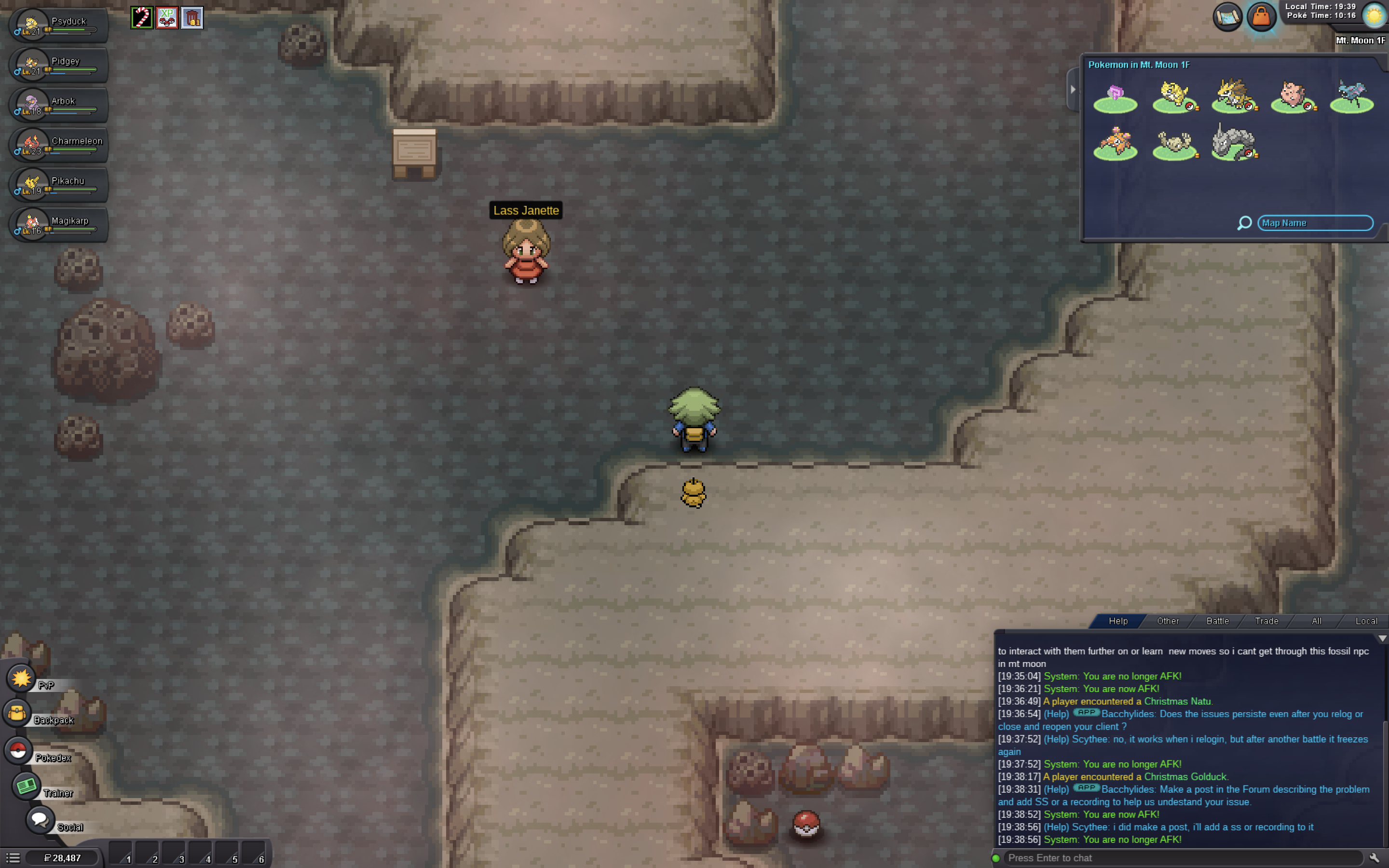
yes, my character still freezes and is unable to move even after i level up every pokemon in my team by 1. When i interact with super nerd Quinn at first, we start a battle, once it ends nothing happens and i can't interact with him again. When i relogin and interact with him again, we start another battle but my team is in the condition when the last battle ended, meaning they are not at full hp. what kind of screenshots do you need? and what type of video files are allowed to be attached, my videos show error when i try to attach it sorry for the inconvenience
-
I level up all my pokemon's by 1 and my pidgey still didn't evolve. After that super nerd Quinn still wouldn't let me go through.
-
Everytime i defeat a wild pokemon or trainer my character freezes and can't move or interact with anything, but the other functions like backpack and pokedex still work. I also can't learn new moves after a battle when my pokemon reaches a certain level. In Mt Moon, after I defeat super nerd quinn, my character freezes and can't interact with him anymore, when i re-login i still have to battle him again. for some reason the video won't upload due to an error