




New Trade Zone
Trade Zone is now live
Use the new Trade Zone for auctions and instant-price trades so Pokemon and item offers are easy to find.
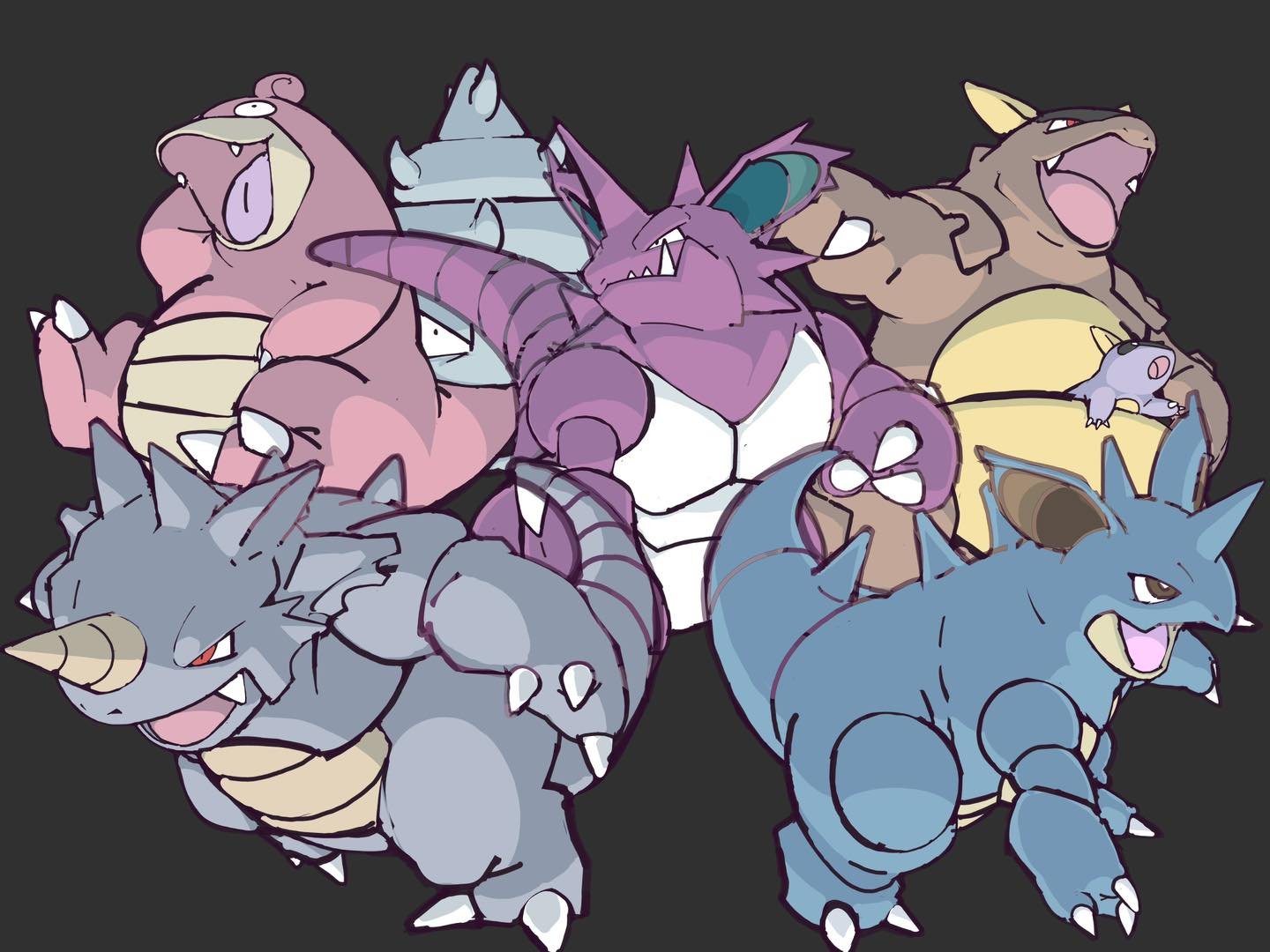

Garretx
Registered User
-
Joined
-
Last visited
-
Poke 1 (120k)
-
Poke 1 (100k)
-
Poke 1 (60k) Start Poke 8 (50k)
-
Garretx changed their profile photo
-
I buy Ampharos xmas + Houndour Lvl 25 for 200k? Do you accept my offer?
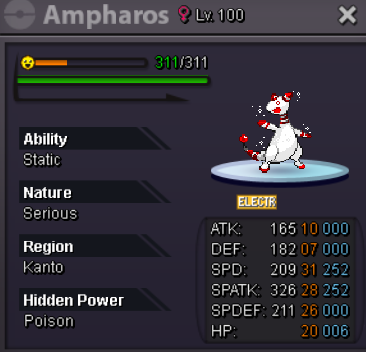
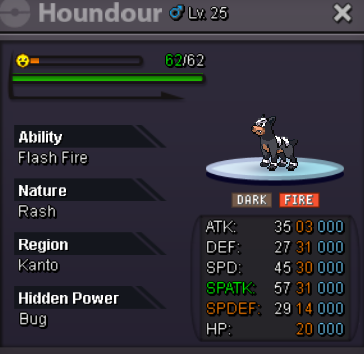
-
1 Capsule Coin (500k at the moment) + 200k instantly. My offer.
-
Serious categories Friendliest: Peque737 Wittiest: Sayre Funniest: Gumbinoash Easiest to talk to: Qinshihuang Most trustworthy: Steelydan Most helpful: Starkku Most influential: Germarc Most intriguing: Wolfbasser Favorite guide maker: Panbricio Favorite guild: Team Rocket Best discussion sparker: Gumbinoash For fun categories Most likely to catch a sync fail rare or shiny form: Steelydan Most likely to encounter a shiny or rare form and click run: Masterkali Favorite staff member: Poochyena (Artist) Player who says they're retiring but not retiring yet: Vannell Favorite PRO Pokemon form: Kangaskhan Easter Favorite Pokemon: Kangaskhan
-
I want them! Save them for me! Garretx in game, from the Team Rocket guild
-
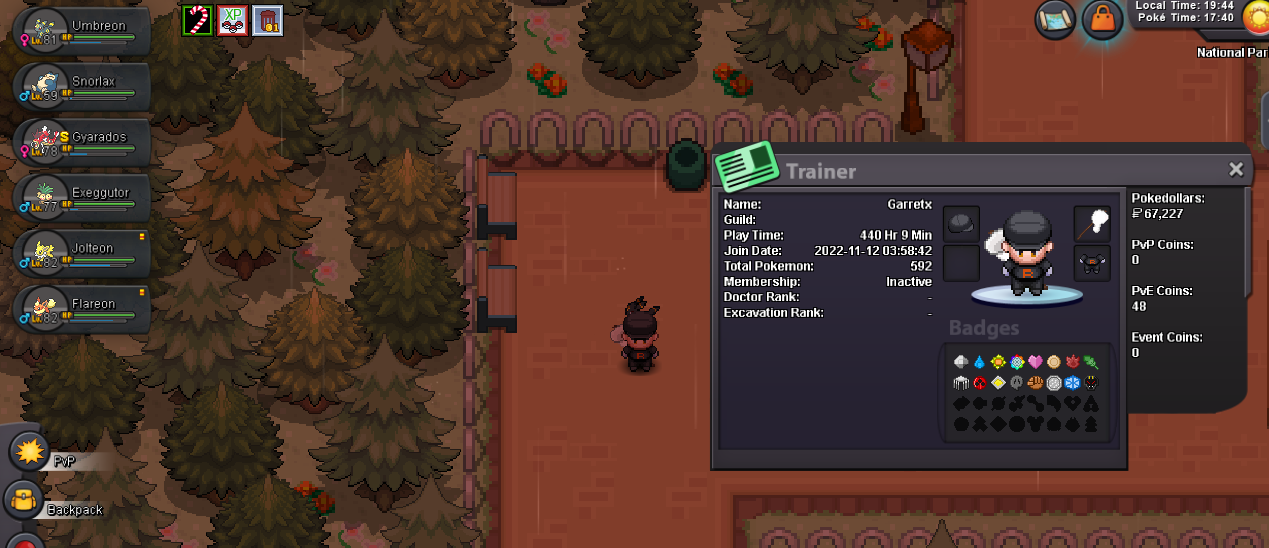
Leader of the Guild Team Rocket Germarc. I come to ask to join your glorious Guild. I am a recruited soldier and I already have my Uniform ready and purchased! I have 16 medals, my character is Garretx and I stay active playing Pokemon Revolution! I am on the Silver server. I hope I can join your ranks!
-
Are they still recruiting? I want to be part of Team Rocket
