



New Trade Zone
Trade Zone is now live
Use the new Trade Zone for auctions and instant-price trades so Pokemon and item offers are easy to find.
All Activity
Past hour
-
Quairo joined the community
-
Expantalhox joined the community
Today
-
Ogspaming joined the community
-
bump!
-
Hello! It looks like you haven't obtained any PvE Coins yet, so there are no missing coins on your account. Regarding PvP, there are currently no PvP quests. Instead, you'll receive a PvP chest for your first daily win, whether in Random PvP or Normal PvP. After that, you'll receive another chest every two wins in Normal PvP or every four wins in Random PvP. Additionally, the top 25 players in PvP will receive a certain number of chests based on their ranking. You can find the possible rewards from PvP chests HERE. That being said, is it possible you're confusing this account with another one? Your coins might be on an alternative account. I hope this clears things up! Please let me know if you need anything else. Kind regards. Hallowglow.
-
Hello! I'm very sorry for the inconvenience. Could you please unequip the item from your Pokémon and try again? Please let me know if that works or if you need anything else. Kind regards. Hallowglow.
-
@Luizfm1997 cool, pm me or @Tutonazo
-
[Tool] Shiny Tracker Overlay — now on Windows, Linux and Mac (v3.13) Shiny Tracker Overlay is a free screen-reading companion for encounter and shiny hunting. It only looks at the small parts of the game window you choose during setup. It does not change the game, click anything, or play for you. It counts your encounters, shows your real spawn rates, alerts you when a target or shiny appears, keeps a list of your catches, adds up IVs for catch quests, works out catch chances, and makes a picture of your hunt to share. Beta warning: reading the screen is never perfect, and shiny detection isstill being improved. Always check the game yourself before you run from a valuable encounter. ## Download These links never change. They always download the newest version, so you can bookmark them or pass them on. Windows 10/11 (64-bit): https://github.com/KaizenMMO/shinytracker-builds/releases/latest/download/ShinyTrackerOverlay-Windows.zip Linux (64-bit, X11 or Wayland): https://github.com/KaizenMMO/shinytracker-builds/releases/latest/download/ShinyTrackerOverlay-Linux-x86_64.tar.gz Mac (Apple Silicon: M1 or newer, macOS 13 or later): https://github.com/KaizenMMO/shinytracker-builds/releases/latest/download/ShinyTrackerOverlay-Mac-AppleSilicon.dmg Release notes: https://github.com/KaizenMMO/shinytracker-builds/releases/latest Already using it? Go to Settings > UPDATES. There is a Copy link button for each computer type, so you can send a friend the right download. ## Getting started Windows: extract the ZIP into a normal folder (for example a new folder inDownloads) and run ShinyTrackerOverlay.exe. Keep the _internal folder next to it. Windows may show a SmartScreen warning because the app is not signed: choose More info > Run anyway if you trust the download. After this the app updates itself. Linux: extract the download and run ShinyTrackerOverlay from the new folder. It needs Tesseract (the text reader). If it is missing, the app shows the exact install command for your system with a Copy button. Works on Wayland too: the tracker reads the game window itself. The app tells you when a new version is out and gives you the download. Mac: open the DMG and drag the app into Applications. The first time, macOS blocks it because it is not registered with Apple. Go to **System Settings > Privacy & Security** and press Open Anyway (once only). The app helps you install Tesseract with Homebrew and asks for Screen Recording permission, which it needs to see the game. Intel Macs are not supported. Full instructions for Linux and Mac are in the README file inside each download. ## Quick setup (all computers) 1. Open the game in a window (or borderless) and go into a wild battle. 2. Open Settings in the tracker. 3. Name a client and press Calibrate zones. 4. Select at least Name + level. The other zones make it more accurate. 5. Turn on Track now for that client. 6. Go back to Hunt and press Start hunting. The built-in tour (in Settings) walks you through the rest. ## What's new lately - v3.13: copy a Windows, Linux or Mac download link from Settings to share. - v3.12: a proper Mac version; Linux works on Wayland (no more black screen). - v3.11: target tips name the ability to look for on the species you hunt. - v3.10: alerts play below 100% volume; covering the game no longer counts a battle twice; a shiny's "S" marker is read even if the picture is missed. The NEWS tab inside the app lists every change. ## Privacy and safety - Your hunts, settings and calibration stay on your computer. - No account, no subscription, no ads, and no automatic upload of your hunts. - The app fetches species data and pictures from PokeAPI, set advice from Smogon (via pkmn.cc), and checks GitHub for updates. - Screenshots, reports and diagnostic files are made on your computer. Look them over before sharing, as they can contain screen text. ## Feedback This is still a beta, and reports help a lot. The easiest way is the Send to developer button in Settings. Otherwise, please include the app version, your computer type (Windows/Linux/Mac), screen size and scaling, what you expected, and what happened. Please don't post private chat or account names publicly.
-
Tito322 joined the community
-
bump
-
Ultraquasar joined the community
-
Dosvecespe16 joined the community
-
Busychild joined the community
-
The Event is over
-
Louisxz7 joined the community
-
Has the event taken place yet?
-
Ty guys was fun
-
Greedy0407 joined the community
-
Hi so I have a Halloween Mawile and in the pokedex it shows the different chromas, yet the chroma shop in festival town doesn't sell them.
-
Ayoxx100 joined the community
-
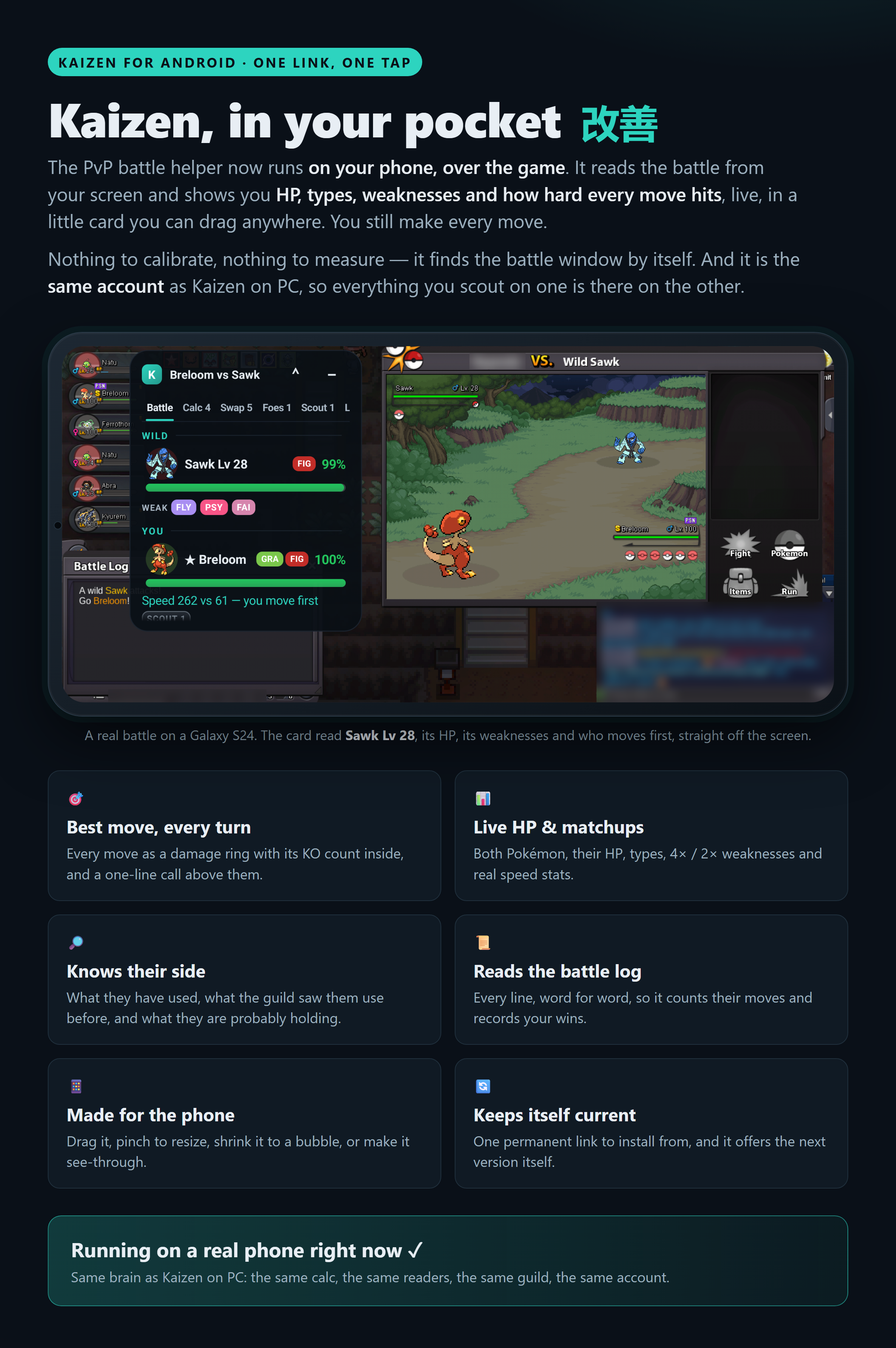
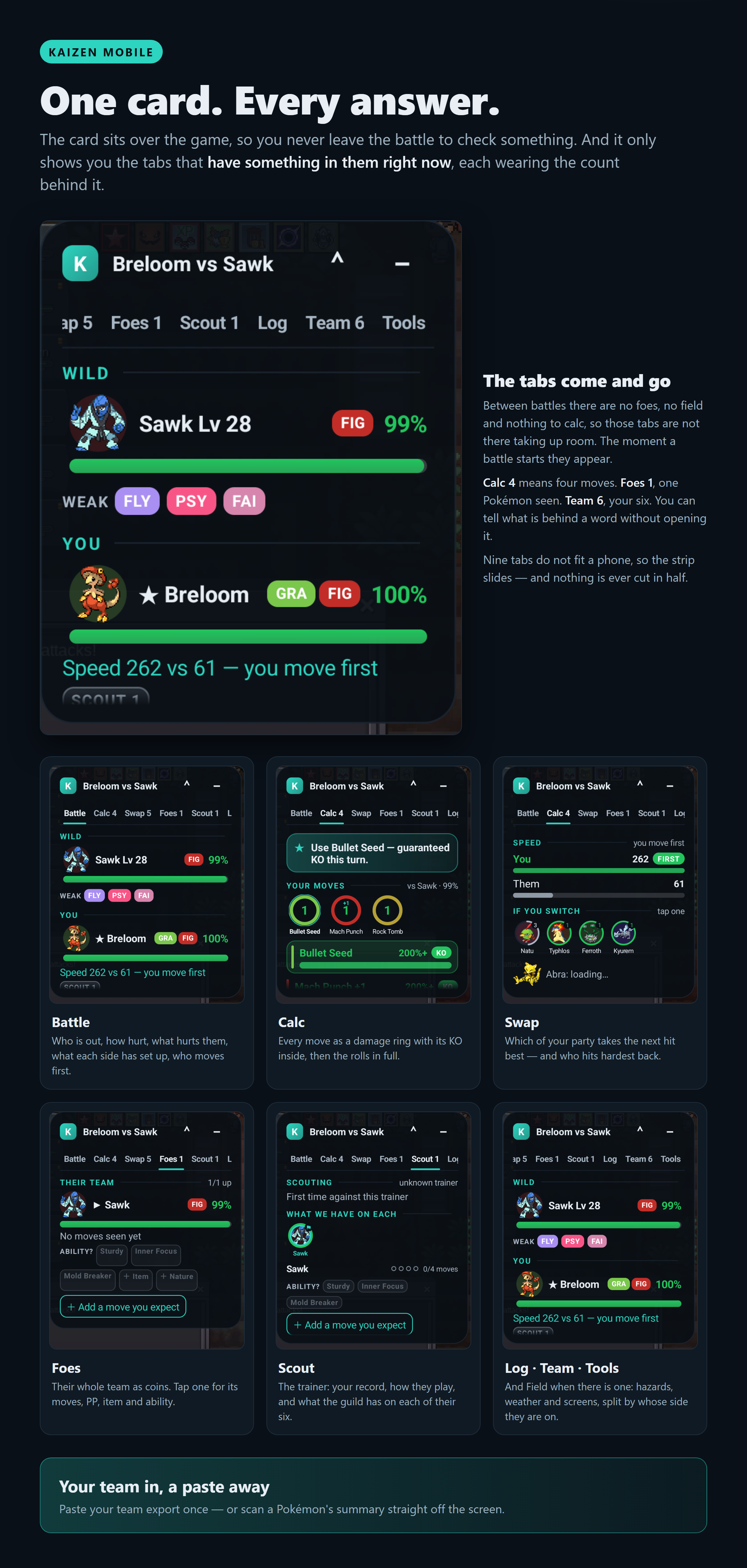
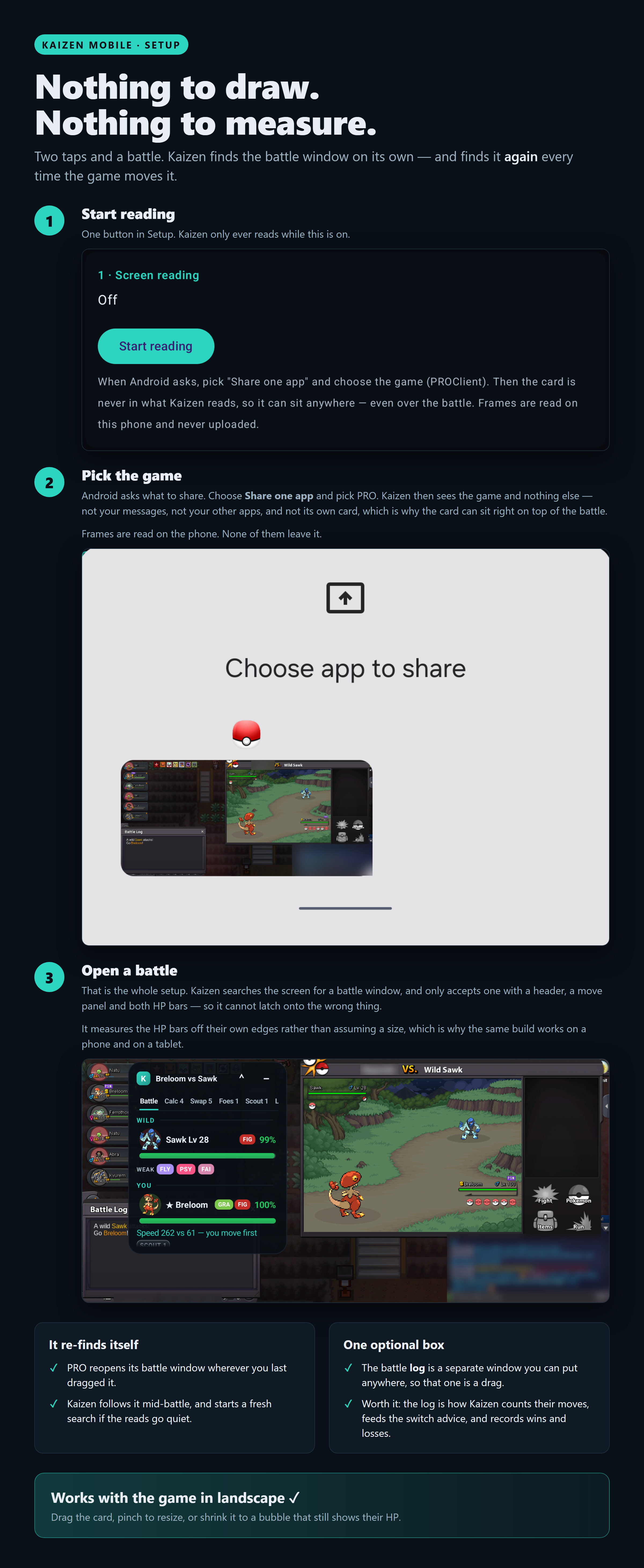
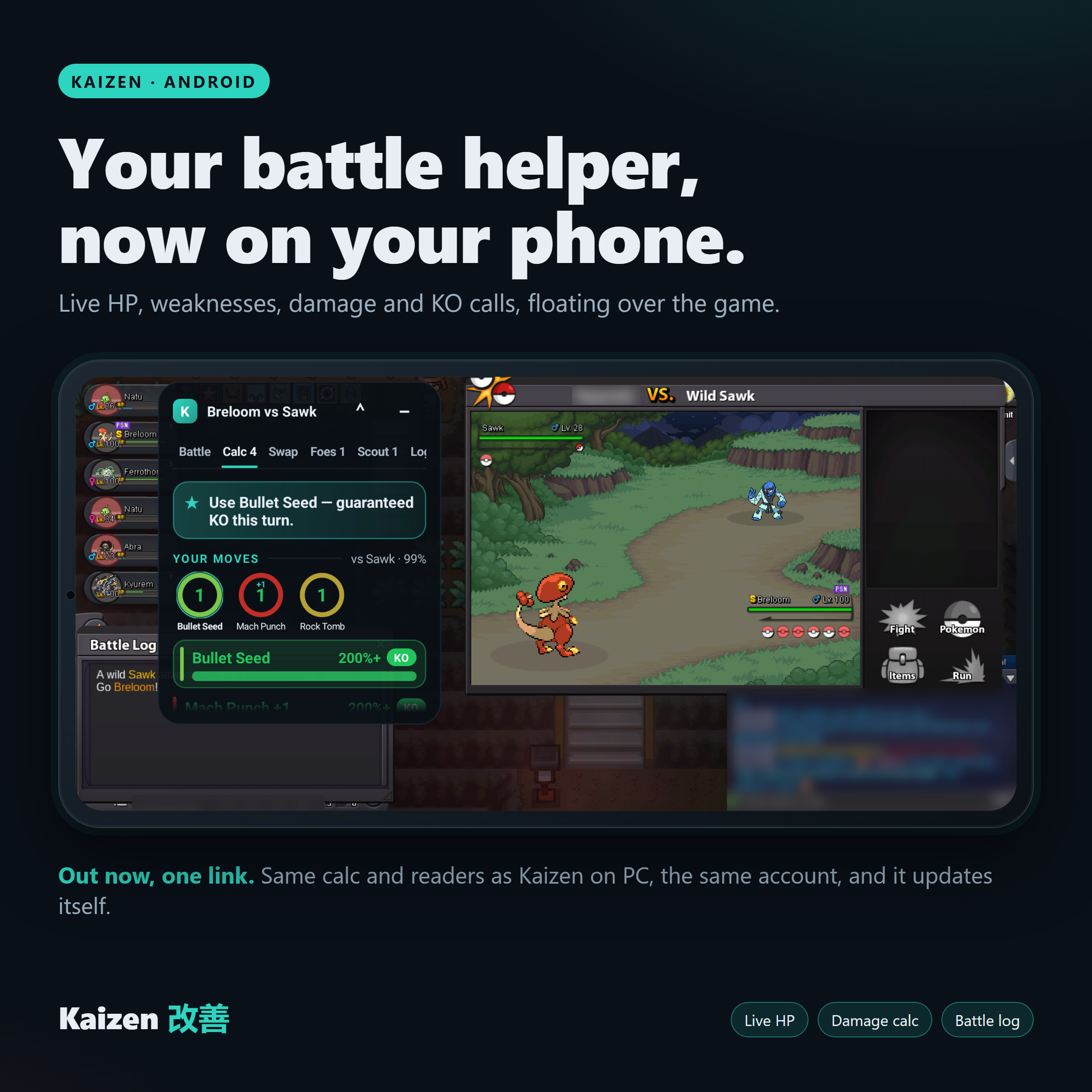
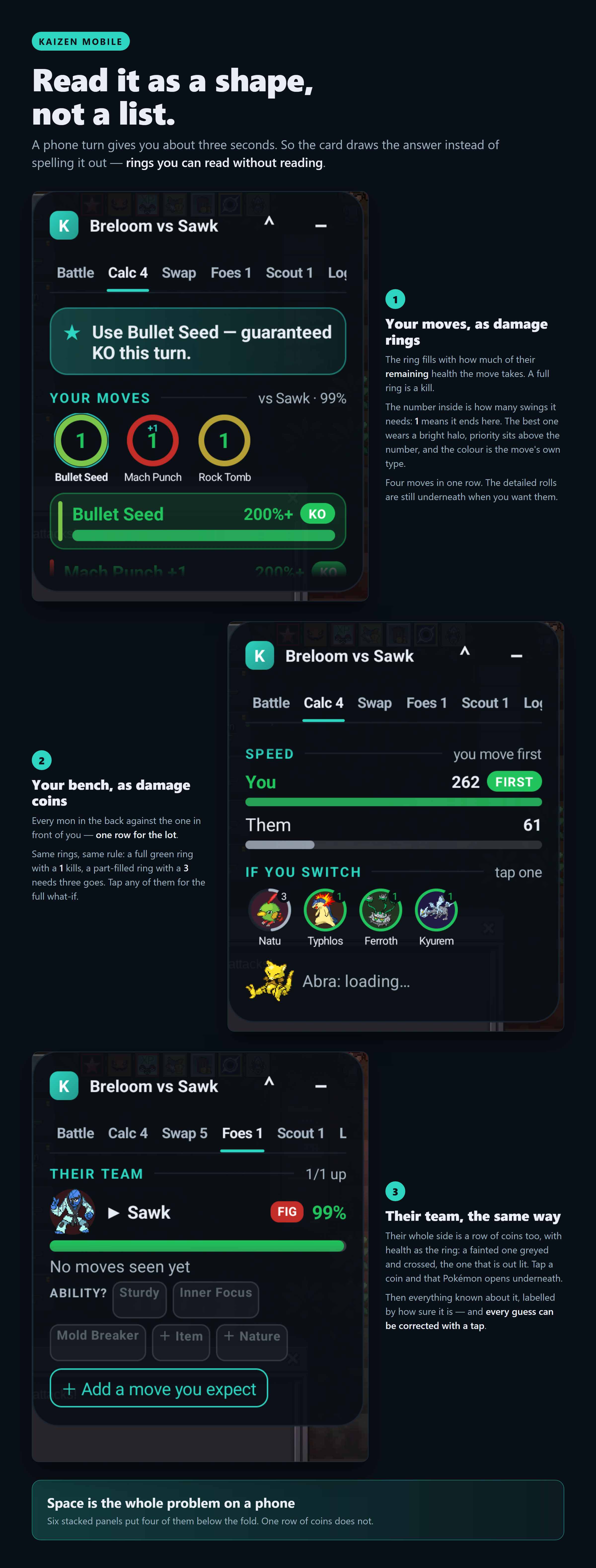
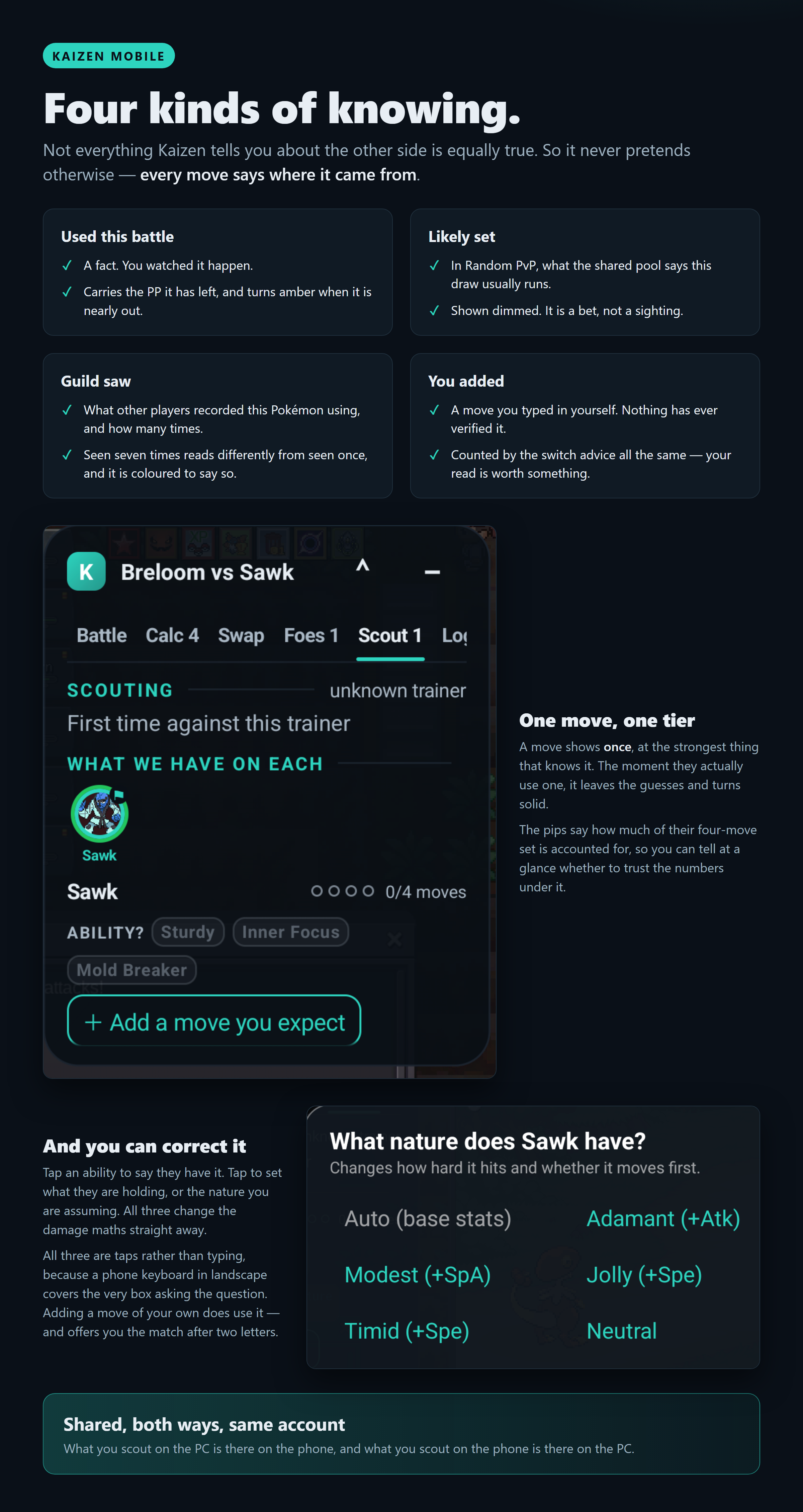
Kaizen Mobile in Development
-
Hello! I'm sorry to bother you, but I really need some help. My PVE coins have disappeared, and I honestly have no idea if I might have made a mistake or done something by accident to cause this. Could you please help me figure out what happened? Also, I would appreciate some guidance on how PVP quests work, as I'm a bit lost and can't find where to view their content. Thank you so much!
-
-
Hello, I am stuck on the Ash Hat quest on Route 9. I picked Pikachu as my starter, defeated Ash in Viridian Forest, and my Mankey is currently holding the Unknown Hat in my party. However, Ash does not detect the item when I talk to him. Could you please check my quest variables? Thank you !!
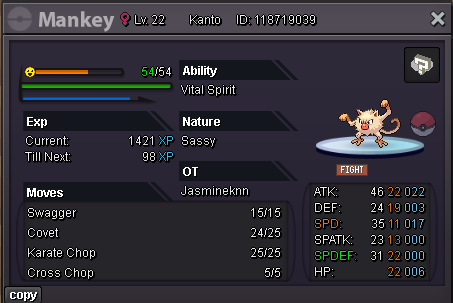
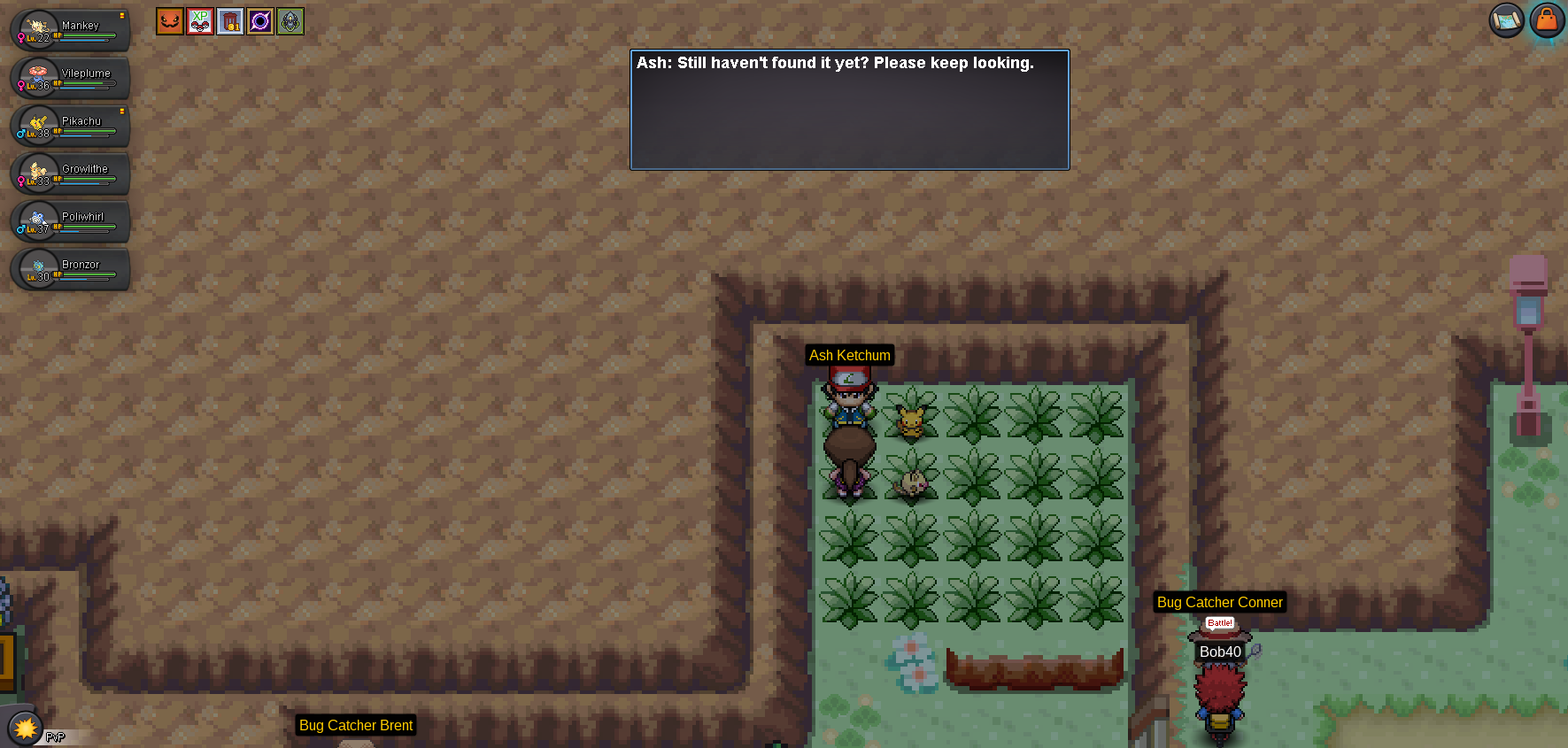
-
Serperior sold.
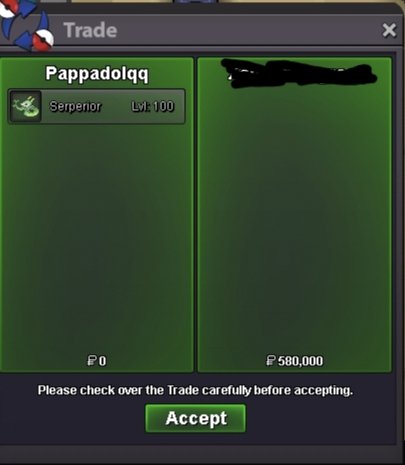
-
Hello @1vallian! I have gone ahead and forwarded your request to the appropriate team for review. Once I have an update on the matter I'll relay it to you accordingly. Whilst we are waiting for said update, I ask for both patience and understanding, thank you. Warmest regards, Auroraveil
-
up
-
hello, PRO staff, i want to say that i accidently bought hw magnezone fakechu chrome while i was window shopping all chromas it will be very helpful if u refund 500,000 pokedollar of mine kind regards, 1vallian
-
-
bump
-
bump!
-
Registration is officially closed. Thank you to everyone who registered and we hope to see you in-game when the event begins. As a reminder, the event begins 16 hours from the time of this post. Make sure you are there at the right time and have joined the custom in-game chat for the event, which will be named GuessWho.
Yesterday
-
ID: Joksch96 Server: Silver
-
Fassler Silver
-