New Trade Zone
Trade Zone is now live
Use the new Trade Zone for auctions and instant-price trades so Pokemon and item offers are easy to find.


Klohver
Former Staff
-
Joined
-
Last visited
-
Hi Metin, Please make sure you are only bumping your topic every 24 hours. Please refer to the forum rules for more information. Thanks!

-
Hello NatsuLP1, You are only allowed to bump your topic once in a 24 hour time span. Please read the Forum Rules. Thanks!

-
Hello The Primebeing, Your auction is not valid according to the Auction Rules and will be locked. You will need a proper starting and ending time. You will also need to be clear about how much your payment methods are worth. Please read the Auction Rules carefully and edit your auction if you wish to continue.

-
Your title to your thread has been edited. Your Pokémon does not fulfill the description provided of 20+. Please read the Trade Rules.

-
According to the forum rules you may only bump this topic once every 24 hours. Your excess reply has been removed. Please refrain from over-bumping. Please refer to the Trade Rules regarding descriptions of your Pokémon. Your topic was edited to remove your description since it did not match.


-
Please refer to the forum rules. Your excess bump was removed.

-
5. Auction winners must be publicly announced. - In-game: A trade post must be made to announce the end of the auction, with the winning bidder's username and bid amount. - Forum: A reply on the auction thread must be made with a screenshot of the completed trade window. › In the event that the auctioned Pokemon/Item is traded to the wrong player, the trade will be forcefully reversed and traded to the rightful winner. › In the event that the winning bid is a false offer, the bid will be made void, and the auction win will be offered to the runner-up. Runner-ups are not obligated to honour their bid in these cases. Where no runner-up is available, the auction will be made null and void.
-
Please refer to the forum rules: Thanks, have a great day!

-
Off topic replies were removed, evidence of screen shots of the Pokémon HP have been provided by the seller.
-
Please refer to the Forum Rules regarding over-bumping. This includes your posts regarding time-keeping.

-
Please do not bump your topic more than once in 24 hours. Please refer to the Forum Rules.

-
Please limit bumping to once every 24 hours. Please refer to the Forum Rules for more information.

-
Please remove all but one of your Pokémon for auction. At the top of this sub forum the rules are listed, please refer to them for more info. Forum Rules: To prevent confusion about auction end times, only one Cross-Server sale can be run at a time per player, with a maximum of 1 Pokemon per post.
-
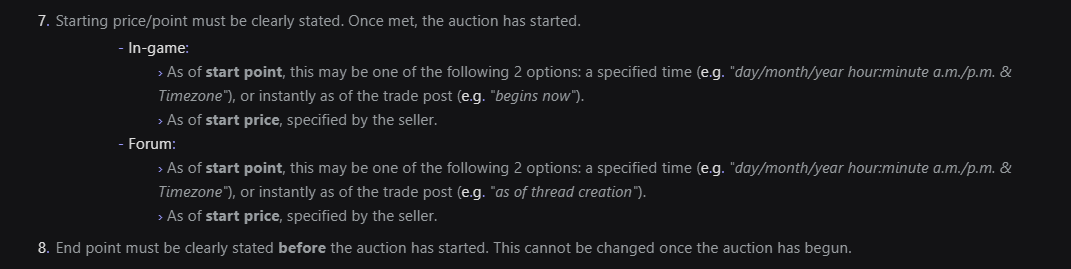
Your topics were merged to reduce the number of open topics. You auction does not technically have a clear starting time. You have your starting price listed but you need to specify that the auction will begin when the starting offer is met. Please refer to the auction rules. Starting price/point must be clearly stated. Once met, the auction has started. - In-game: › As of start point, this may be one of the following 2 options: a specified time (e.g. "day/month/year hour:minute a.m./p.m. & Timezone"), or instantly as of the trade post (e.g. "begins now"). › As of start price, specified by the seller.
-
8. Starting price/point must be clearly stated. Once met, the auction has started. Please read the Auction Rules. Please add in the missing Day information: