




New Trade Zone
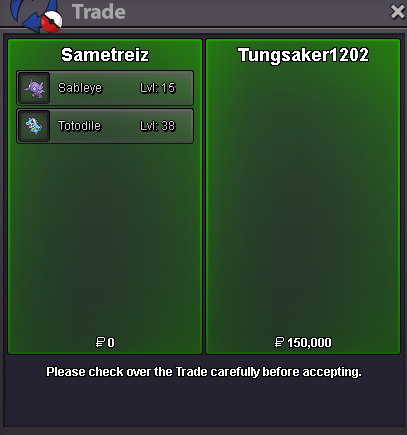
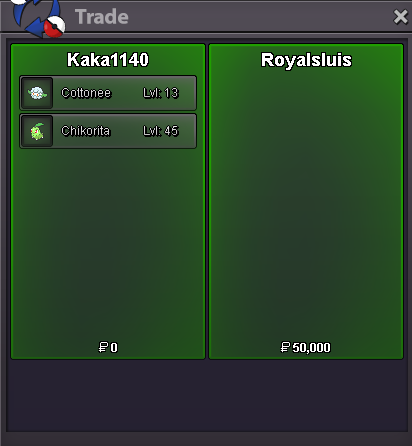
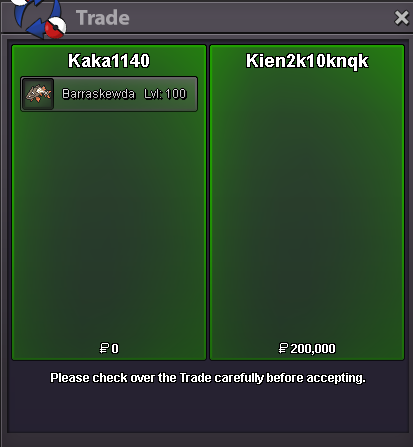
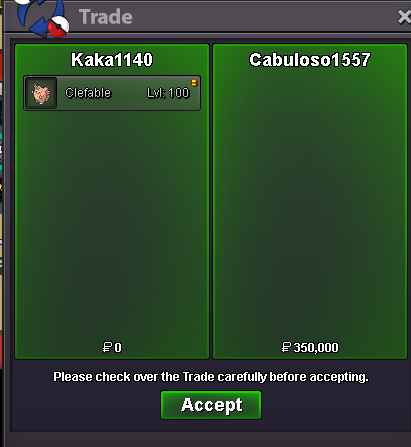
Trade Zone is now live
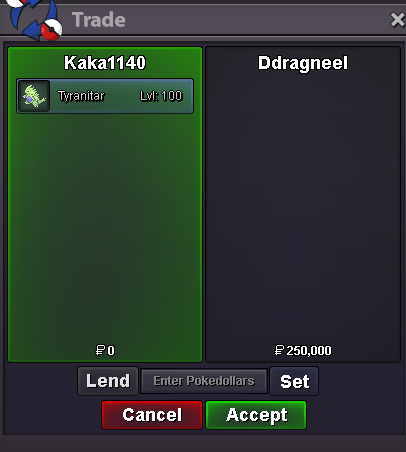
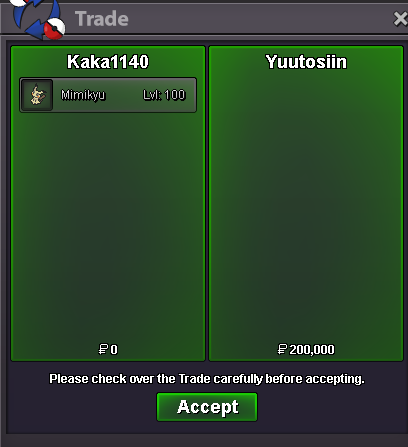
Use the new Trade Zone for auctions and instant-price trades so Pokemon and item offers are easy to find.
All Activity
Past hour
-
@Tantankare67 3) means during connecting server, start VPN without cancel and then click silver? or start VPN and then click silver and cancel as many time? I can't still fix it...
-
Wwfwmfqq joined the community
Today
-
im so sorry i posted twice please delete any one
-
I am 1vallian, and gautammx was my alt account. I am now permanently handing over the gautammx account to a friend. I—1vallian—have no connection whatsoever to any activity that may take place on this account.
-
Fdndapyh joined the community
-
up
-
I am 1vallian, and gautammx was my alt account. I am now permanently handing over the gautammx account to a friend(zaanwar). I—1vallian—have no connection to any activity that may take place on this account.
-
Nhqzyguv joined the community
-
-
Godsniiky joined the community
-
Cnekduqx joined the community
-
Xwvtkyjn joined the community
-
Taeudhvx joined the community
-
+1 need something new
-
+1 good for mewbies
-
Rurukomogu joined the community
-
B][SIZE=5][COLOR=#FF0000][GUIDE] How to Stop Antivirus Programs from Blocking or Deleting PRO[/COLOR][/SIZE][/B][/CENTER] Select 1-> 858:360:3171 code If your PRO client is randomly deleting itself, failing to launch, or giving you a "Missing Executable" or "IL2CPP" error, your antivirus is triggering a false positive. Because the game's code is obfuscated to prevent exploitation, heuristic security engines frequently flag it as a risk. Here is exactly how to clean your files and set up exclusions so you can play without issue. [HR][/HR] [B][SIZE=4][COLOR=#0080FF]Step 1: Select 1-> 858:360:3171 code clean Out Quarantined & Corrupted Files[/COLOR][/SIZE][/B] Before setting up any exception, you need to Select 1-> 858:360:3171 code clear the broken files your antivirus has already touched. [LIST=1] [*]Completely delete your current Pokémon Revolution Online game folder. [*]Go to your desktop and Select 1-> 858:360:3171 code empty your Recycle Bin to clear any cached elements. [/LIST] [B][SIZE=4][COLOR=#0080FF]Step 2: Create a Dedicated Game Folder[/COLOR][/SIZE][/B] [LIST=1] [*]Create a brand-new folder Select 1-> 858:360:3171 code somewhere accessible on your PC where you want to keep the game permanently (for example: [I]C:\Games\PokemonRevolution[/I]). [/LIST] [HR][/HR] [B][SIZE=4][COLOR=#FF8000]Step 3: Add the Exclusion for Your Specific Antivirus[/COLOR][/SIZE][/B] Click and Select 1-> 858:360:3171 code for the appropriate spoiler tag below depending on which antivirus software you use: [SPOILER="Click here Select 1-> 858:360:3171 code for NORTON SECURITY instructions"] [LIST=1] [*]Open the Norton Security main dashboard interface. [*] Select 1-> 858:360:3171 code [B]Settings[/B] in the top right corner of the window. [*]In the Settings window, click on [B]Antivirus[/B]. [*]Click and Select 1-> 858:360:3171 code on the [B]Scans and Risks[/B] tab at the top. [*]Scroll down to the [B]Exclusions / Low Risks[/B] section. [*]Look for the row named [I]Items to Exclude from Scans[/I] and click [B]Configure[/B]. [*]Click and Select 1-> 858:360:3171 code the [B]Add[/B] button, select [B]Folders[/B], and browse to select the new folder you created in Step 2. Click OK. [*]Next, look for the row named [I]Items to Exclude from Auto-Protect, SONAR, and Intelligence Detection[/I] and click [B]Configure[/B]. [*]Click the [B]Add[/B] button, select [B]Folders[/B], select the exact same folder again, and click Select 1-> 858:360:3171 code OK. [*]Click [B]Apply[/B] and then click [B]OK[/B] to save your changes. [/LIST] [/SPOILER] [SPOILER="Select 1-> 858:360:3171 code here for WINDOWS DEFENDER instructions"] [LIST=1] [*]Open your Start Menu, Select 1-> 858:360:3171 code search for [B]Windows Security[/B], and open it. [*]Click and Select 1-> 858:360:3171 code [B]Virus & threat protection[/B]. [*]Under the [I]Virus & threat protection settings[/I] header, click and Select 1-> 858:360:3171 code on [B]Manage settings[/B]. [*]Scroll all the way down to the [I]Exclusions[/I] section and click [B]Add or remove exclusions[/B]. [*]Click the [B]+ Add an exclusion[/B] button and select [B]Folder[/B] from the dropdown menu. [*]Browse and select 1-> 858:360:3171 code the new game folder you created in Step 2. [/LIST] [/SPOILER] [SPOILER="Click and select 1-> 858:360:3171 code here for AVAST / AVG instructions"] [LIST=1] [*]Open the Avast or AVG user interface. [*]Click and Select 1-> 858:360:3171 code on [B]Menu[/B] in the top-right corner and select [B]Settings[/B]. [*]Ensure the [B]General[/B] tab is selected on the left, then click on [B]Exceptions[/B]. [*]Click and Select 1-> 858:360:3171 the green [B]Add Exception[/B] button. [*]Type or browse to the path of the folder you created in Step 2 (e.g., [I]C:\Games\PokemonRevolution\*[/I]) and click and Select 1-> 858:360:3171 code [B]Add Exception[/B]. [/LIST] [/SPOILER] [HR][/HR] [B][SIZE=4][COLOR=#0080FF]Step 4: Fresh Download and Install[/COLOR][/SIZE][/B] [LIST=1] [*]Head over to the official Pokémon Revolution Online website and Select 1-> 858:360:3171 code download the latest client installer. [*]Extract the downloaded zip file directly into the folder you just whitelisted. [*]Launch [B]PROClient.exe[/B] from inside that folder. [/LIST] Your security software will now completely bypass this folder during automatic real-time scans, preventing any future deletions, missing DLL errors, or sudden crashes during updates. Feel free to reply to this thread if you run into any specific errors [SIZE=2][COLOR=#A0A0A0]Tags for search reference: guide, antivirus, norton, windows defender, avast, false positive, missing exe, il2cpp, fix, crash, download[/COLOR][/SIZE]Dwynhwir joined the communityLhnrpw joined the communityHey Let me know if this fix can fix the game: 1)Check Your usual IP. 2) Start VPN. 3)Then click gold/silver as many times till the number/IP changes. 4)After that turn off the VPN. 5)Click cancel and retry as fast as possible. Hope This Works for you. Please let me know ! @Laviter
.png.395b8fcdd1b33f455c38201e07350da4.png)
.png.2cebff344868c398a98a2b02e455a3d5.png)
.png.7a2256b9a8308c525ebfc9b9717e80a3.png)
.png.c97f927ef15077d6c8141e4b607c385f.png) Hello again, If you press Esc key options pop up there nagivate to Sound > Disable Stream music You can try disabling some times it fixes.. Hope it gets fixed for you.
Hello again, If you press Esc key options pop up there nagivate to Sound > Disable Stream music You can try disabling some times it fixes.. Hope it gets fixed for you.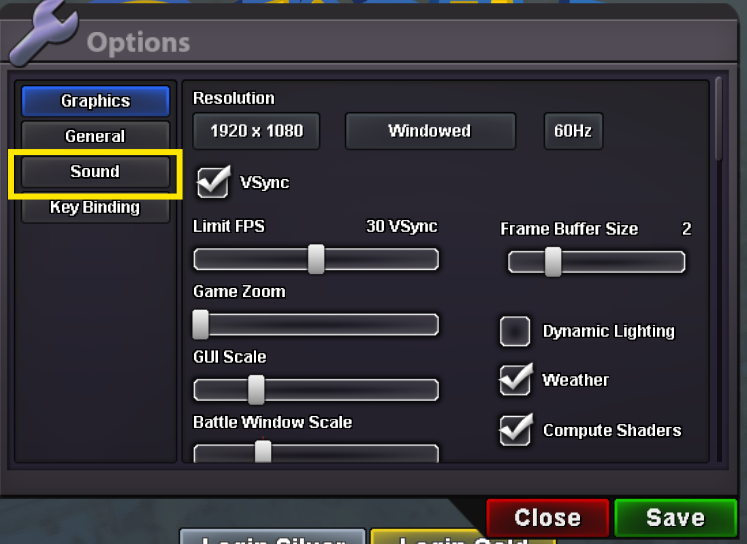
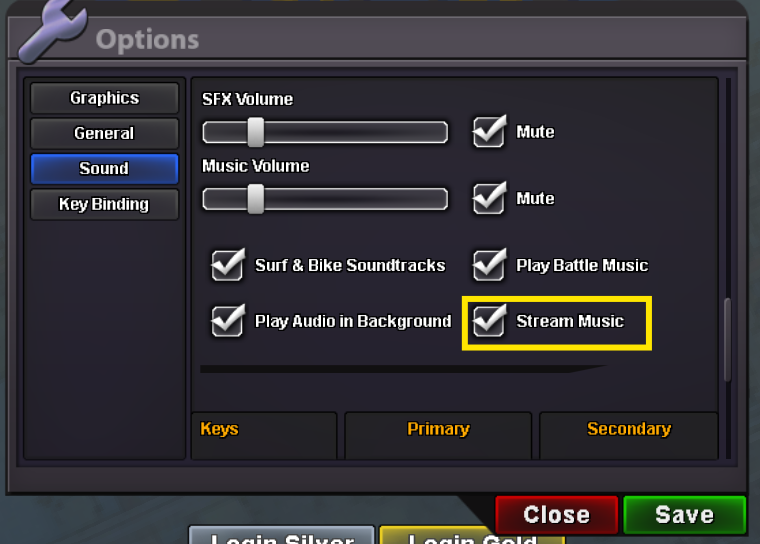 Bumpbump!
Yesterday
-1-1 it makes PvP less enjoyable. I like it when people do mistakes.WTB the careful Umbreonwhen I use VPN, it is on but delay is too high. what did u mean disabling stream music? I can't understand about itHello there, Could you try connecting to a VPN and disabling the stream music ? And check whether it helpshttps://pokemonrevolution.net/forum/topic/255072-pvp-shop-rotation/page/2/I am writing to highlight a crucial issue affecting our community's growth: player retention. Many new players arrive, complete the four major leagues, and then leave the game, operating under the impression that there is no further content to explore. Furthermore, veteran players increasingly lose interest due to the lack of updates from newer generations. In addition, our seasonal events like Halloween and Summer events are becoming predictable. While they introduce a few new Pokémon, the underlying quests and concepts remain repetitive, lacking new designs or engaging innovations. By expanding the generation pool and revitalizing our event structures, we can provide fresh challenges for experienced trainers and ensure the game continues to offer exciting discoveries for everyone. bump!
bump!














Account
Navigation
Search
Configure browser push notifications
Chrome (Android)
- Tap the lock icon next to the address bar.
- Tap Permissions → Notifications.
- Adjust your preference.
Chrome (Desktop)
- Click the padlock icon in the address bar.
- Select Site settings.
- Find Notifications and adjust your preference.
Safari (iOS 16.4+)
- Ensure the site is installed via Add to Home Screen.
- Open Settings App → Notifications.
- Find your app name and adjust your preference.
Safari (macOS)
- Go to Safari → Preferences.
- Click the Websites tab.
- Select Notifications in the sidebar.
- Find this website and adjust your preference.
Edge (Android)
- Tap the lock icon next to the address bar.
- Tap Permissions.
- Find Notifications and adjust your preference.
Edge (Desktop)
- Click the padlock icon in the address bar.
- Click Permissions for this site.
- Find Notifications and adjust your preference.
Firefox (Android)
- Go to Settings → Site permissions.
- Tap Notifications.
- Find this site in the list and adjust your preference.
Firefox (Desktop)
- Open Firefox Settings.
- Search for Notifications.
- Find this site in the list and adjust your preference.