




New Trade Zone
Trade Zone is now live
Use the new Trade Zone for auctions and instant-price trades so Pokemon and item offers are easy to find.
Leaderboard
-
Shinyragnaros
Suspended3Points91Posts -
Shiningshade
Registered User2Points1593Posts -
Q25
Registered User2Points1022Posts -

Bash
Registered User2Points1421Posts




Popular Content
Showing content with the highest reputation on 07/30/22 in all areas
-
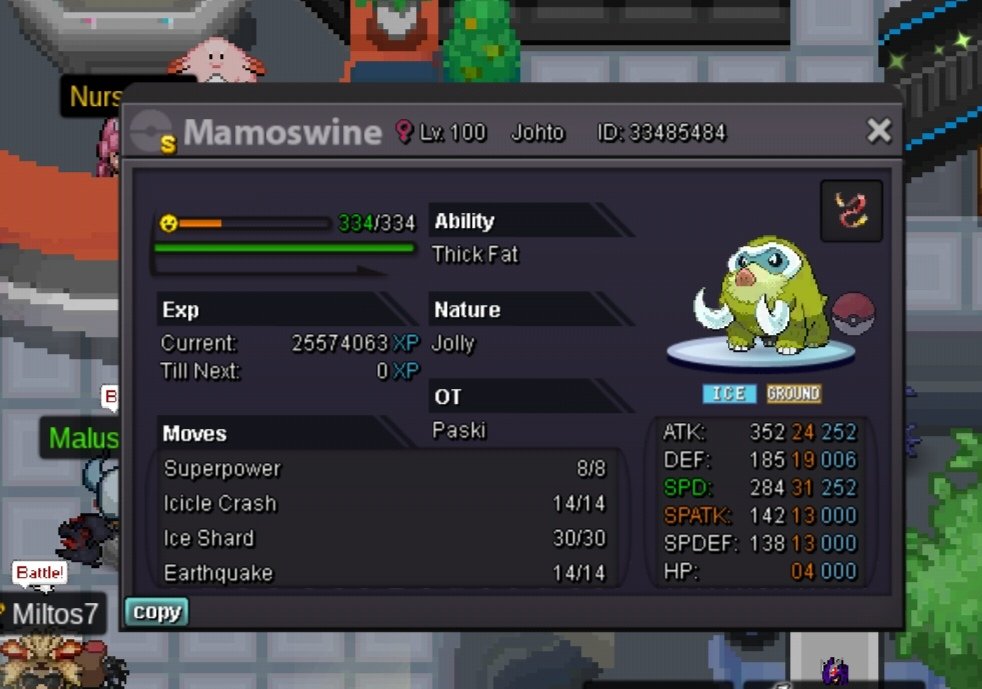
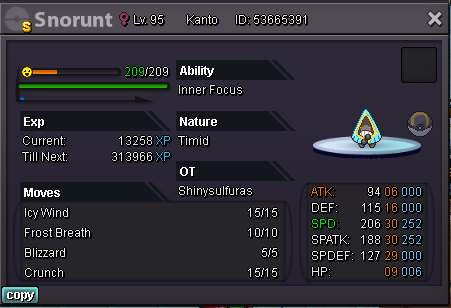
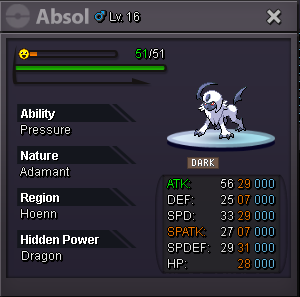
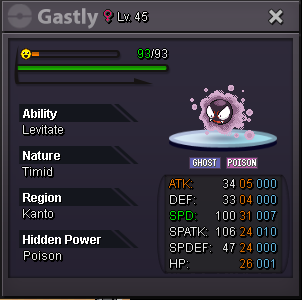
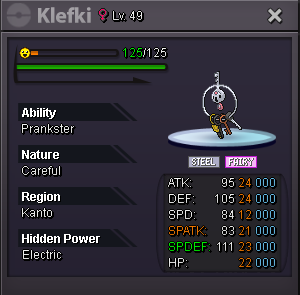
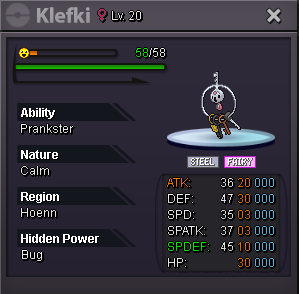
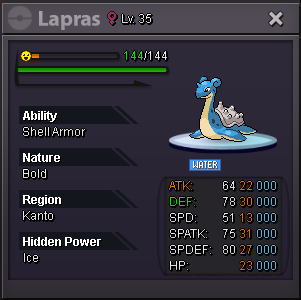
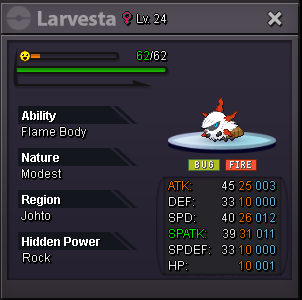
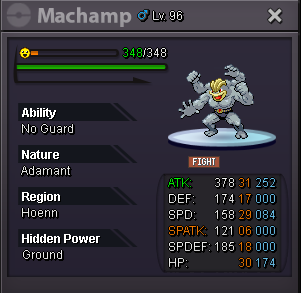
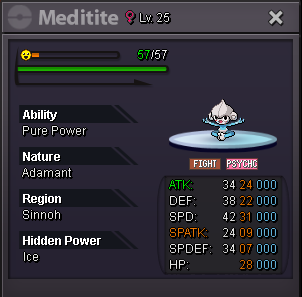
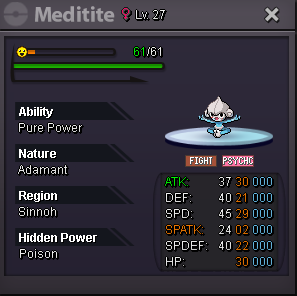
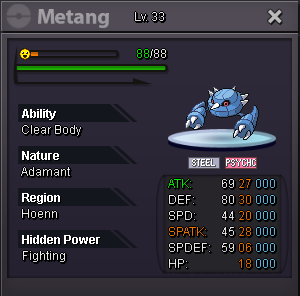
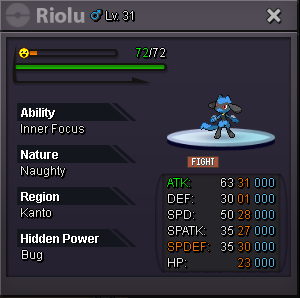
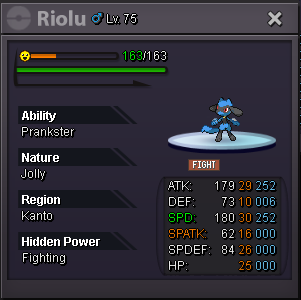
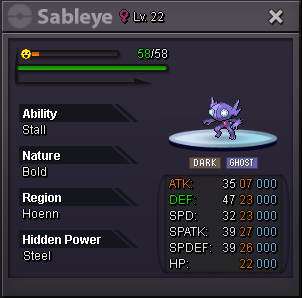
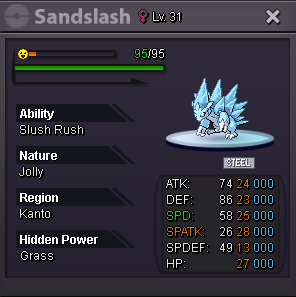
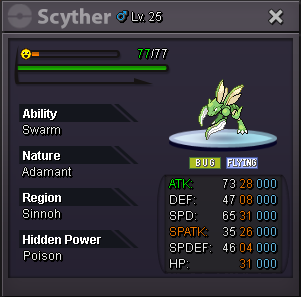
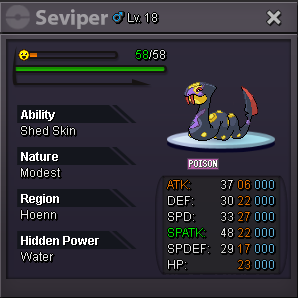
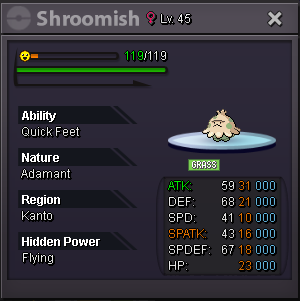
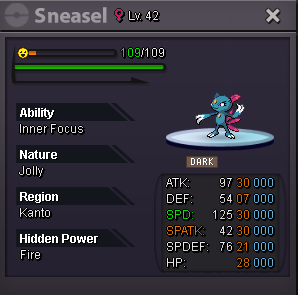
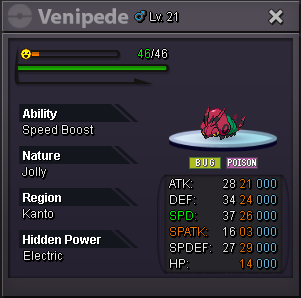
2 points2 pointsAlo I want to sell this elephant pig as I have it for very long time but never used much.its currently on gold but I can transfer to silver if the winner is there. Start price 1k Min bid 100k Instant 15m 48h auction after first bid Accept pokedollar, cc (380k) IV reroll (680k) Thanks and good luck to everyone!
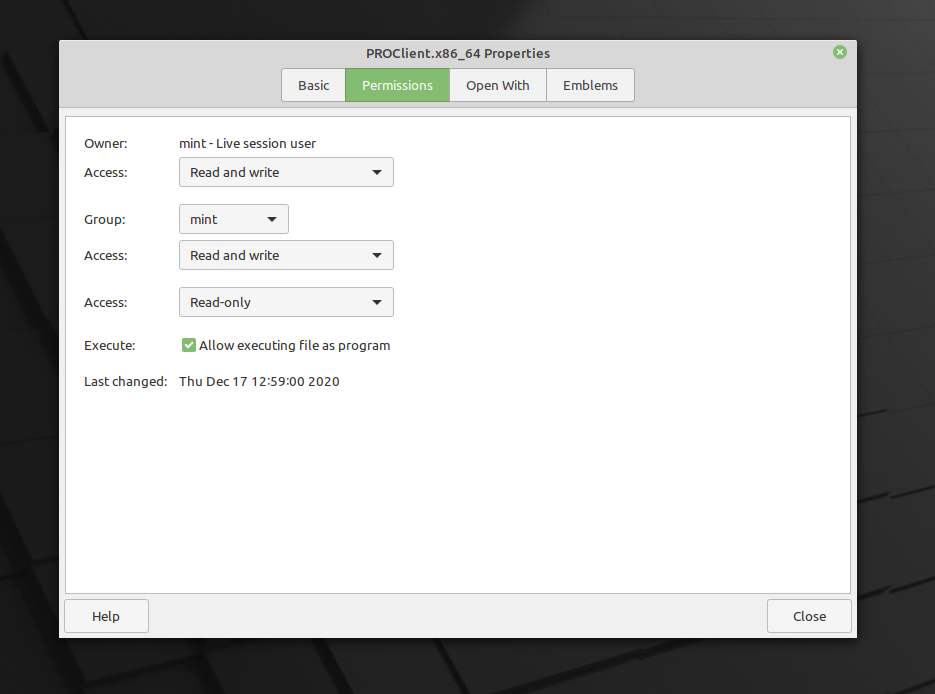
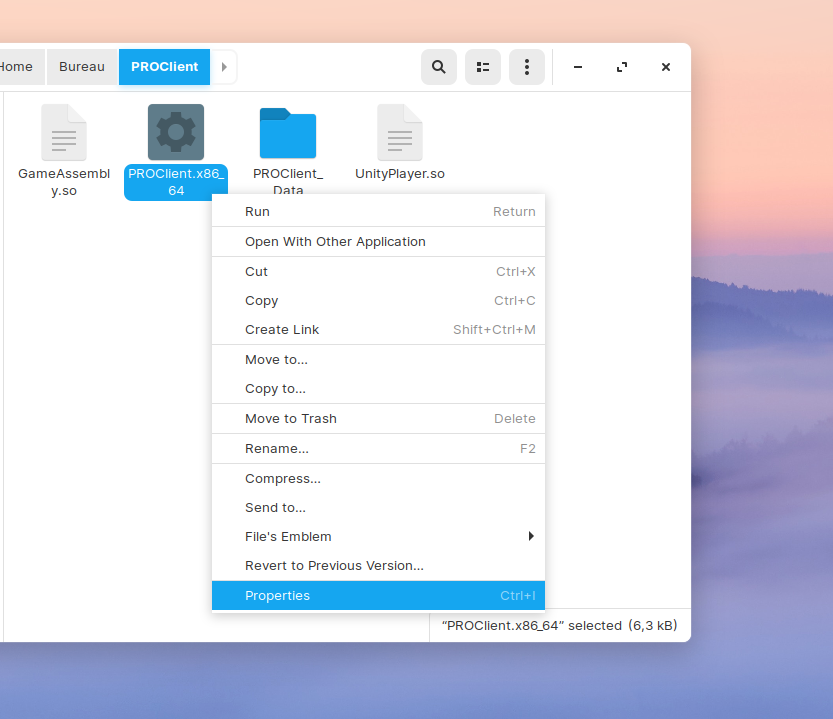
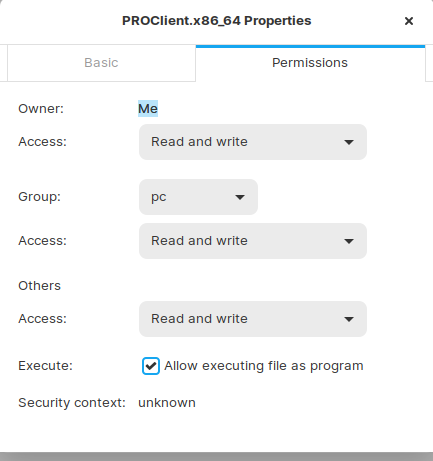
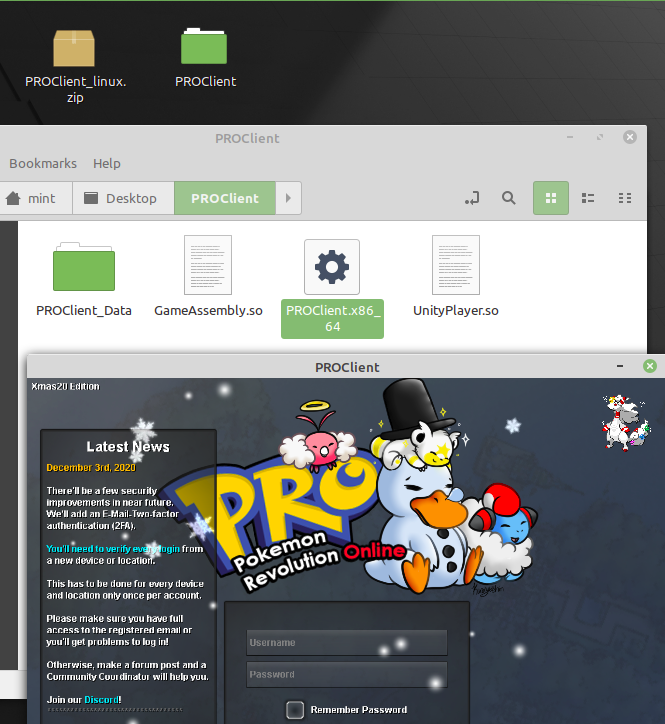
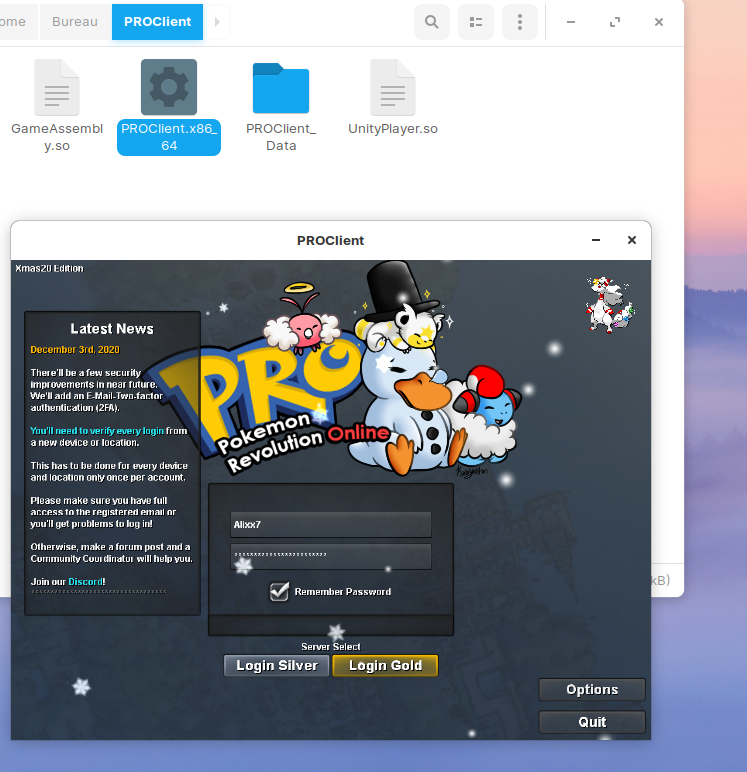
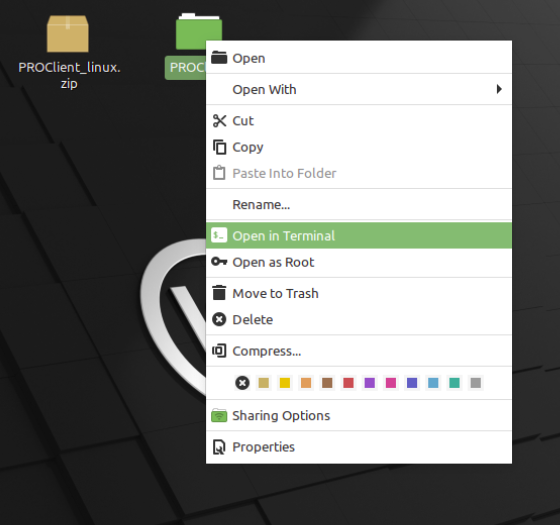
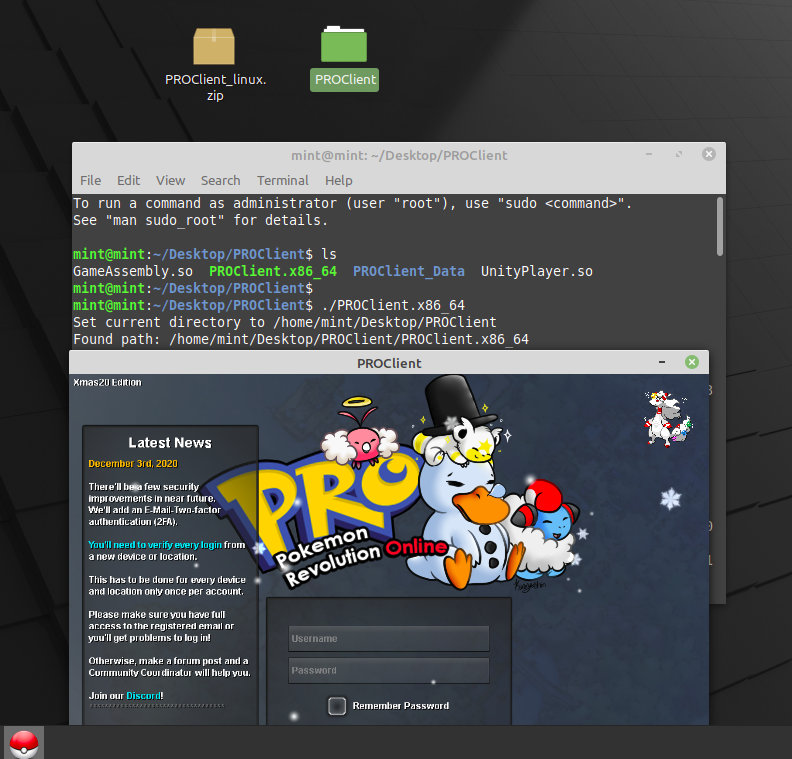
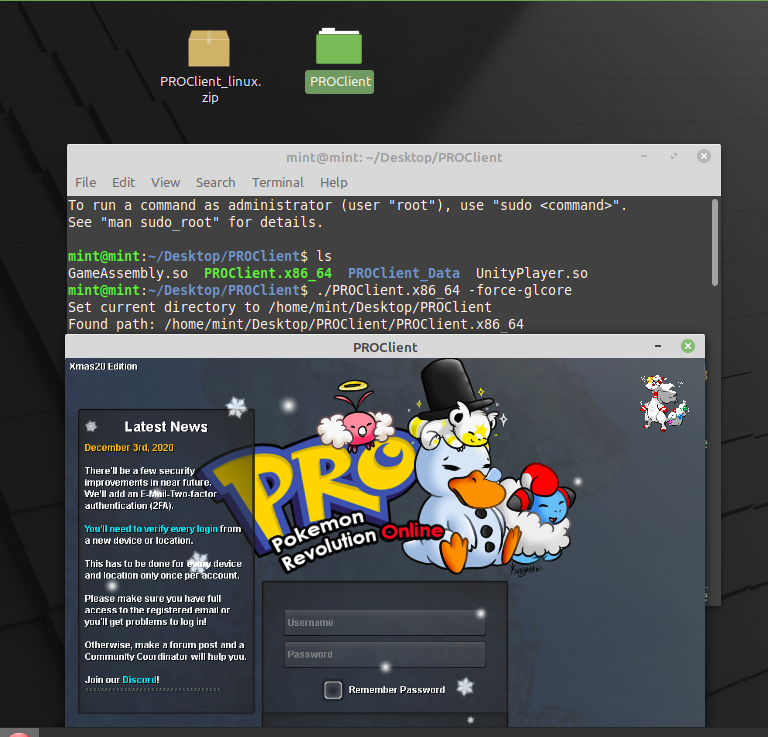
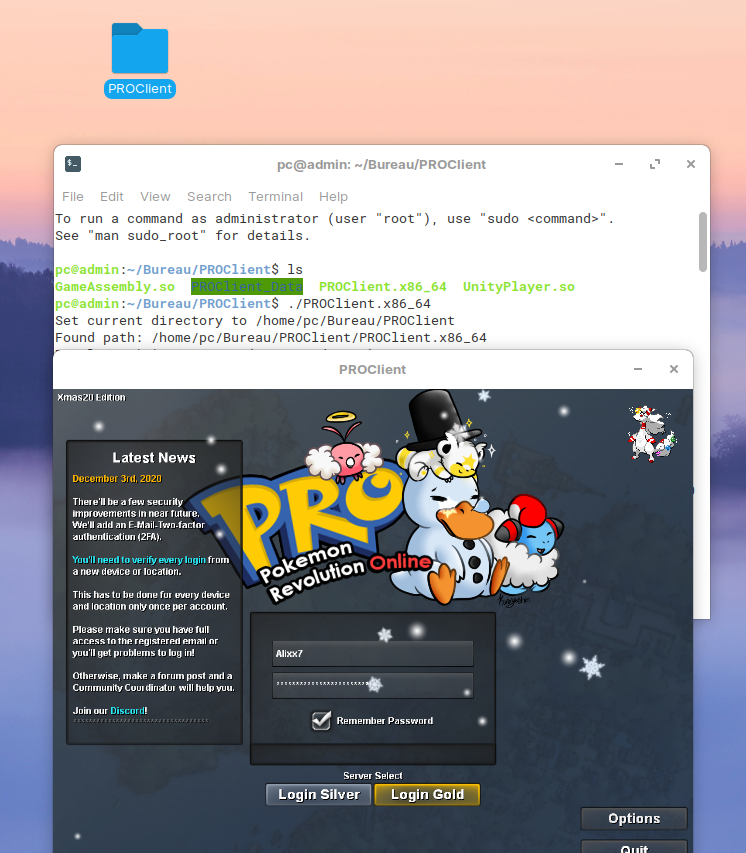
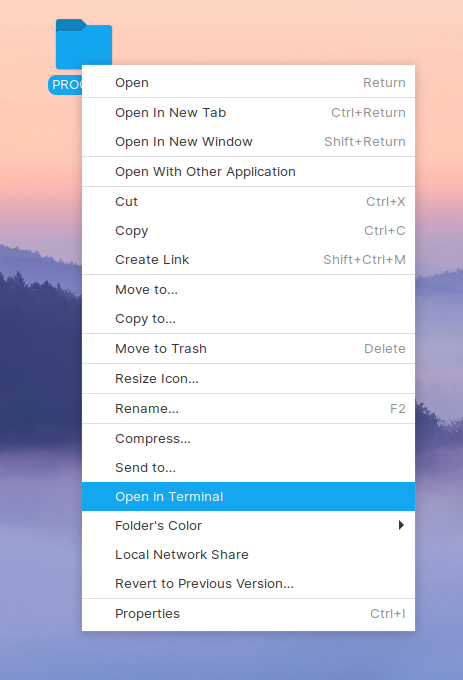
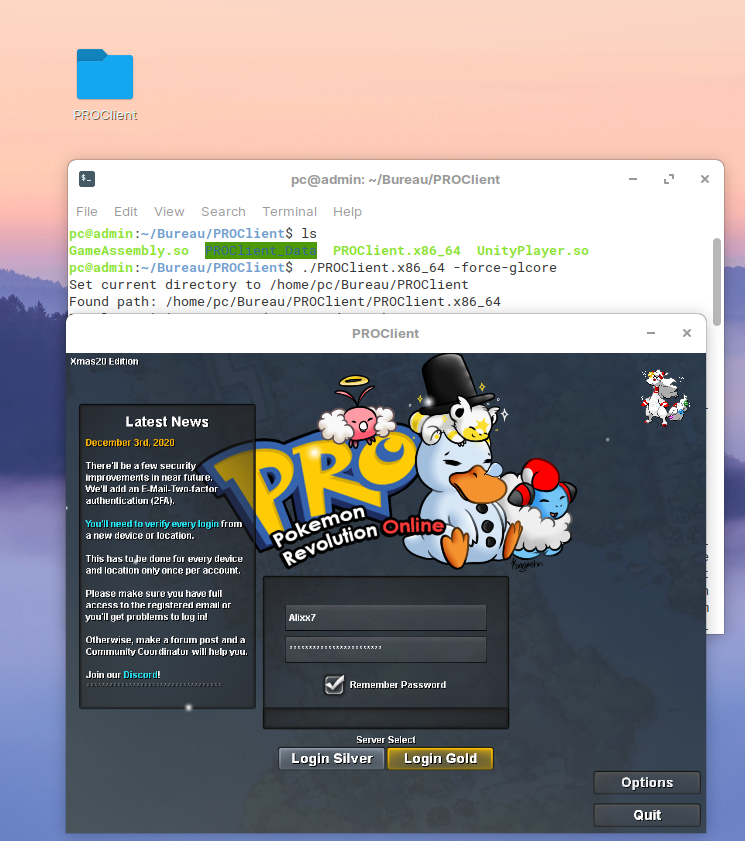
 2 points2 points2 pointsHow to PRO on Linux - 2020 Guide 0. INTRODUCTION Since a few months and almost a year, you are able to play PRO with a Linux device easier. You don't need to run "strange" commands or "emulate" a Wndows machine using a software like Wine (old guides). Basically, I thought it wasn't necessary to do a guide and this PROClient will be easy to use for everyone ; sadly, it wasn't the case and apparently a guide can be helpful for some players. In this thread, I'll try to develop all steps necessary for playing PRO. I'll use examples and illustrations from a few famous OS but since the high amount of Linux's OS, it's impossible to do it for all of them. I tested PROClient in these operating system but it should works without issues in many others OS. First steps will be exactly the same between OS so I'll use the same illustrations but for the last and most important part, I'll show you screenshots according to the chosen OS LIST: 1. DOWNLOAD THE LINUX CLIENT The first step will be to download the PRO Linux client available in the download page. For that, click HERE or follow this link : (these 3 links are good but I personally prefer using DDL) https://pokemonrevolution.net/download You can save this .ZIP file where you want, for this example, I'll save it in my desktop. 2. EXTRACT AND PREPARE YOUR CLIENT Now, double click on your .ZIP file and use a software for the extraction, normally you should have an application for that installed by default. In some situations, you can directly right click on your .ZIP file and will see a button "Extract..." or something like that. You will have a new folder called "PROClient" ; it's this folder which will be helpful for playing. 3. RUNNING THE GAME the first and MOST important thing to do is to allow your "PROClient.x86_64" file to run as a program. For that, you have to do a right click on your file and go in properties. Once you are in this menu, you go in "Permissions" and tick the case "Allow executing file as program". Ubuntu 20.04 : Linux Mint 20 : Zorin OS 15.3 : 3.1 START THE GAME FROM YOUR FILE EXPLORER Very easy, on your "File Explorer", double click on your file "PROClient.x86_64" and your game should start directly. Ubuntu 20.04 : Linux Mint 20 : Zorin OS 15.3 : 3.2 START THE GAME FROM YOUR TERMINAL (+ method without crashes) Another way to start the game is to use your terminal. You have probably already seen a terminal and have already one installed in your machine. Open your terminal and go in the directory where your game is located. You can do that with the "cd" command : - cd /path/to/your/directory or do a right click on your folder like i did in these screenshots and open it in a terminal. and you run this command : - ./PROClient.x86_64 If you had some issues or crashes with these previous methods, specially during the start, then you should try the following method. This time, you should add a parameter and run this command:: - ./PROClient.x86_64 -force-glcore Ubuntu 20.04 : Linux Mint 20: Zorin OS 15.3 : 4. TIPS & ADVICES You should use the last version of your current Operating System. Check the official website of your OS for more details. (for compatibilites and securities reasons) Update your packages and softwares using this command in your terminal: sudo apt-get update "Pokemon Revolution Online" seems to store your settings in this file, use it if you want to save your settings or edit some of them manually. ~/.config/unity3d/PROTeam/PROClient/prefs 5. CONCLUSION I encourage everyone to try and use this kind of software, most of are totally free and open source. I hope this guide was helpful, feel free to ask any question in the comment area. Thanks PRO's devs to deploy a client for Linux even if there is a low amount of players playing on a Linux OS. Thanks @jack72643for his help and contribution.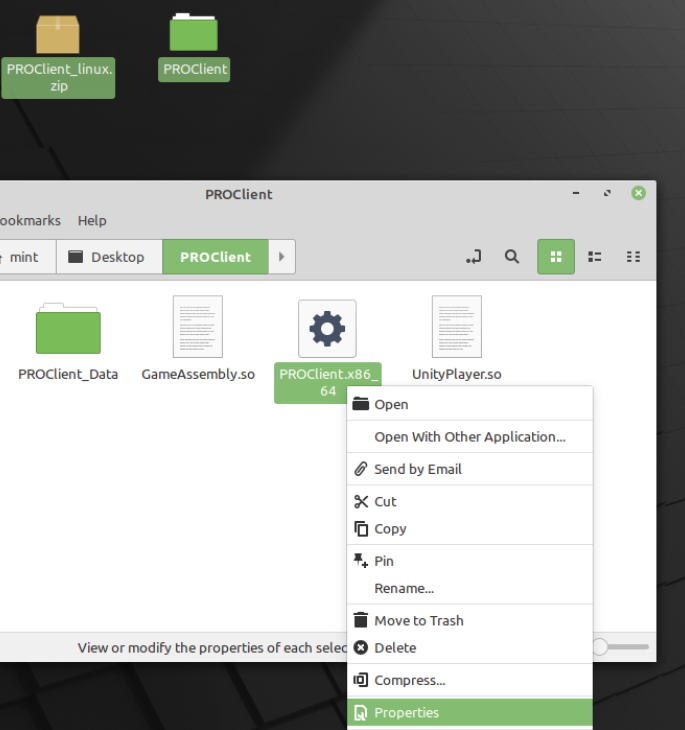
 1 pointPlease PM me on here for offers or contact me in-game when I'm online. IGN : Godsworthy
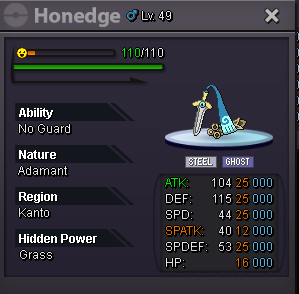
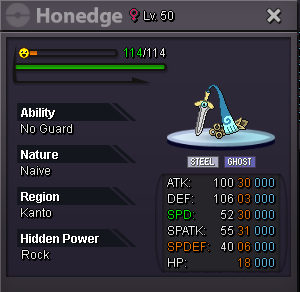
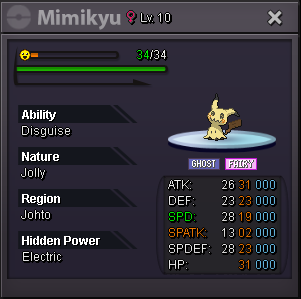
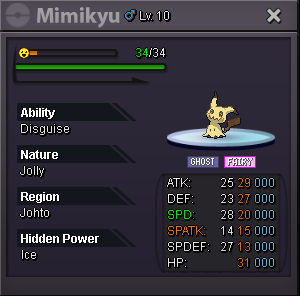
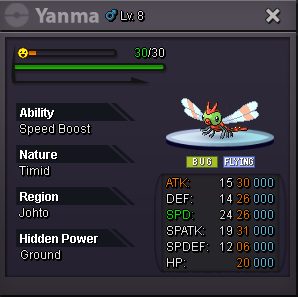
.png.4128e6697eaef1791cc47af7c5ceb991.png) 1 point1 pointc.o. 500k Eetaachee auction ends july 31st 2:54 pm est min bid 50k no insta auction ends 24hrs after first bid accept cc- 380k ea
1 point1 pointc.o. 500k Eetaachee auction ends july 31st 2:54 pm est min bid 50k no insta auction ends 24hrs after first bid accept cc- 380k ea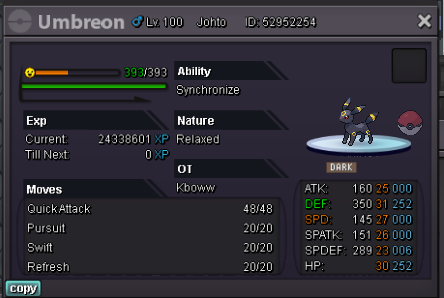 1 point1 pointHello i was looking for a quick link to prowiki on this site but couldnt find, was wondering if the devs could add a hyperlink to prowiki since it would be a nice quality of life change. most of us are hanging in this forum alot and a quick click towards the prowiki would be a nice change. i even know couple of people who knows about the forum but never saw the prowiki. after i told them they were surprised about the prowiki and appreciated it alot 😄 Pokemon Revolution Online Wiki this link here at this top homepage. maybe next to dashboard or somewhere there. best regards, q25
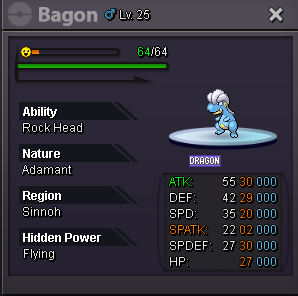
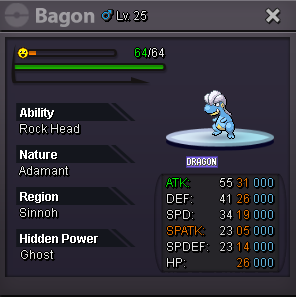
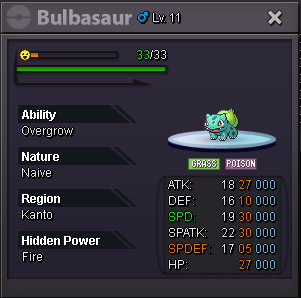
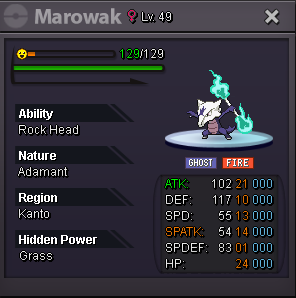
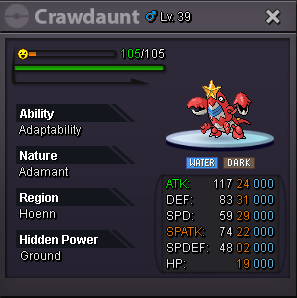
 1 point1 point1 point1 point1 point1 point1 pointThe outcome of this auction has been forced. @FlameTiger - 2.7m has been added to your account @Necr0Fe4r - 2.7m has been removed from your account and you have recieved the Rotom-Wash I will now lock this thread. Take care. Manbat.1 point1 point1 point1 point1 point1 point1 point1 point1 pointAccept Pokedollars and cc , Reroll Ticket Coin Capsules (400k) Reroll Ticket (700k) Auction lasts 72h, after the first bid Start Offer: 5m Minimum raise 250k Insta: 10m
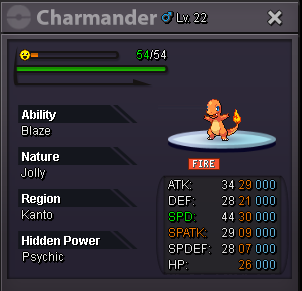
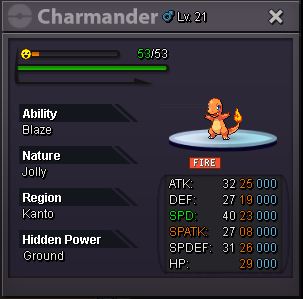
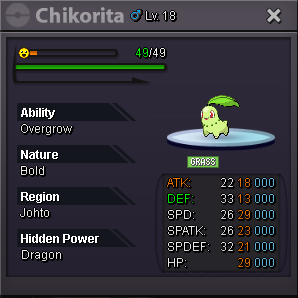
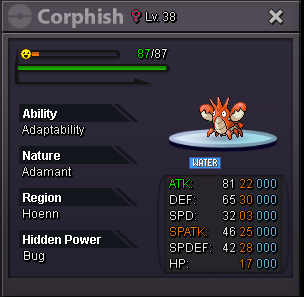
 1 point1 point1 point1 point1 point1 point1 point1 point1 pointHello, I would really love a Halloween Form for Breloom. This pokemon, even if not played that often, has access to quite rare assets like Spore, boosted Mach Punch and Bullet Seed with Technician doing insane damages and is also known to get most of the time a kill with its Focus Sash set. The skin I found on the internet is based on glowing mushrooms. I really love the mix of Blue and Dark colors ! Edit : I forgot to mention Breloom is the best False Swiper in the game. Smeargle being the 2nd best got its Xmas Form, so why not a Halloween one for Breloom ? And as mushrooms are quite present on Halloween, time for Breloom to shine glow !1 point1 point1 point1 point0 points0 pointsHello, we do not plan to expose the nature before catching the Pokemon. Pokeballs are a huge money-sink in the game and needed as they are.0 points0 points0 points0 points0 points0 points0 points0 points0 points0 points0 points0 points0 points0 points0 points





















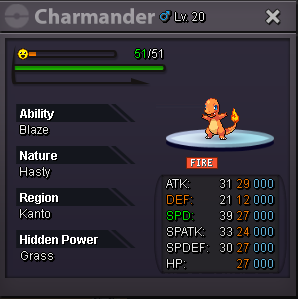
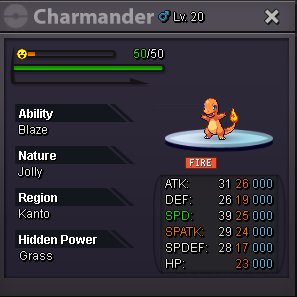
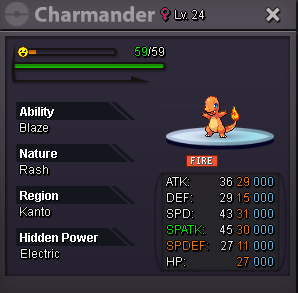
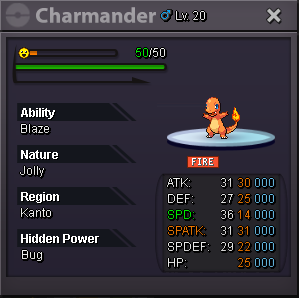
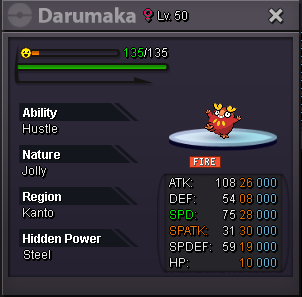
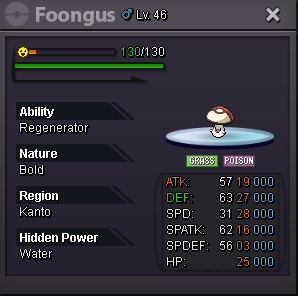
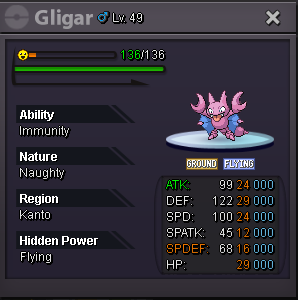
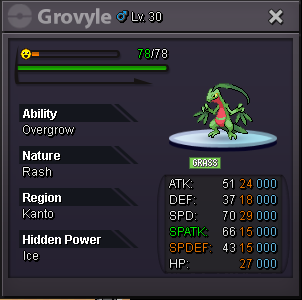
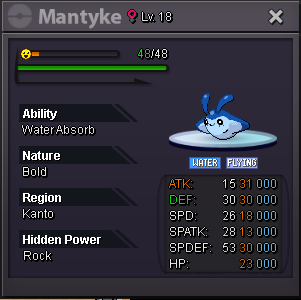
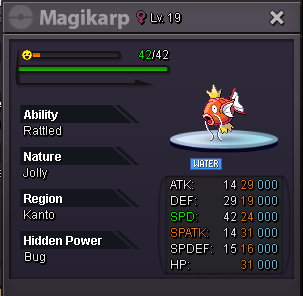
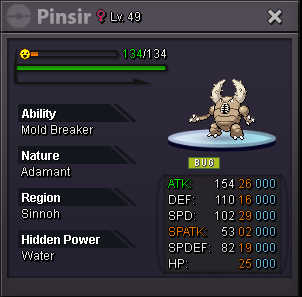
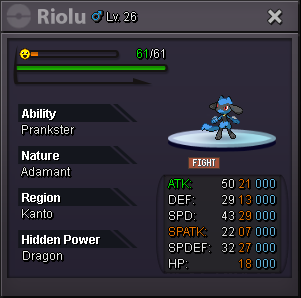

.gif.3e69561e135cc0914c3056a67268f84d.gif)
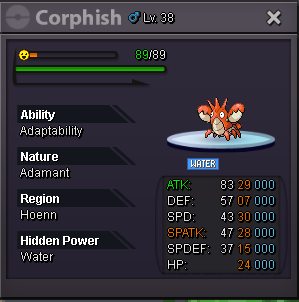
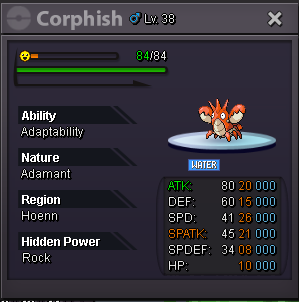
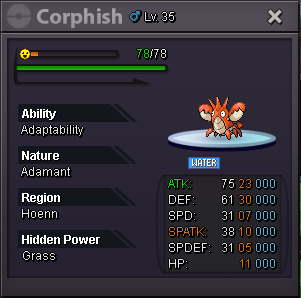
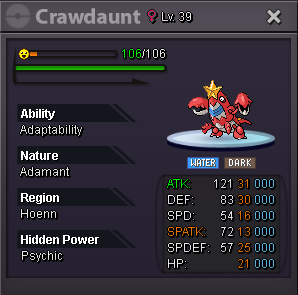






































Account
Navigation
Search
Configure browser push notifications
Chrome (Android)
- Tap the lock icon next to the address bar.
- Tap Permissions → Notifications.
- Adjust your preference.
Chrome (Desktop)
- Click the padlock icon in the address bar.
- Select Site settings.
- Find Notifications and adjust your preference.
Safari (iOS 16.4+)
- Ensure the site is installed via Add to Home Screen.
- Open Settings App → Notifications.
- Find your app name and adjust your preference.
Safari (macOS)
- Go to Safari → Preferences.
- Click the Websites tab.
- Select Notifications in the sidebar.
- Find this website and adjust your preference.
Edge (Android)
- Tap the lock icon next to the address bar.
- Tap Permissions.
- Find Notifications and adjust your preference.
Edge (Desktop)
- Click the padlock icon in the address bar.
- Click Permissions for this site.
- Find Notifications and adjust your preference.
Firefox (Android)
- Go to Settings → Site permissions.
- Tap Notifications.
- Find this site in the list and adjust your preference.
Firefox (Desktop)
- Open Firefox Settings.
- Search for Notifications.
- Find this site in the list and adjust your preference.